
ZenGrove
Grow a plant, one node at a time.
Grow a plant, one node at a time.
Explore all 44 nodes with illustrated Maya views and plain-English explanations of every setting. Build trunks and branches, place foliage, shape growth, add wind and prepare your output.
Trunk
Creates the main stems. Arrange them at a point, on a grid, around a ring or across an area, then shape their height, lean and thickness.
Tree
Branches
Tree Root places the tree origins. Trunk creates its complete local pattern at every origin. For example, three tree origins with two trunks at each make six stems.
Point keeps positions together. Grid uses Count X × Count Z and spacing in each direction. Radial places them evenly around a ring. Random fills a centered rectangle. Global Scale affects both the plants and these placement distances.
Tree Root's Pattern Rotation rotates the origin positions. Trunk's Pattern Rotation rotates its local positions and growth directions. Trunk's Orientation, Tilt and Rotate Pattern then shape the stem directions.
Placement
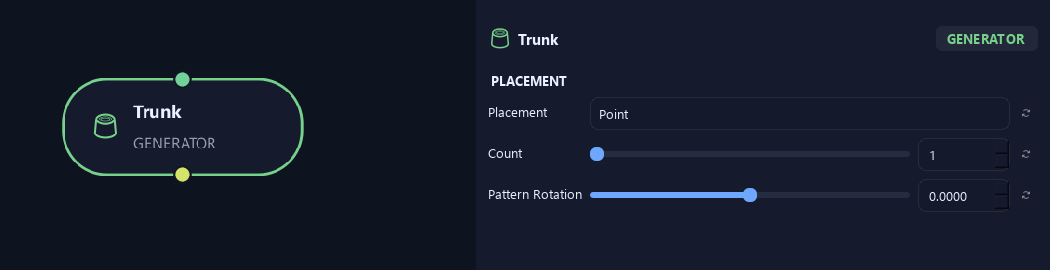
- Placement
Chooses the stem arrangement at every incoming Tree Root origin. Point puts stems at that origin. Grid makes rows and columns, Radial makes a ring, and Random spreads stems across a rectangle.
- Count
Sets independent stems per Tree Root origin. Grid uses Count X multiplied by Count Z instead. Three tree origins with two trunks at each produce six stems.
Available when Placement is Point or Radial or Random.
- Pattern Rotation
Rotates the local trunk arrangement and stem growth directions around each incoming origin. The random layout stays the same as it turns. This is separate from Tree Root's rotation of the overall tree positions.
Orientation
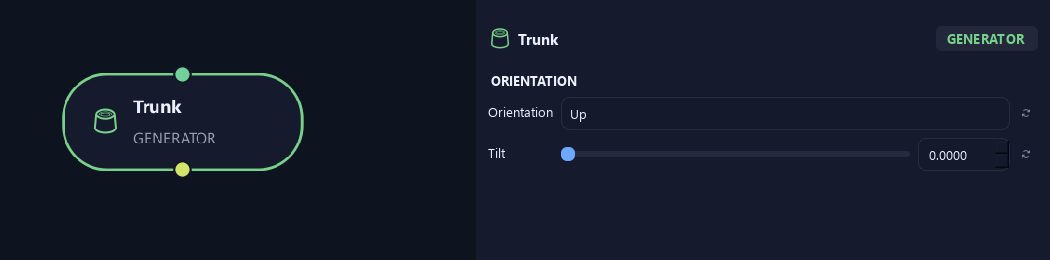
- Orientation
Up shares one tilt direction. Radial Outward turns each stem outward, with Rotate Pattern controlling successive directions.
- Tilt
Leans the whole stem away from vertical. Zero points upward; 90 degrees points horizontally.
Shape
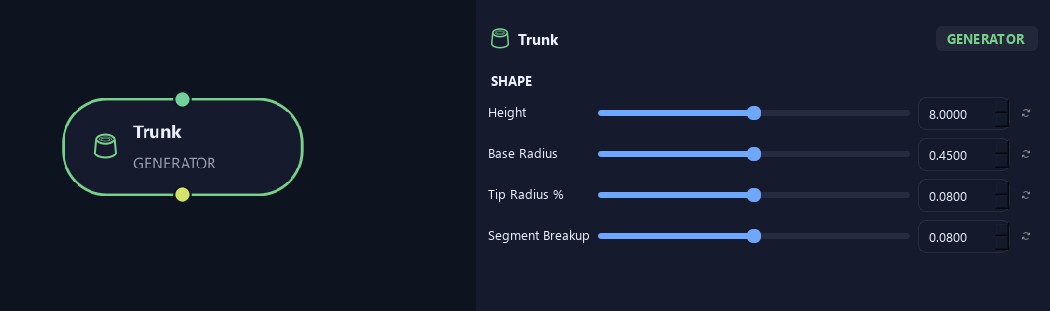
- Height
Sets stem height before the overall tree scale.
- Base Radius
Sets trunk base radius before tree scale.
- Tip Radius %
Sets tip radius as a fraction of base radius. 0.08 leaves 8% at the tip.
- Segment Breakup
Adds shallow unevenness along the trunk surface without moving its central path.
Deformation
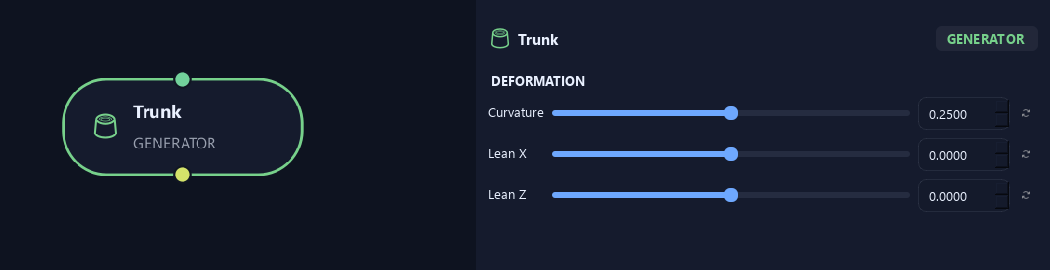
- Curvature
Adds curvature to the trunk path. Increase it for a less straight stem.
- Lean X
Leans the trunk toward positive or negative X.
- Lean Z
Leans the trunk toward positive or negative Z.
Geometry
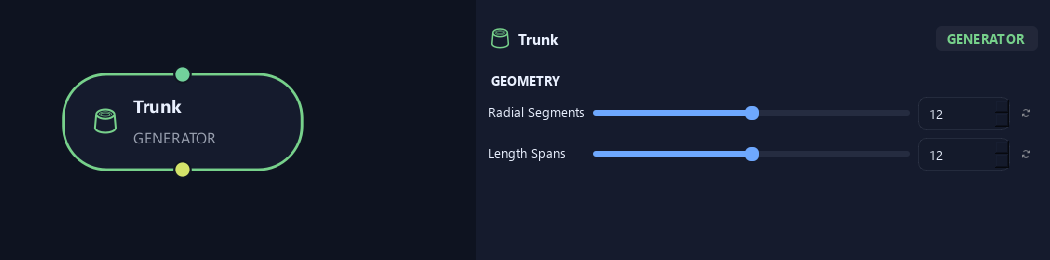
- Radial Segments
Sets sides around the trunk. More sides give a rounder main stem.
- Length Spans
Sets spans along the branch. More spans allow smoother bends and add geometry.
Advanced
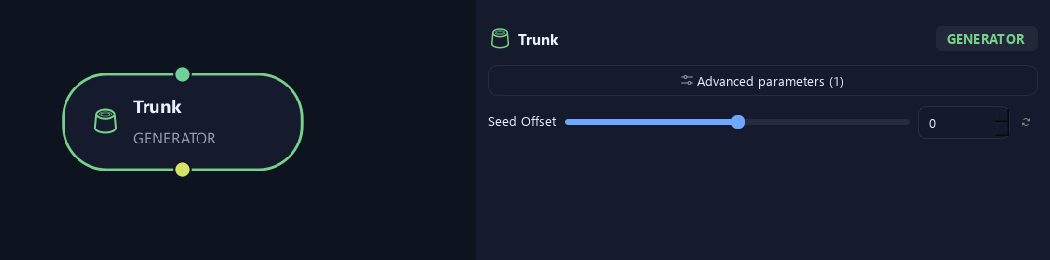
- Seed Offset
Changes this node's random variation. Keep the seed and settings unchanged to reproduce the same result.
Placement
Shown example: Placement = Radial.
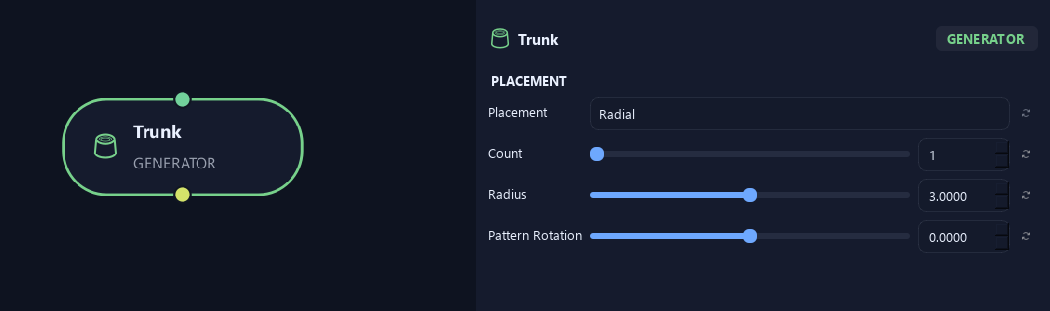
- Placement
Chooses the stem arrangement at every incoming Tree Root origin. Point puts stems at that origin. Grid makes rows and columns, Radial makes a ring, and Random spreads stems across a rectangle.
- Count
Sets independent stems per Tree Root origin. Grid uses Count X multiplied by Count Z instead. Three tree origins with two trunks at each produce six stems.
Available when Placement is Point or Radial or Random.
- Radius
Sets the stem ring's radius. Zero puts every stem at the center.
Available when Placement is Radial.
- Pattern Rotation
Rotates the local trunk arrangement and stem growth directions around each incoming origin. The random layout stays the same as it turns. This is separate from Tree Root's rotation of the overall tree positions.
Placement
Shown example: Placement = Random.
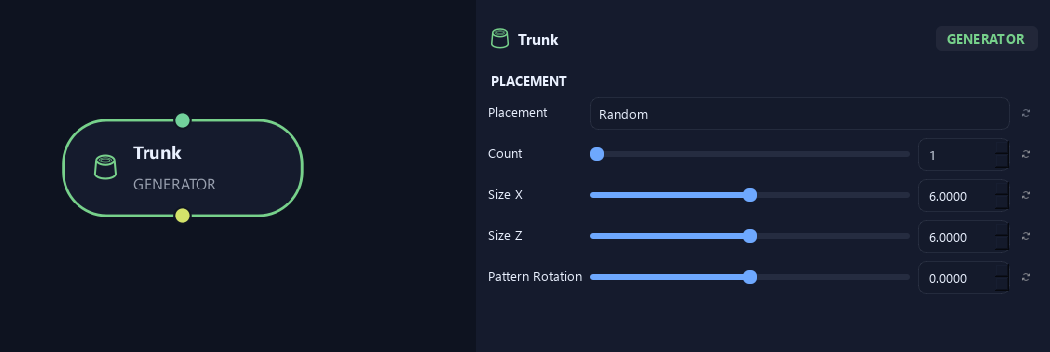
- Placement
Chooses the stem arrangement at every incoming Tree Root origin. Point puts stems at that origin. Grid makes rows and columns, Radial makes a ring, and Random spreads stems across a rectangle.
- Count
Sets independent stems per Tree Root origin. Grid uses Count X multiplied by Count Z instead. Three tree origins with two trunks at each produce six stems.
Available when Placement is Point or Radial or Random.
- Size X
Sets the width of the random placement area in X.
Available when Placement is Random.
- Size Z
Sets the depth of the random placement area in Z.
Available when Placement is Random.
- Pattern Rotation
Rotates the local trunk arrangement and stem growth directions around each incoming origin. The random layout stays the same as it turns. This is separate from Tree Root's rotation of the overall tree positions.
Placement
Shown example: Placement = Grid.
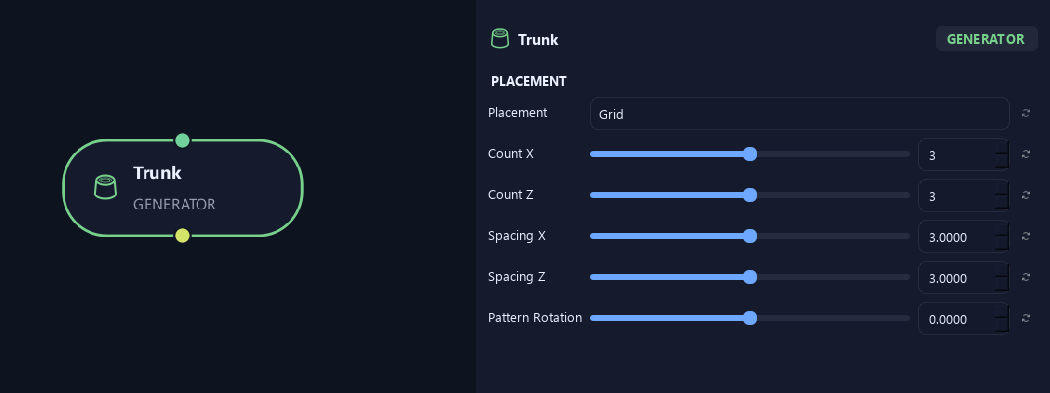
- Placement
Chooses the stem arrangement at every incoming Tree Root origin. Point puts stems at that origin. Grid makes rows and columns, Radial makes a ring, and Random spreads stems across a rectangle.
- Count X
Sets the number of stems across the grid in X.
Available when Placement is Grid.
- Count Z
Sets the number of stems across the grid in Z. Total stems equal Count X times Count Z.
Available when Placement is Grid.
- Spacing X
Sets the distance between grid positions in X.
Available when Placement is Grid.
- Spacing Z
Sets the distance between grid positions in Z.
Available when Placement is Grid.
- Pattern Rotation
Rotates the local trunk arrangement and stem growth directions around each incoming origin. The random layout stays the same as it turns. This is separate from Tree Root's rotation of the overall tree positions.
Orientation
Shown example: Orientation = Radial Outward.
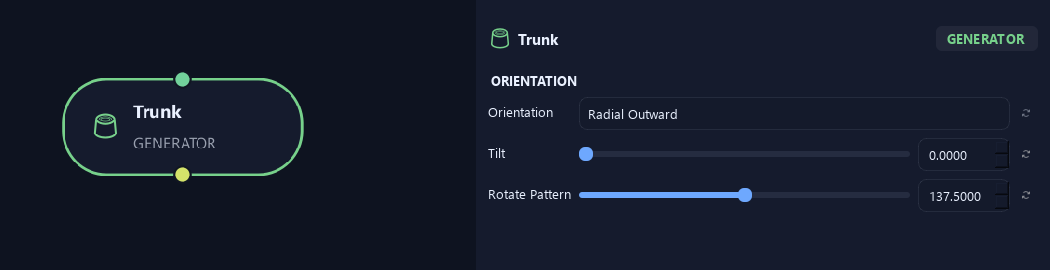
- Orientation
Up shares one tilt direction. Radial Outward turns each stem outward, with Rotate Pattern controlling successive directions.
- Tilt
Leans the whole stem away from vertical. Zero points upward; 90 degrees points horizontally.
- Rotate Pattern
Turns each successive stem's orientation in degrees. Use 360 divided by Count for an even fan. This does not change ring position spacing.
Available when Orientation is Radial Outward.
What is ZenGrove used for?
Explore all 44 nodes with illustrated Maya views and plain-English explanations of every setting. Build trunks and branches, place foliage, shape growth, add wind and prepare your output.
Which host application does ZenGrove support?
ZenGrove is built for Autodesk Maya and is distributed through AO Studio Tools.
Where can I download ZenGrove?
Download the current AO Studio Tools package from https://aostudio.tools/getthetools.html and install it through AO.Hub.