
ZenGrove
Grow a plant, one node at a time.
Grow a plant, one node at a time.
Explore all 44 nodes with illustrated Maya views and plain-English explanations of every setting. Build trunks and branches, place foliage, shape growth, add wind and prepare your output.
Split
Divides a growth path into two continuing paths. Shape forked trunks and branches with controls for the opening and the surface where both sides meet.
Branches
Branches
Generation
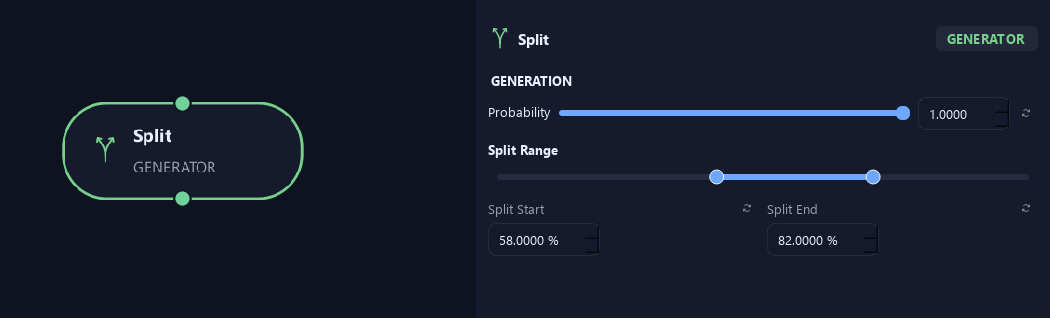
- Probability
Sets the share of eligible paths that receive a fork. One splits all; zero adds none.
- Split Range — Split Start %
Sets the earliest fork position. Zero is the parent base and one is its tip.
- Split Range — Split End %
Sets the latest fork position. Together with Split Start, this defines the allowed Split Range.
Orientation
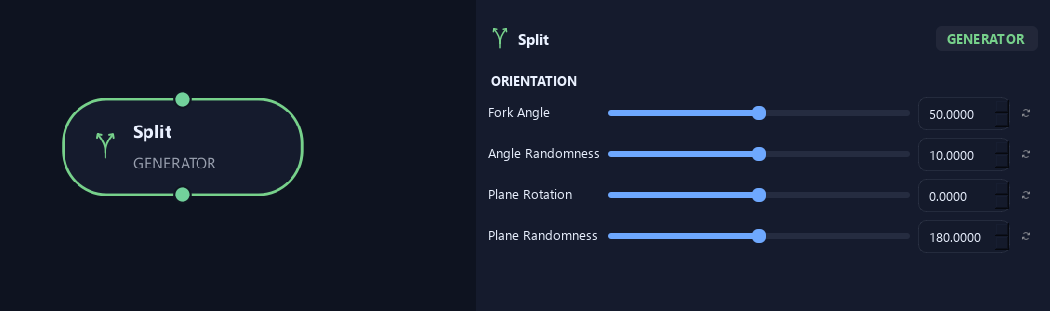
- Fork Angle
Sets the total opening between both fork sides, rather than the angle of one side.
- Angle Randomness
Varies the angle between branches or leaves. Zero keeps it consistent.
- Plane Rotation
Rotates the fork plane around the incoming branch direction.
- Plane Randomness
Varies the fork plane between branches.
Shape
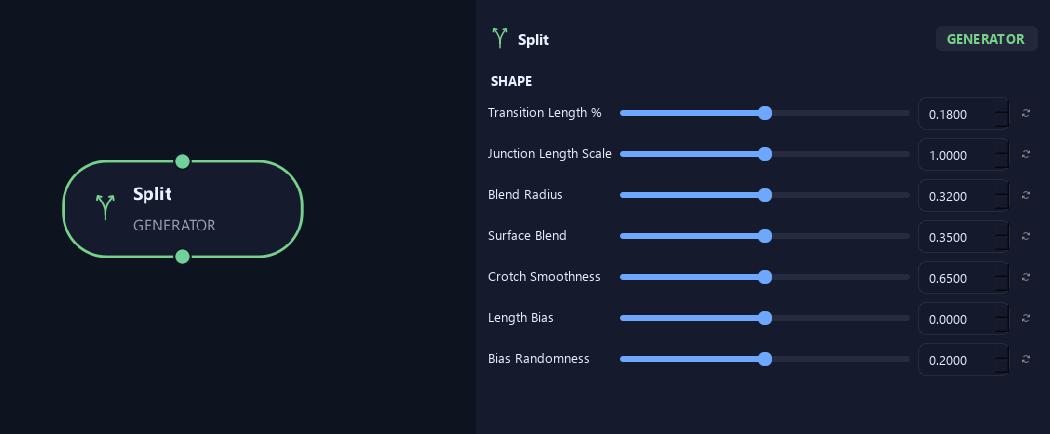
- Transition Length %
Sets the fraction of remaining branch length used to ease into the fork angle. Higher values make the turn more gradual.
- Junction Length Scale
Lengthens or shortens the area where the two fork sides separate.
- Blend Radius
Controls how rounded the inner fork ridge becomes relative to parent thickness.
- Surface Blend
Helps the fork surface meet the incoming branch and both outgoing sides, including on a bent input.
- Crotch Smoothness
Rounds the inner saddle between fork sides.
- Length Bias
Makes one fork side longer. Zero keeps them equal; negative favors side A and positive favors side B.
- Bias Randomness
Varies the length balance between fork sides.
Geometry
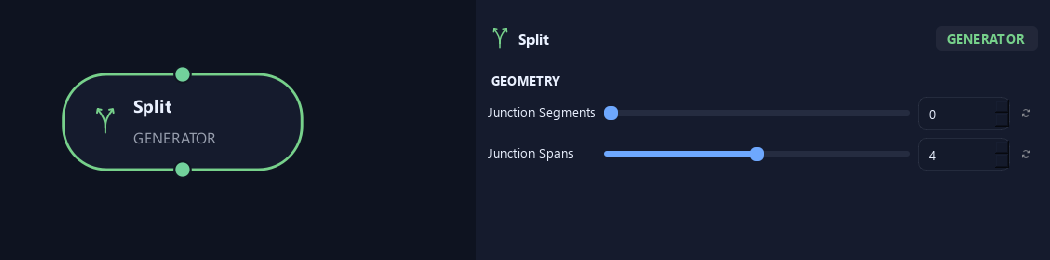
- Junction Segments
Sets the number of sides around the fork. Zero inherits branch resolution.
- Junction Spans
Adds rings along the fork transition for more detail.
Advanced
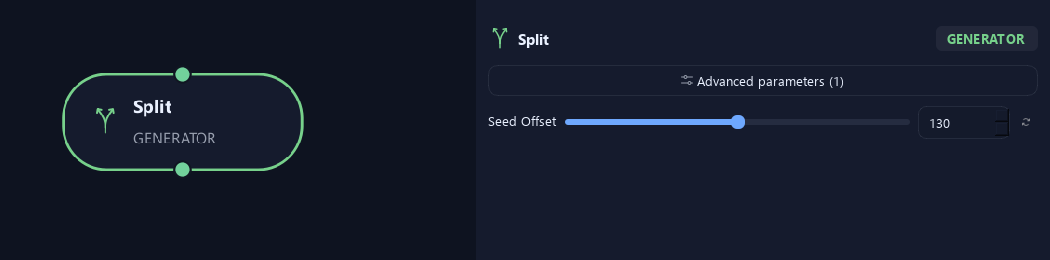
- Seed Offset
Changes this node's random variation. Keep the seed and settings unchanged to reproduce the same result.
What is ZenGrove used for?
Explore all 44 nodes with illustrated Maya views and plain-English explanations of every setting. Build trunks and branches, place foliage, shape growth, add wind and prepare your output.
Which host application does ZenGrove support?
ZenGrove is built for Autodesk Maya and is distributed through AO Studio Tools.
Where can I download ZenGrove?
Download the current AO Studio Tools package from https://aostudio.tools/getthetools.html and install it through AO.Hub.