
ZenGrove
Grow a plant, one node at a time.
Grow a plant, one node at a time.
Explore all 44 nodes with illustrated Maya views and plain-English explanations of every setting. Build trunks and branches, place foliage, shape growth, add wind and prepare your output.
Radius Profile
Shapes thickness with an editable curve. Create a flared base, a swollen middle or a fine tip.
Branches
Branches
Affect

- Affect
Chooses which branches are affected. Active Branches uses the latest generated layer. Active + Descendants also includes growth from that layer. Active Generated Hierarchy additionally includes ancestors created by that same generated contribution. Entire Input uses everything arriving here. Attached children follow a moved parent even when they are not reshaped themselves.
Setup
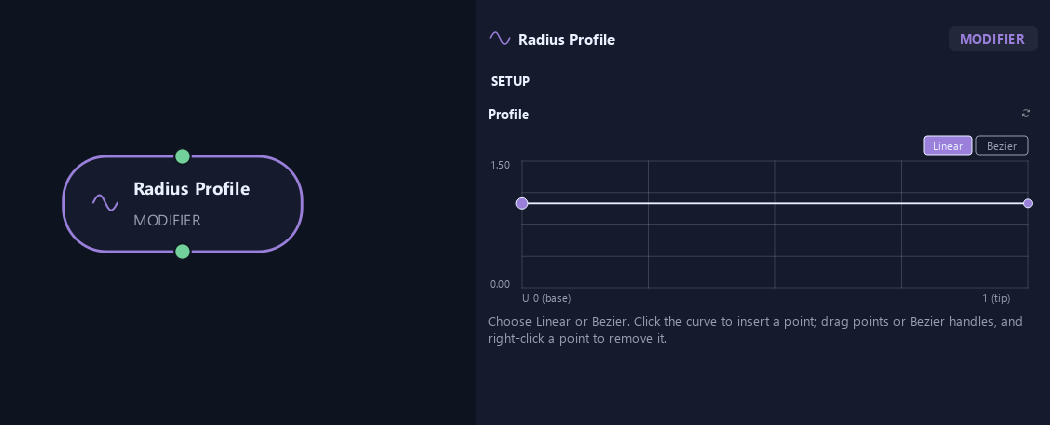
- Profile
Draws a radius multiplier from branch base on the left to tip on the right. One keeps thickness; higher values thicken and lower values narrow it.
What is ZenGrove used for?
Explore all 44 nodes with illustrated Maya views and plain-English explanations of every setting. Build trunks and branches, place foliage, shape growth, add wind and prepare your output.
Which host application does ZenGrove support?
ZenGrove is built for Autodesk Maya and is distributed through AO Studio Tools.
Where can I download ZenGrove?
Download the current AO Studio Tools package from https://aostudio.tools/getthetools.html and install it through AO.Hub.