
ZenGrove
Grow a plant, one node at a time.
Grow a plant, one node at a time.
Explore all 44 nodes with illustrated Maya views and plain-English explanations of every setting. Build trunks and branches, place foliage, shape growth, add wind and prepare your output.
Leaf Volume
Places leaves on branch regions inside a closed volume mesh. Leaves stay attached to those branches, with optional overlap avoidance for static builds.
Branches · Assets
Growth
- Open Collision on this node and enable Avoid Leaf Collision.
- Start with the default Clearance, Max Attempts and Max Rotation, then Build Preview.
- Use Skip for a cleaner, potentially thinner canopy. Use Keep to retain leaves that still overlap. The build status reports kept, rotated, skipped and unresolved leaves.
The check happens at Output or Game Output, before preview limits. Leaves from different connected generators can therefore avoid one another. Foliage with avoidance turned off stays in place and acts as an obstacle for enabled leaves.
This is for static foliage: mute or disable Dynamics, or turn leaf avoidance off. It checks leaf-to-leaf overlap using simple boxes around the source meshes, including their droop. Transparent parts of a leaf card also occupy space, so Skip may remove more leaves than expected. Branches and scene meshes are outside this leaf check.
Leaves turn around their existing attachment points; their size and branch attachment stay the same. After editing source meshes, refresh the Asset Collection and rebuild the preview.
Affect
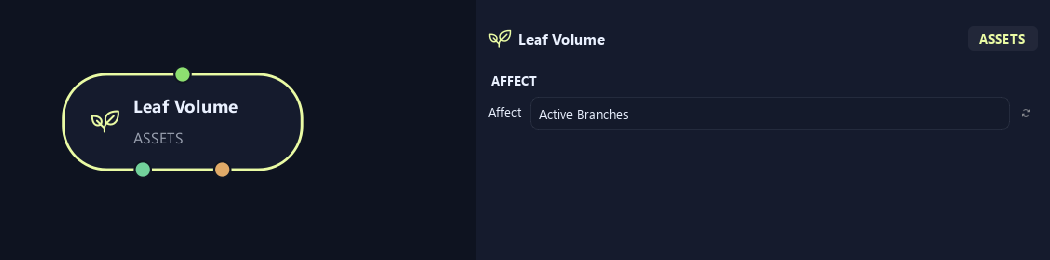
- Affect
Chooses which branches are affected. Active Branches uses the latest generated layer. Active + Descendants also includes growth from that layer. Active Generated Hierarchy additionally includes ancestors created by that same generated contribution. Entire Input uses everything arriving here. Attached children follow a moved parent even when they are not reshaped themselves.
Setup
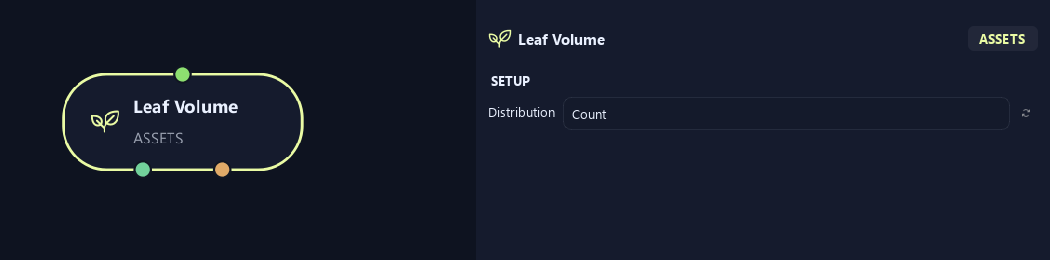
- Distribution
Count sets leaves per eligible parent. Density uses branch length available for leaf placement.
Hull
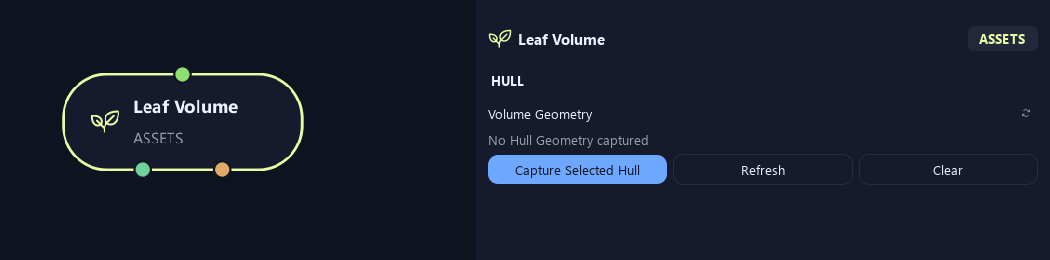
- Volume Geometry
Captures a closed mesh limiting leaves to branch regions inside it. Capture Selected Hull assigns it; Refresh updates it after edits. Leaves remain attached to branches.
Generation
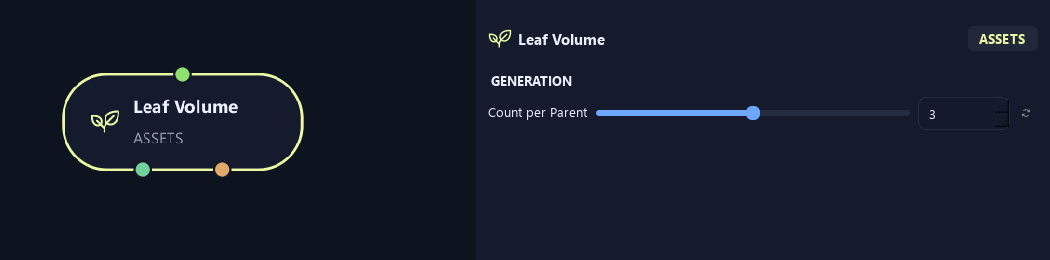
- Count per Parent
Sets leaf count per eligible parent in Count mode. The volume limits where leaves can attach.
Available when Distribution is Count.
Distribution (1)
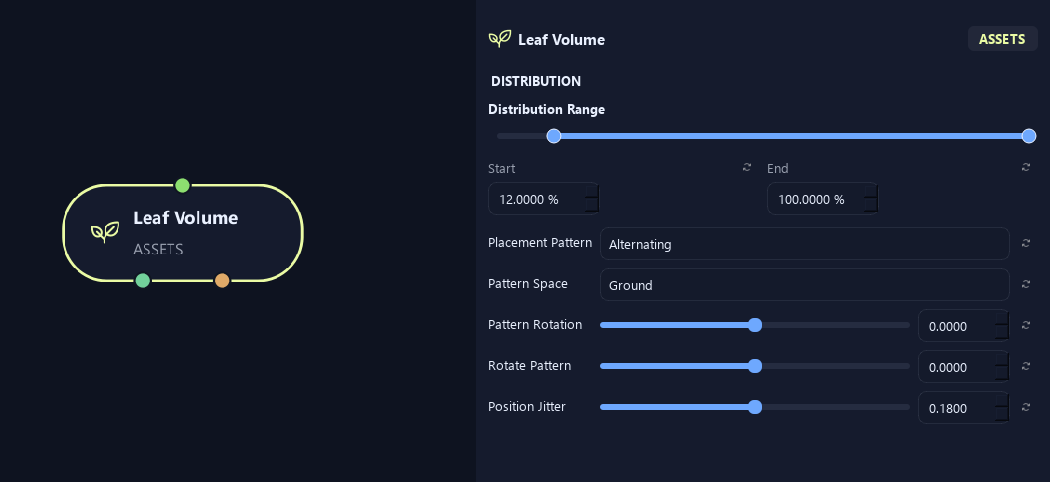
- Distribution Range — Start %
Sets where placement begins on the parent. Zero is the base and one is the tip; the range slider displays percentages.
- Distribution Range — End %
Sets where placement ends. Together with Start, this defines the Distribution Range.
- Placement Pattern
Random places freely. Parallel makes opposing pairs at one point. Alternating moves along the branch and switches sides.
- Pattern Space
Ground aligns the side-placement pattern to the horizontal world plane. Parent turns it with the branch. Up Alignment separately controls leaf orientation.
- Pattern Rotation
Rotates the whole arrangement around the parent without choosing new random positions.
- Rotate Pattern
Rotates successive leaf positions around the branch. Zero keeps a stable pair direction.
- Position Jitter
Loosens spacing along the parent while keeping paired sites together.
Distribution (2)
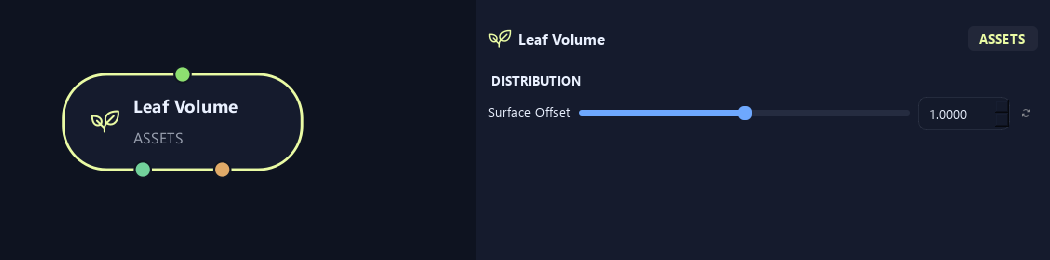
- Surface Offset
Moves pivots from the branch center toward its surface. Zero uses the centerline; one reaches the surface.
Orientation (1)
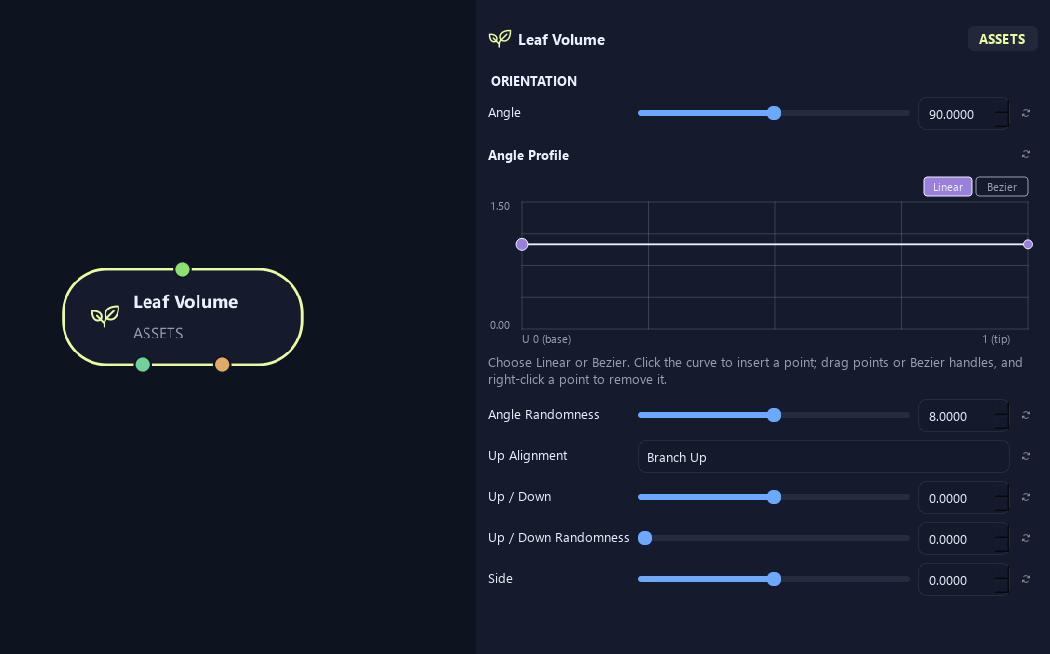
- Angle
Sets leaf angle from the parent direction. Zero follows the branch; 90 degrees grows outward.
- Angle Profile
Multiplies Angle by attachment position on the parent: left is base and right is tip. One keeps the angle, lower values close it and higher values open it.
- Angle Randomness
Varies the angle between branches or leaves. Zero keeps it consistent.
- Up Alignment
Branch Up follows local branch up. World Up uses scene up. Free removes that alignment for a less constrained orientation.
- Up / Down
Tilts the leaf or asset up or down. Positive lifts the tip; negative lowers it.
- Up / Down Randomness
Varies up/down tilt between placements.
- Side
Turns the asset sideways in its local orientation.
Orientation (2)
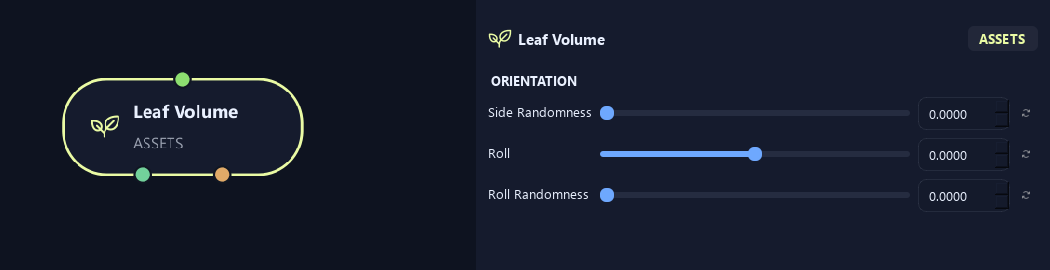
- Side Randomness
Varies sideways angle between placements.
- Roll
Rolls the asset around its length direction.
- Roll Randomness
Varies roll between placements.
Deformation
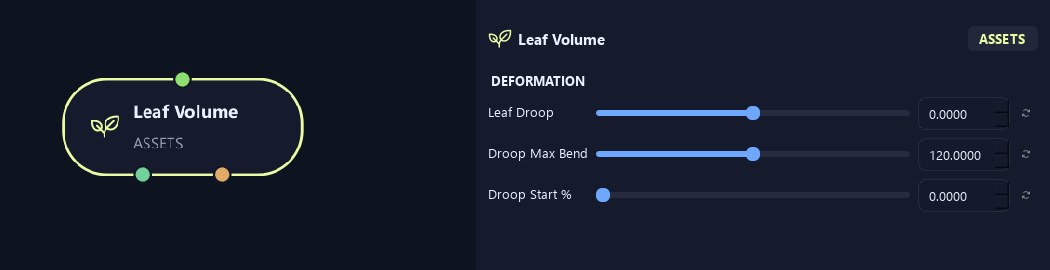
- Leaf Droop
Bends subdivided leaf geometry downward in High-quality builds. Negative values bend upward. Leaves need enough subdivisions for a smooth bend.
- Droop Max Bend
Limits leaf tip bend in degrees. Longer leaves reach the limit sooner.
- Droop Start %
Keeps the leaf base rigid before droop starts. Zero lets it start at the base.
Scale
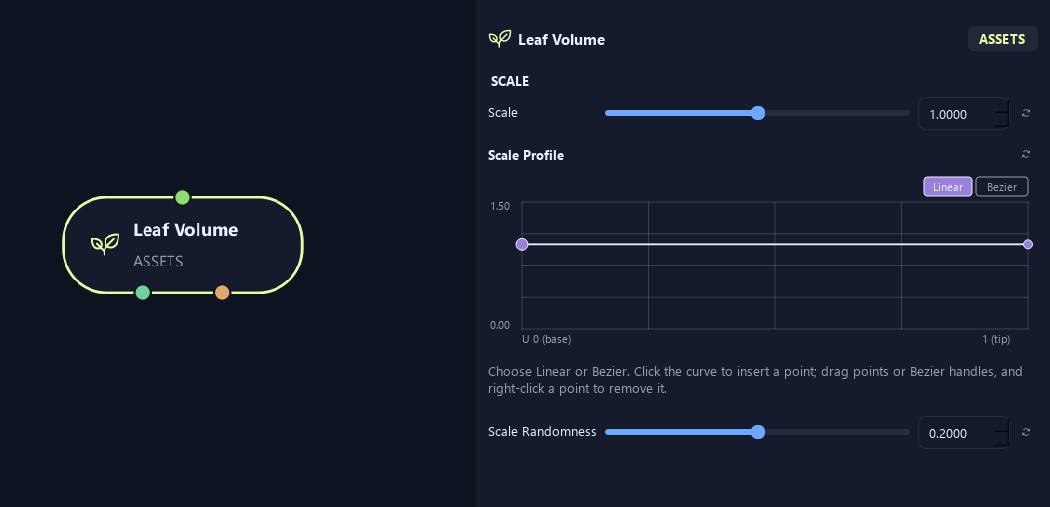
- Scale
Scales the asset or generated child uniformly. One keeps its size; 0.5 halves it.
- Scale Profile
Multiplies asset size across the distribution range. Left is Start and right is End. One keeps size; zero reduces it to nothing at that point.
- Scale Randomness
Varies size between placements. Zero keeps one scale multiplier.
Collision
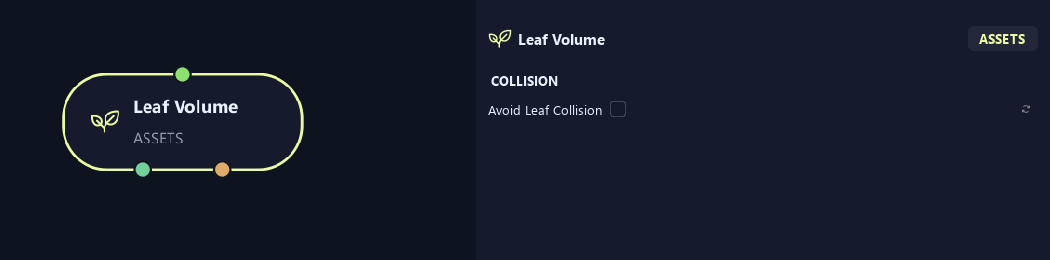
- Avoid Leaf Collision
Tries to turn overlapping leaves apart at Output or Game Output. Leaf attachment positions and sizes stay fixed. This works on static foliage; mute or disable Dynamics before enabling it. Off keeps the original placements.
Advanced
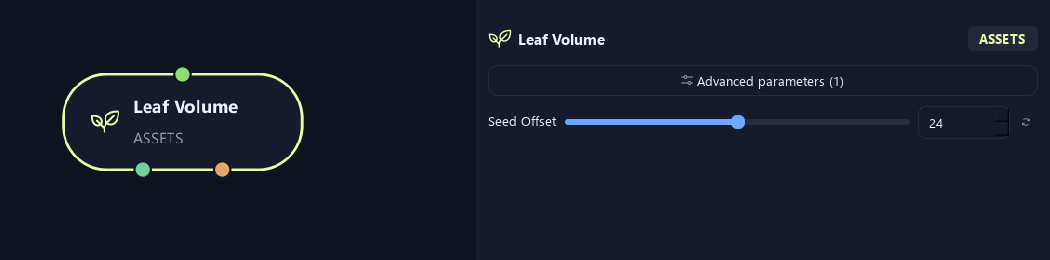
- Seed Offset
Changes this node's random variation. Keep the seed and settings unchanged to reproduce the same result.
Generation
Shown example: Distribution = Density.
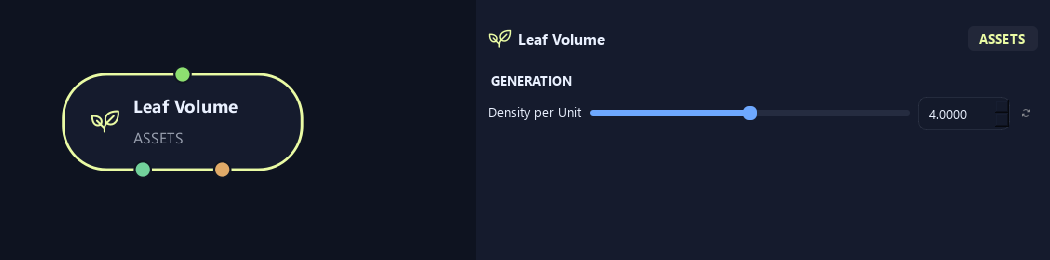
- Density per Unit
Sets placements per unit of eligible branch length. Longer branches receive more.
Available when Distribution is Density.
Collision
Shown example: Avoid Leaf Collision = On.
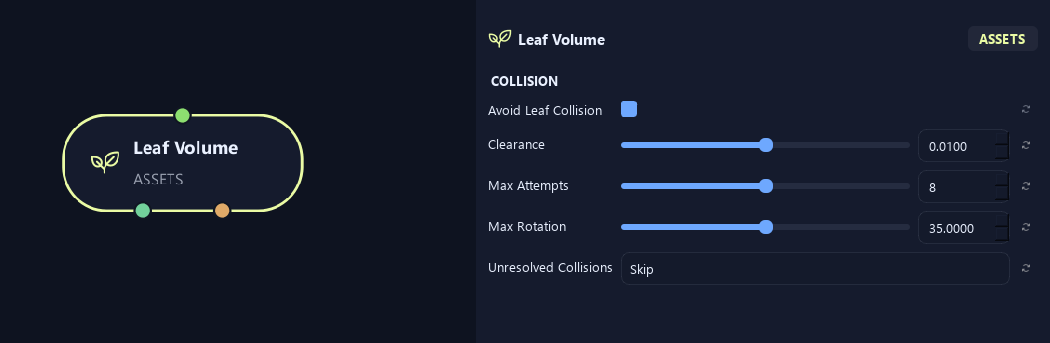
- Avoid Leaf Collision
Tries to turn overlapping leaves apart at Output or Game Output. Leaf attachment positions and sizes stay fixed. This works on static foliage; mute or disable Dynamics before enabling it. Off keeps the original placements.
- Clearance
Adds breathing room between the simple boxes used to check leaf overlap, in Maya scene units. Larger values create more space and may leave fewer leaves when Unresolved Collisions is set to Skip.
Available when Avoid Leaf Collision is On.
- Max Attempts
Sets how many extra rotations ZenGrove tries for each overlapping leaf, up to 32. More attempts can find a fit but take longer. Zero makes no rotation attempts; Skip or Keep then decides what happens to overlaps.
Available when Avoid Leaf Collision is On.
- Max Rotation
Limits how far a leaf may turn around its existing attachment point, in degrees, from 0 to 90. Smaller values protect the original orientation; larger values give leaves more room to find a fit.
Available when Avoid Leaf Collision is On.
- Unresolved Collisions
Skip omits leaves that still overlap after the attempts, so the result may be less dense. Keep retains them and reports the remaining overlaps in the build status.
Available when Avoid Leaf Collision is On.
What is ZenGrove used for?
Explore all 44 nodes with illustrated Maya views and plain-English explanations of every setting. Build trunks and branches, place foliage, shape growth, add wind and prepare your output.
Which host application does ZenGrove support?
ZenGrove is built for Autodesk Maya and is distributed through AO Studio Tools.
Where can I download ZenGrove?
Download the current AO Studio Tools package from https://aostudio.tools/getthetools.html and install it through AO.Hub.