
ZenGrove
Built to move. Down to the last leaf.
Built to move. Down to the last leaf.
The RC.4 reference: 51 nodes, 892 settings and short WebM demos. Explore GameDynamics, joint previews, skeletal export and per-leaf random vertex colors. Requires AO.Hub 1.6.6 or later.
GameDynamics
Bring procedural trees into a skeletal wind workflow. Shape trunk, branch and twig motion, inspect the live joint hierarchy, then export a skinned rig and wind clip through Game Output. Experimental; leaf flutter belongs to your game-engine shader.
Branches
Branches
The standard tree, built to move
Three seconds of the actual standard preset with GameDynamics and its X-Ray joint hierarchy. Cyan: own wind. Amber: inherited movement. Gray: fixed roots. The loop uses 73 frames at 24 fps; the duplicate end pose is omitted from this 72-frame clip.
Open a fresh standard preset. Select its UV Mapping node and add GameDynamics so the branch stream continues through it to both Leaves and Output. The separate fixed Roots path can remain connected to Output. Build Preview, then play or scrub Maya’s timeline. The three-second demo uses this real preset, with a 73-frame loop at 24 fps and the matching end pose omitted from the video.
Enable Show Skeleton to see the generated joints and connecting lines. Cyan marks joints with their own wind, amber marks inherited motion and gray marks fixed roots. X-Ray Skeleton keeps the hierarchy visible through the mesh. These display controls are separate from the exported rig.
Trunk, Branches and Twigs each have Enabled, Amount, Sway and Bend. Sway rotates around the attachment; Bend shapes the branch along its length. Disabling an element’s own wind still lets it follow its parent. Use Motion Levels to concentrate independent movement where it matters.
GameDynamics is experimental and requires exactly one active GameDynamics node per Output. It cannot share that Output with another active animation node. Put growth generators, shape modifiers and constraints before it. Downstream, use Leaves, UV Mapping, Vertex Color, LOD, reroutes and Output or Game Output. The complete animated tree must pass through it; fixed roots can join separately.
Connect the result to Game Output. Enable Export Rig, choose Rigid Joint or Blend Joints for Leaf Binding, and enable Export Animation when you want a wind clip. The export creates a skeleton with skin weights and combines the foliage. Interpolated (Preview) is for legacy previews and does not support foliage rig export. Rig export expects the supported procedural tube/Split wood mesh.
Shape Tolerance, Maximum Bone Length and Bend Resolution control skeleton detail. Joint Budget limits the internal hierarchy; Export Bone Limit limits the exported bones, including the root. Coarsen the skeleton or reduce active levels if a limit is exceeded. LOD Resolution Scale and LOD Level Reduction simplify successive exported LODs.
GameDynamics provides skeletal movement, without leaf bones or Maya leaf flutter. Use Vertex Color for shader masks: for example R = Tree Distance, G = Foliage Flutter and B = Random Value (per Leaf). Read B as a phase offset in your engine’s material. A shader must use these values; importing vertex colors alone does not create motion.
Enable Loop and choose Start Frame and Loop Frames. The frame count includes the duplicate end pose: 1–150 matches at both ends. Export Animation uses the loop range when Loop is enabled, or Clip Start and Clip Frames otherwise. Preview the imported clip and avoid holding the duplicated endpoint for an extra frame.
Watch the GameDynamics settings tour
Current Maya controls, including conditional settings. Each view stays on screen for one second (three views take three seconds); pause or choose a group to inspect it.
Setup
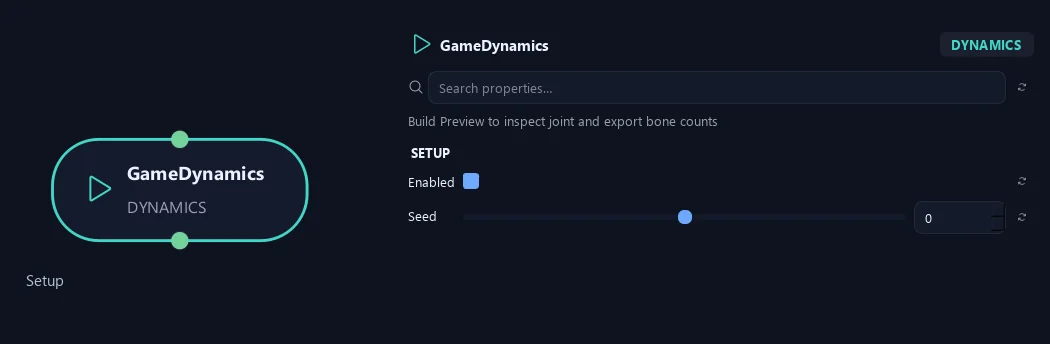
- Enabled
Enables experimental skeletal wind on this branch stream. Build Preview once, then play or scrub Maya’s timeline. Disable it to stop its own wind while retaining the authored settings.
- Seed
Changes the repeatable wind variation. Keep the seed fixed while tuning motion so you can compare each adjustment.
Preview
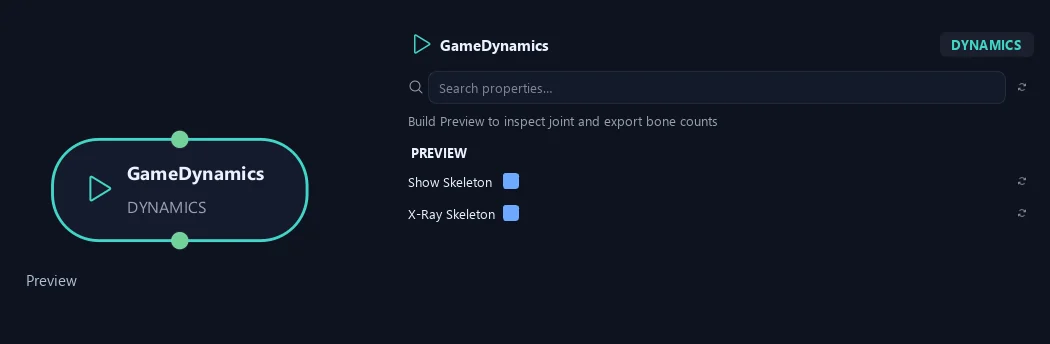
- Show Skeleton
Shows the actual built joint hierarchy in Maya. Cyan joints have their own wind, amber joints inherit motion and gray roots stay fixed. Build Preview first; display changes do not alter the exported rig.
- X-Ray Skeleton
Draws joints and their connecting lines through the tree mesh, making the hierarchy readable inside dense foliage. Available while Show Skeleton is enabled.
Available when Show Skeleton is On.
Global Wind (1)
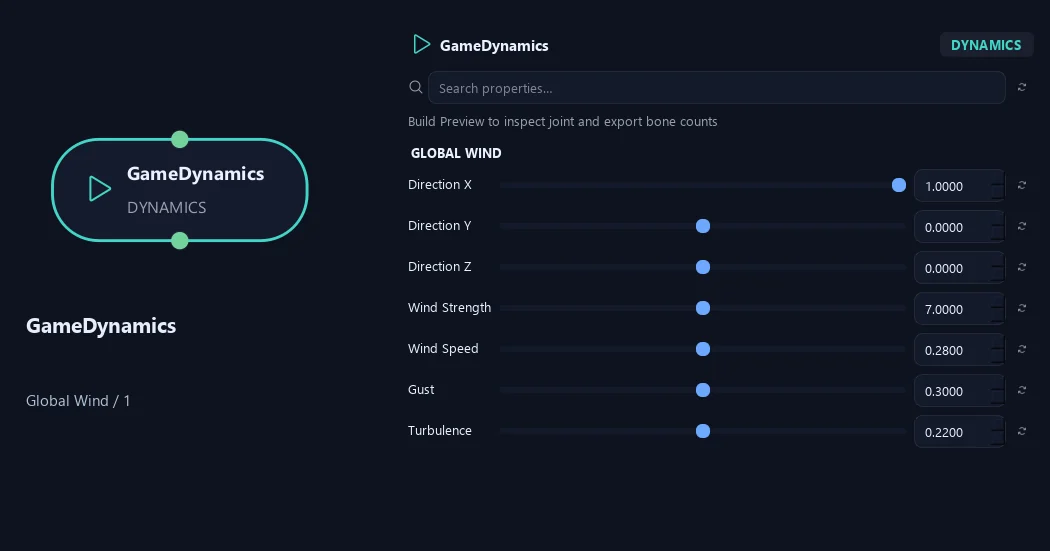
- Direction X
The X component of the wind direction. Use the three components together to aim the wind across the tree.
- Direction Y
The Y component of the wind direction. Use the three components together to aim the wind across the tree.
- Direction Z
The Z component of the wind direction. Use the three components together to aim the wind across the tree.
- Wind Strength
Overall angular strength of the wind. Start low, then balance Amount, Sway and Bend separately for the trunk, branches and twigs.
- Wind Speed
Controls how quickly the wind changes over time. Lower values make slower motion; use Loop when you need an exactly repeating clip.
- Gust
Adds variation to the wind’s intensity. Increase it for more pronounced changes between quieter and stronger movement.
- Turbulence
Adds less regular motion to the main wind response. Keep it restrained when you want a calm, coherent silhouette.
Global Wind (2)
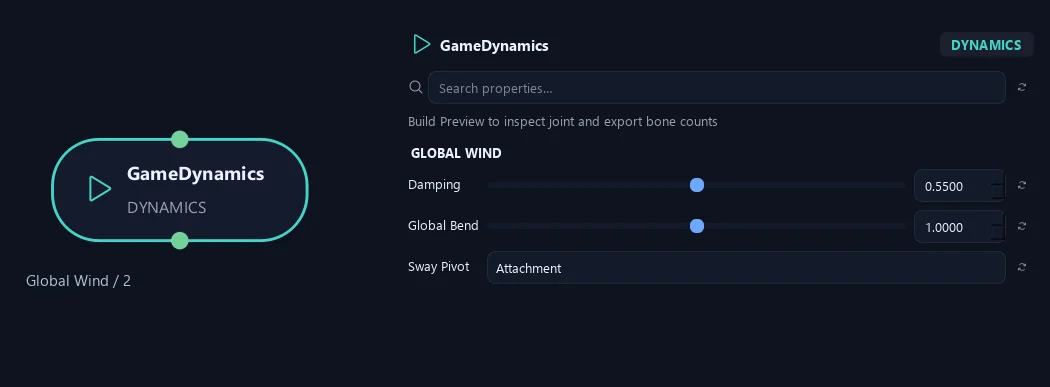
- Damping
Controls damping in the wind response. Adjust it alongside Wind Speed and Gust to shape how the motion settles.
- Global Bend
Scales bending across the animated tree. Per-element Bend controls refine the trunk, branch and twig response separately.
- Sway Pivot
Attachment swings a branch around its fork. First Segment preserves the pivot behavior of older GameDynamics graphs. Sway is independent of bending along the branch.
Trunk
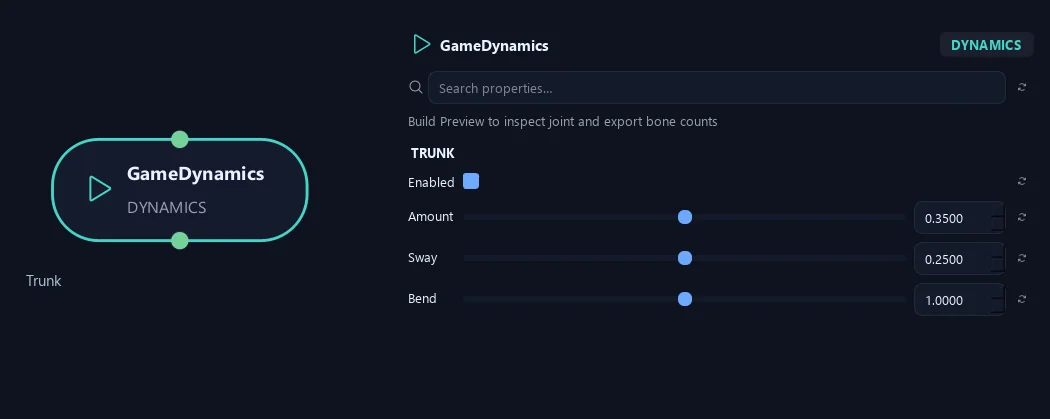
- Enabled
Enables this element’s own wind response. Turning it off preserves movement inherited from its parent.
- Amount
Scales the total wind response for trunk. Balance it against the other elements to keep the motion coherent.
- Sway
Rigid swing around the trunk attachment, independent of Bend. Raise Sway and lower Bend for a stiffer swinging shape.
- Bend
Bending along the trunk shape. Adjust it independently of Sway to control how flexible this element feels.
Branches
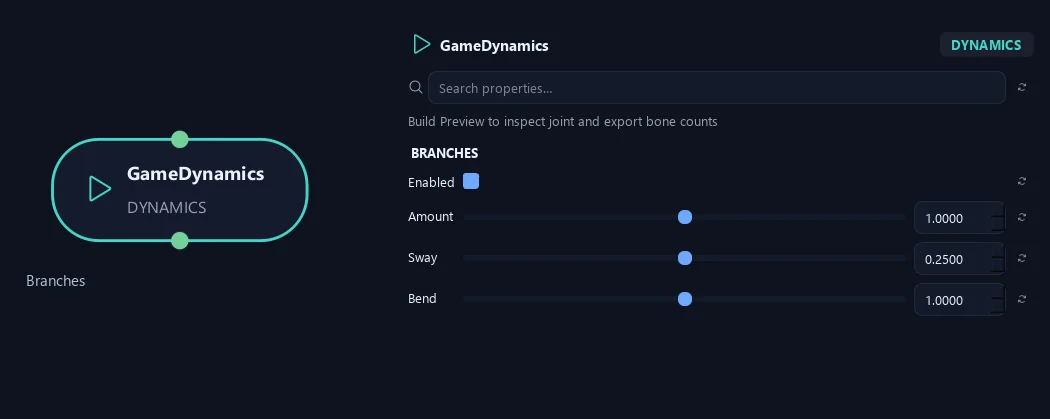
- Enabled
Enables this element’s own wind response. Turning it off preserves movement inherited from its parent.
- Amount
Scales the total wind response for branches. Balance it against the other elements to keep the motion coherent.
- Sway
Rigid swing around the branch attachment, independent of Bend. Raise Sway and lower Bend for a stiffer swinging shape.
- Bend
Bending along the branch shape. Adjust it independently of Sway to control how flexible this element feels.
Twigs
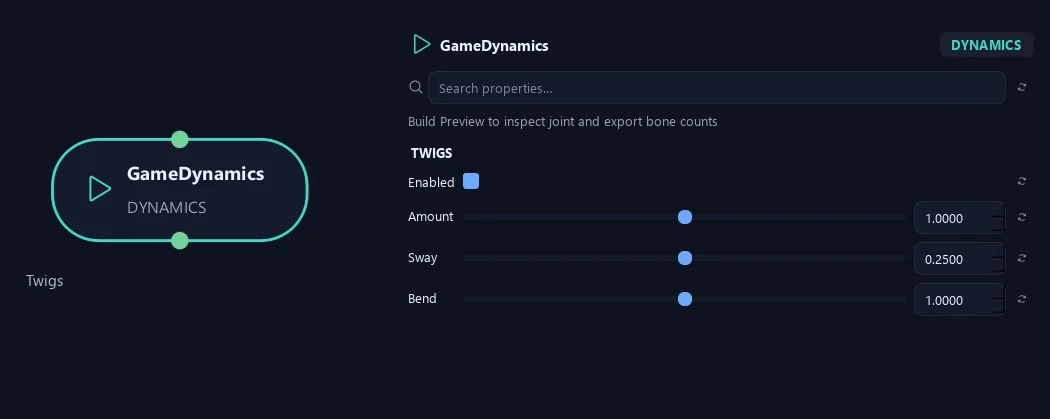
- Enabled
Enables this element’s own wind response. Turning it off preserves movement inherited from its parent.
- Amount
Scales the total wind response for twigs. Balance it against the other elements to keep the motion coherent.
- Sway
Rigid swing around the twig attachment, independent of Bend. Raise Sway and lower Bend for a stiffer swinging shape.
- Bend
Bending along the twig shape. Adjust it independently of Sway to control how flexible this element feels.
Motion Levels
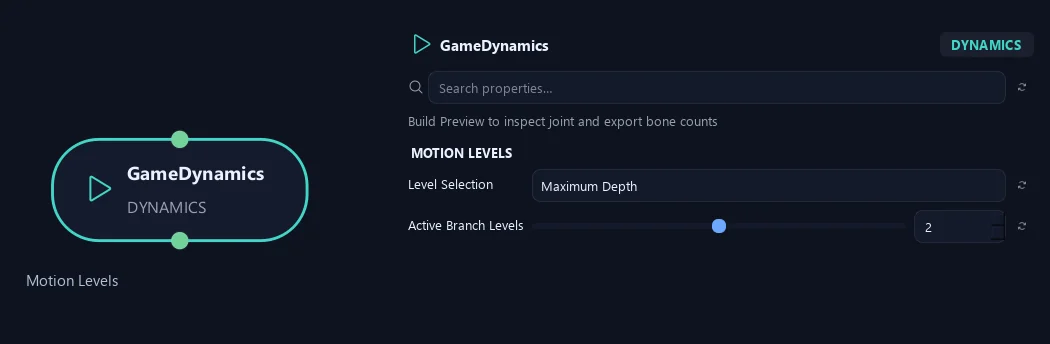
- Level Selection
Maximum Depth activates consecutive levels below the trunk. Selected Levels lets you choose specific depths or ranges; the trunk retains its own controls.
- Active Branch Levels
How many parent/child levels below the trunk receive their own wind. Deeper branches inherit parent motion. Zero gives only the trunk its own wind.
Available when Level Selection is Maximum Depth.
Leaves
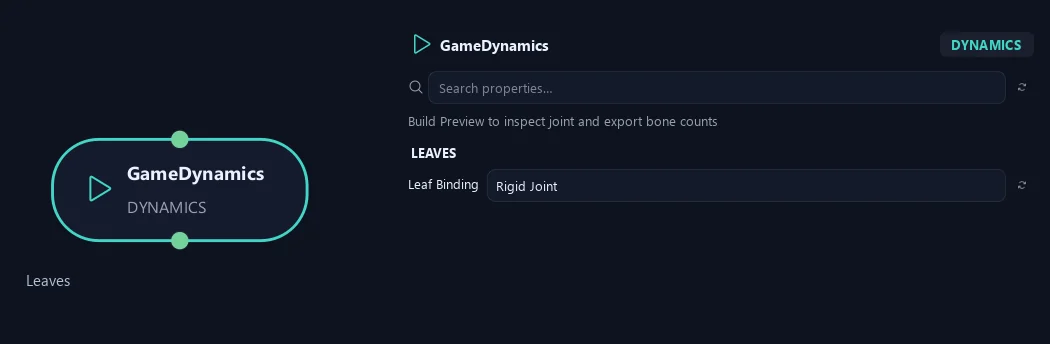
- Leaf Binding
Rigid Joint binds each leaf to one parent joint. Blend Joints uses two influences with identical weights across that leaf. Interpolated (Preview) retains legacy interpolation and cannot export a foliage rig. There are no leaf bones or simulated leaf flutter.
Skeleton
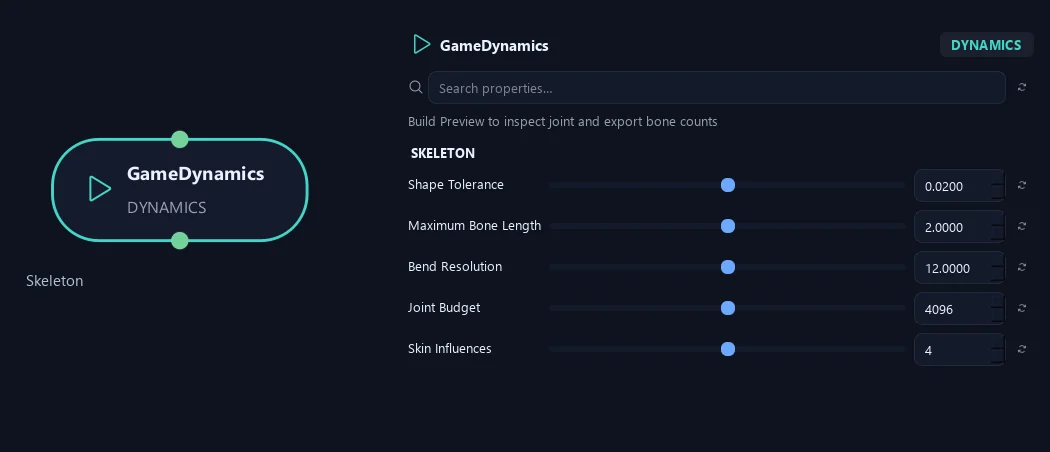
- Shape Tolerance
Maximum sampled deviation from the rest branch curve, in scene units. Smaller tolerances preserve more detail with more joints. Required fork anchors are kept.
- Maximum Bone Length
Maximum segment length in the generated skeleton. Shorter bones can follow the shape more closely but increase the joint count.
- Bend Resolution
Maximum estimated bend per skeleton segment, in degrees. Smaller values add joints where the branch changes direction.
- Joint Budget
Maximum internal joint count. The build reports an error if it cannot preserve required fork anchors within this budget. Increase bone length or tolerance, or reduce active levels before raising the budget.
- Skin Influences
Maximum skin weights per vertex, shared by preview and rig export. Zero keeps all weights. Check the requirements of your target engine before delivery.
Game Export (1)
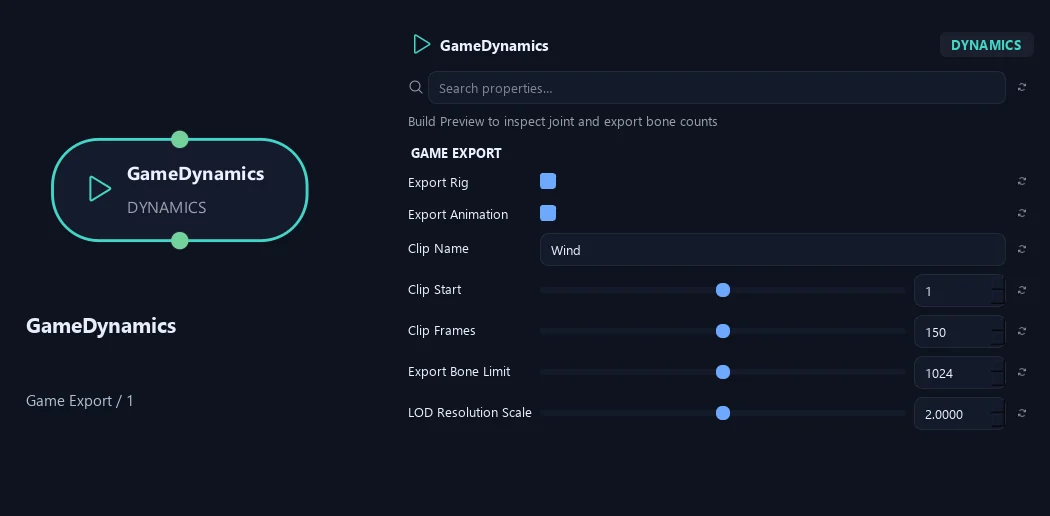
- Export Rig
Includes the generated joint hierarchy and skin weights when exporting through Game Output. Use Rigid Joint or Blend Joints for exportable foliage bindings.
- Export Animation
Includes the wind animation when Export Rig is enabled. Turn it off to export the skinned rig without a wind clip.
- Clip Name
Name assigned to the exported wind clip. Use a meaningful name when preparing several plants or motion variants.
- Clip Start
First frame of a non-looping export clip. When Loop is enabled, Start Frame in the Loop section takes over.
Available when Loop is Off.
- Clip Frames
Length of a non-looping export clip in frames. When Loop is enabled, Loop Frames determines the clip length instead.
Available when Loop is Off.
- Export Bone Limit
Maximum exported bone count, including the root bone. Passive bones sharing a parent transform are collapsed. Reduce skeleton detail or active levels if the export still exceeds this limit.
- LOD Resolution Scale
Multiplies skeleton bone length and shape tolerances at each successive exported LOD. Higher values make distant skeletons coarser.
Game Export (2)
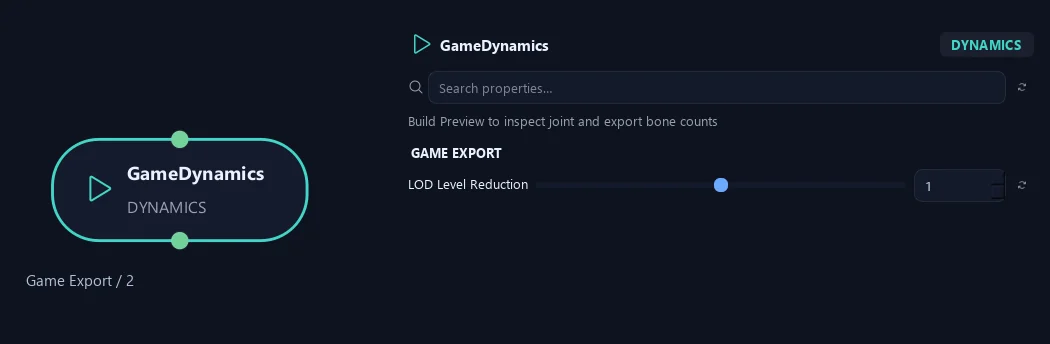
- LOD Level Reduction
Number of deepest active wind levels removed per exported LOD. Their geometry keeps following the remaining parent motion.
Loop
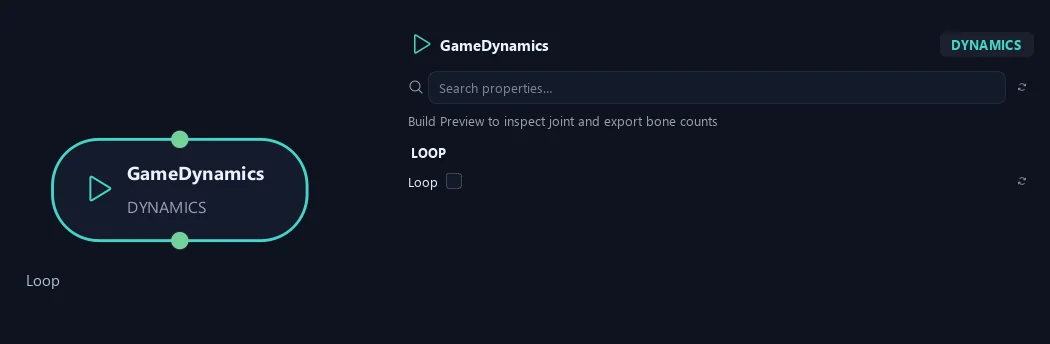
- Loop
Makes the wind repeat over a fixed frame interval. Loop Frames includes a matching end pose; use the same frame range when exporting the animation.
Motion Levels
Shown example: Level Selection = Selected Levels.
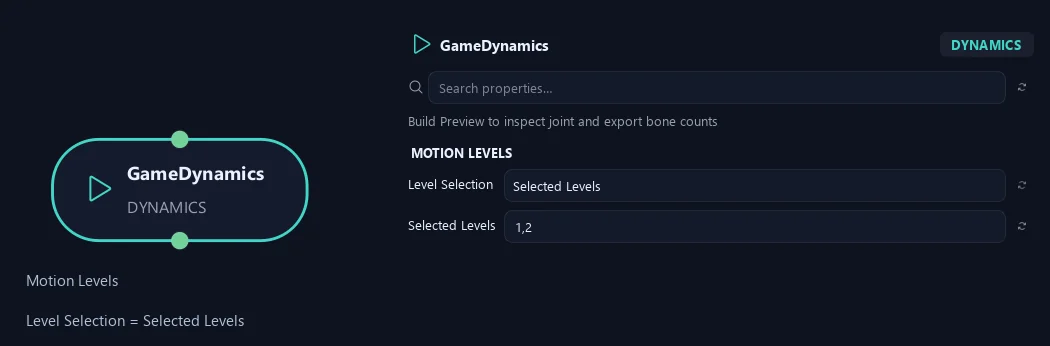
- Level Selection
Maximum Depth activates consecutive levels below the trunk. Selected Levels lets you choose specific depths or ranges; the trunk retains its own controls.
- Selected Levels
Comma-separated branch levels or ranges, such as 1,3-5. These levels receive their own wind; other levels inherit movement. The trunk is configured separately.
Available when Level Selection is Selected Levels.
Loop
Shown example: Loop = On.
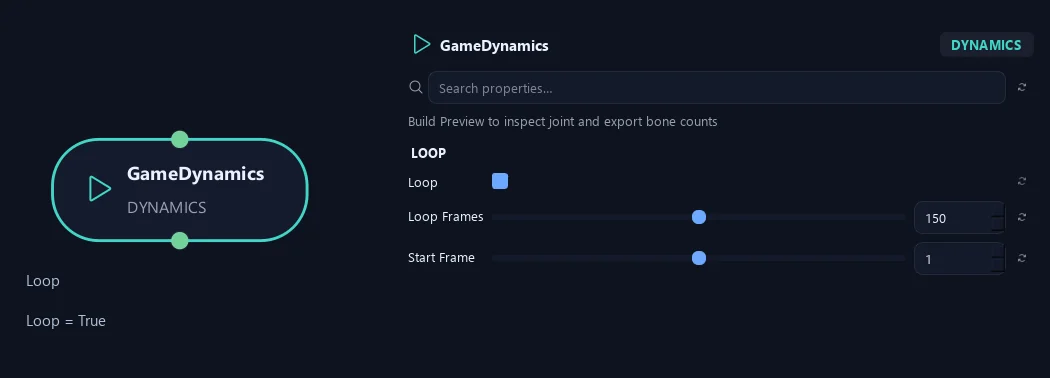
- Loop
Makes the wind repeat over a fixed frame interval. Loop Frames includes a matching end pose; use the same frame range when exporting the animation.
- Loop Frames
Total loop length including the matching end pose. With Start Frame 1 and Loop Frames 150, frames 1 and 150 match; the unique cycle contains 149 frames.
Available when Loop is On.
- Start Frame
First frame of the loop and, when Loop is enabled, of the exported clip. Its matching end pose is Start Frame + Loop Frames − 1.
Available when Loop is On.
What is ZenGrove used for?
The RC.4 reference: 51 nodes, 892 settings and short WebM demos. Explore GameDynamics, joint previews, skeletal export and per-leaf random vertex colors. Requires AO.Hub 1.6.6 or later.
Which host application does ZenGrove support?
ZenGrove is built for Autodesk Maya and is distributed through AO Studio Tools.
Where can I download ZenGrove?
Download the current AO Studio Tools package from https://aostudio.tools/getthetools.html and install it through AO.Hub.