
ZenGrove
Grow a plant, one node at a time.
Grow a plant, one node at a time.
Explore all 44 nodes with illustrated Maya views and plain-English explanations of every setting. Build trunks and branches, place foliage, shape growth, add wind and prepare your output.
Curl
Shapes branch tips into tightening or opening spirals. Control turns, inner and outer radius, sideways depth and variation between branches.
Branches
Branches
Outer Radius and Inner Radius describe proportions from Curl Start to the tip. Smaller Inner Radius tightens the curl; larger Inner Radius opens it outward. L / R Offset adds depth perpendicular to the curl plane. These values scale together to preserve the curled section's length.
Curl Amount (Turns) controls revolutions. Length Spans controls mesh detail: zero samples automatically, while a positive value gives exactly that many spans. A low count can make a tight curl look angular even though its underlying curve is smooth.
Curl keeps each selected branch's starting point and direction fixed. Existing child branches are not carried along with a curled parent. Put Curl before the next Branch or Twigs generator when new children should attach to the curled shape.
Affect
- Affect
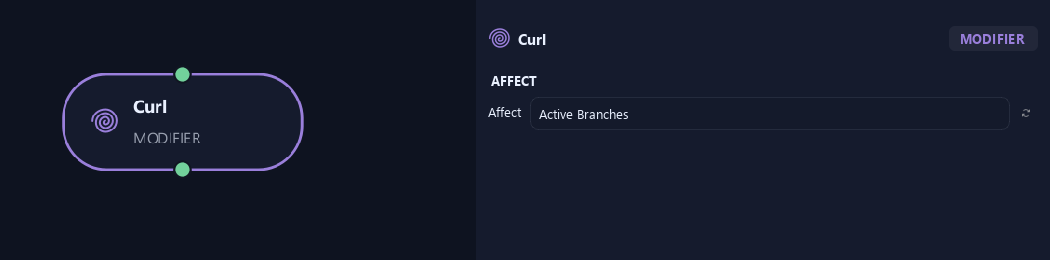
Chooses which branches are affected. Active Branches uses the latest generated layer. Active + Descendants also includes growth from that layer. Active Generated Hierarchy additionally includes ancestors created by that same generated contribution. Entire Input uses everything arriving here. Curl keeps each branch's own attachment and starting direction fixed. Existing child branches do not automatically follow a curled parent. Add Curl before generating children when they should follow the curled shape.
Distribution
- Curl Start %
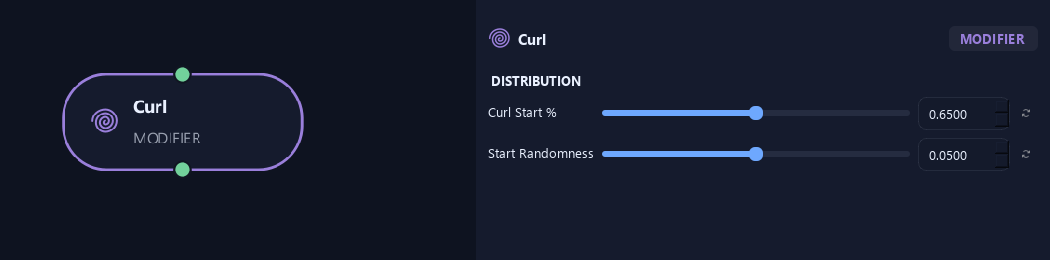
Sets where curling begins. Zero is base and one is tip; the earlier part stays unchanged.
- Start Randomness
Varies where curling begins between branches.
Shape
- Outer Radius
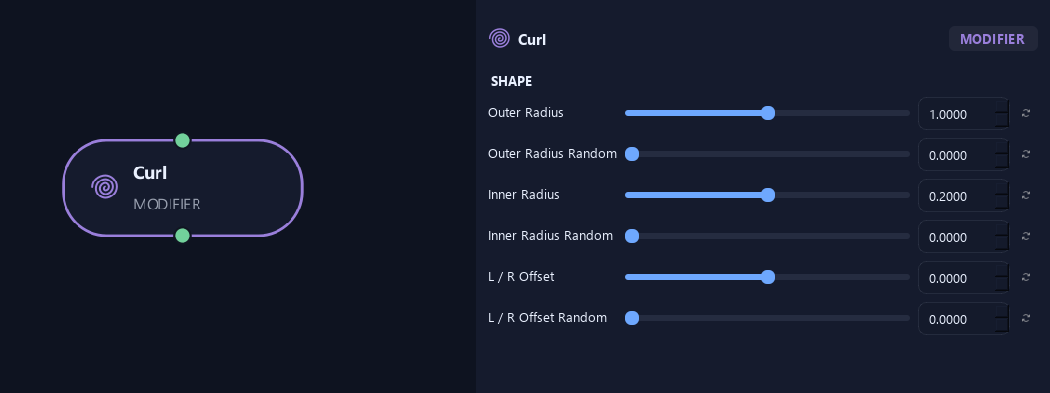
Sets the relative size of the spiral at Curl Start. The radius changes evenly with each turn toward Inner Radius. These are proportions: ZenGrove scales the spiral to keep the curled section's length.
- Outer Radius Random
Varies Outer Radius independently for each branch. A value of 0.5 adds up to 50% less or more; zero keeps the chosen radius. The outer radius stays above zero.
- Inner Radius
Sets the relative spiral radius at the tip. A smaller value tightens the curl inward; a value larger than Outer Radius opens it outward. Zero closes toward the center.
- Inner Radius Random
Varies Inner Radius independently for each branch. A value of 0.5 adds up to 50% less or more. Zero disables variation, and an Inner Radius of zero stays zero.
- L / R Offset
Moves the tip gradually to one side of the curl plane, giving a flat spiral depth. Negative values move left; positive values move right. Curl Orientation turns this direction too. The offset is relative and scales with the spiral to preserve length.
- L / R Offset Random
Adds a random left or right offset per branch, using the same relative units as L / R Offset. It also works when L / R Offset is zero. Zero disables this variation.
Deformation
- Curl Amount (Turns)
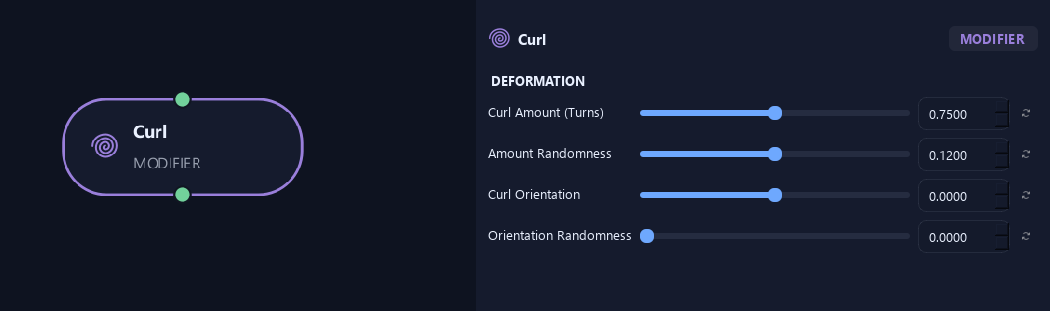
Sets the number of full turns. One makes a full revolution; negative values reverse the winding. Zero leaves the shape unchanged, although an explicit Length Spans setting still changes mesh detail.
- Amount Randomness
Varies effect strength per branch. For example, 0.5 gives about 50% to 150% of Amount.
- Curl Orientation
Rotates the curl plane around the branch direction.
- Orientation Randomness
Varies curl-plane direction between branches.
Geometry
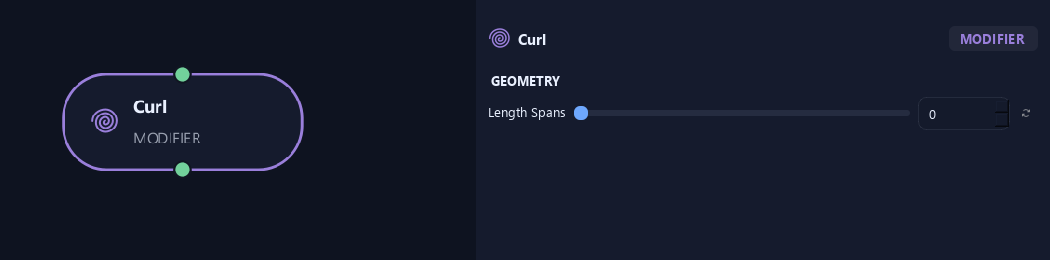
- Length Spans
Zero chooses mesh detail automatically. A positive value sets the exact number of spans along the whole branch: 8 spans give 9 points. More spans make tight curls look smoother. This changes the output detail while keeping the underlying spiral shape; a later Resolution node can change the detail again.
Advanced
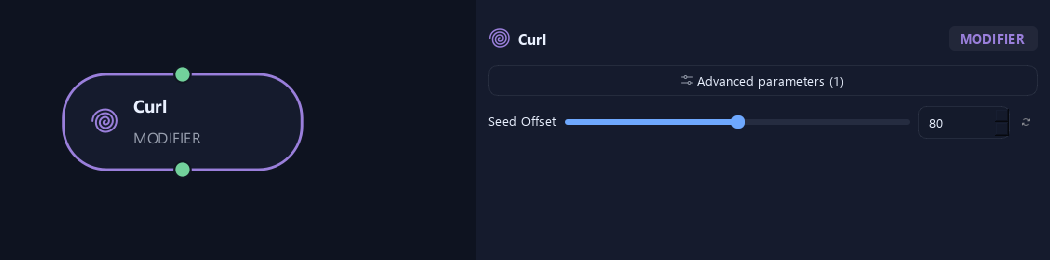
- Seed Offset
Changes this node's random variation. Keep the seed and settings unchanged to reproduce the same result.
What is ZenGrove used for?
Explore all 44 nodes with illustrated Maya views and plain-English explanations of every setting. Build trunks and branches, place foliage, shape growth, add wind and prepare your output.
Which host application does ZenGrove support?
ZenGrove is built for Autodesk Maya and is distributed through AO Studio Tools.
Where can I download ZenGrove?
Download the current AO Studio Tools package from https://aostudio.tools/getthetools.html and install it through AO.Hub.