
ZenGrove
Grow a plant, one node at a time.
Grow a plant, one node at a time.
Explore all 44 nodes with illustrated Maya views and plain-English explanations of every setting. Build trunks and branches, place foliage, shape growth, add wind and prepare your output.
Collision
Steers the current branch shape around Maya meshes. Use it after shaping nodes, leave a surface gap, or attract growth along an obstacle for vines and ivy.
Branches
Branches
Place Collision after the shaping nodes that need checking: for example, Branch → Curl / Sag / Bend → Collision → Output. It works on the current shape. Another shape change afterward can create new overlaps.
Closed meshes act as solid obstacles, including points deep inside them. Open meshes work as two-sided surfaces. Move Embedded Roots allows branch starts to move out of a closed obstacle or its clearance zone. It defaults to off so authored attachments stay fixed.
Self Collision checks branches separately. Chaining the two checks does not guarantee both stay clear: the later node can undo part of the earlier correction. Inspect the final result when combining them.
Affect
- Affect
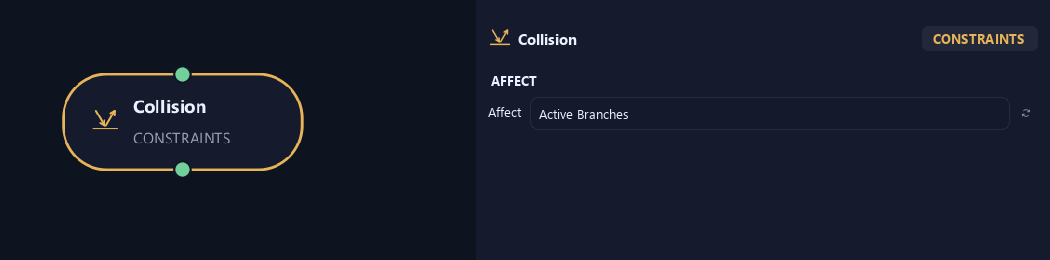
Chooses which branches are affected. Active Branches uses the latest generated layer. Active + Descendants also includes growth from that layer. Active Generated Hierarchy additionally includes ancestors created by that same generated contribution. Entire Input uses everything arriving here. Attached children follow a moved parent even when they are not reshaped themselves.
Input
- Collision Geometry
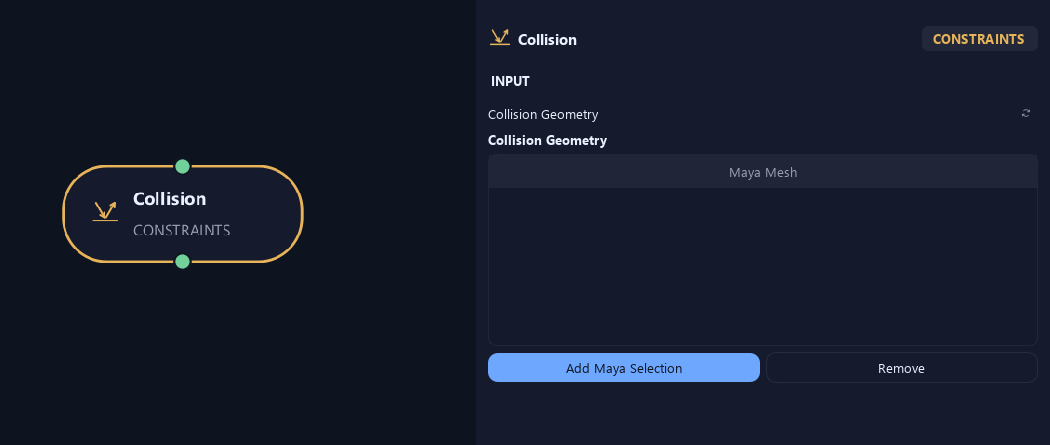
Add Maya Selection adds polygon meshes as obstacles; Remove takes selected entries out of the list. Closed meshes act as solid volumes, including points deep inside. Open meshes work as surfaces that can be approached from either side.
Deformation
- Influence Distance
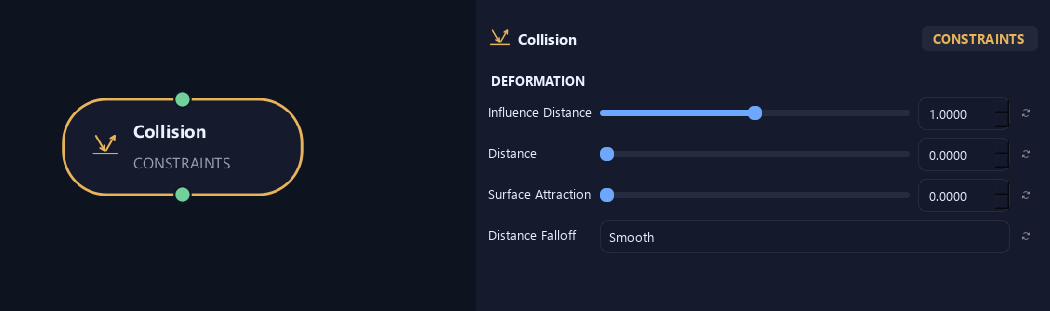
Sets how early branches begin turning before an obstacle. Larger values make the approach more gradual.
- Distance
Adds a gap between branch surface and obstacle in scene units.
- Surface Attraction
Pulls growth toward an obstacle while letting it travel along the surface, useful for climbing plants.
- Distance Falloff
Constant keeps influence even across the range. Linear fades evenly with distance. Smooth gives a softer fade.
Response
- Bend Strength
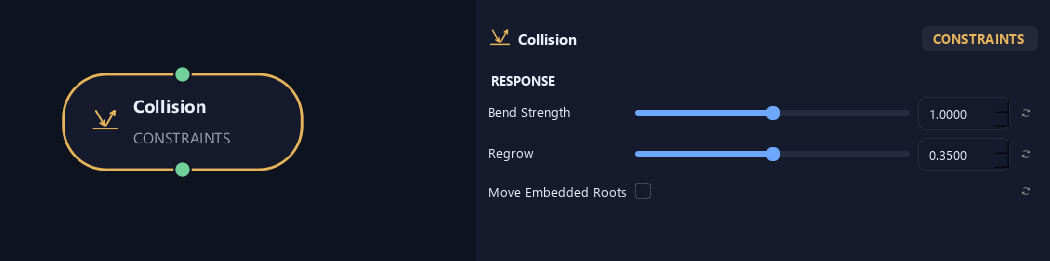
Sets how strongly branches turn away from collision surfaces.
- Regrow
Controls how quickly a branch returns toward the shape arriving at this node after clearing an obstacle. This includes earlier Curl, Sag, Bend and force shaping. Zero keeps the collision-adjusted direction; one returns immediately.
- Move Embedded Roots
Allows a branch's starting point to move out of a closed obstacle and its required surface gap. Off keeps that attachment fixed, even if it begins inside the obstacle. Distance and branch thickness are included in the clearance.
Advanced
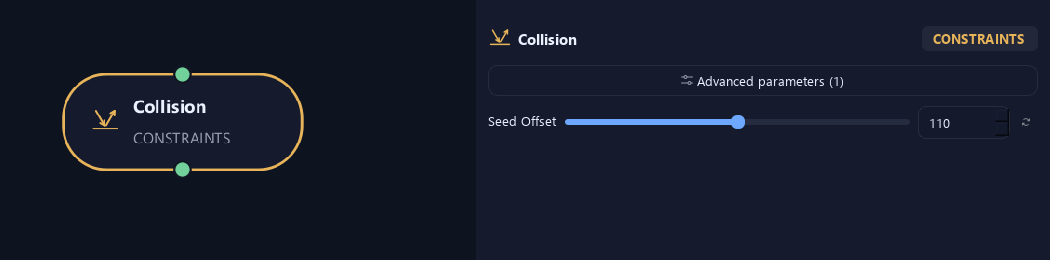
- Seed Offset
Changes this node's random variation. Keep the seed and settings unchanged to reproduce the same result.
What is ZenGrove used for?
Explore all 44 nodes with illustrated Maya views and plain-English explanations of every setting. Build trunks and branches, place foliage, shape growth, add wind and prepare your output.
Which host application does ZenGrove support?
ZenGrove is built for Autodesk Maya and is distributed through AO Studio Tools.
Where can I download ZenGrove?
Download the current AO Studio Tools package from https://aostudio.tools/getthetools.html and install it through AO.Hub.