
ZenGrove
Built to move. Down to the last leaf.
Built to move. Down to the last leaf.
The RC.4 reference: 51 nodes, 892 settings and short WebM demos. Explore GameDynamics, joint previews, skeletal export and per-leaf random vertex colors. Requires AO.Hub 1.6.6 or later.
Asset Generator
Creates editable leaf meshes directly in the graph. Draw the outline, place the attachment pivot, shape the leaf in 3D and generate a reproducible pool of variants for foliage placement.
No input required
Assets
Connect Asset Generator → Leaves (Assets), and connect your branch structure to Leaves (Branches). Connect the branch structure and Leaves Growth separately to Output for wood and foliage. Asset Generator can also feed Leaf Volume, Asset Scatter, Texture Atlas or an Asset Collection.
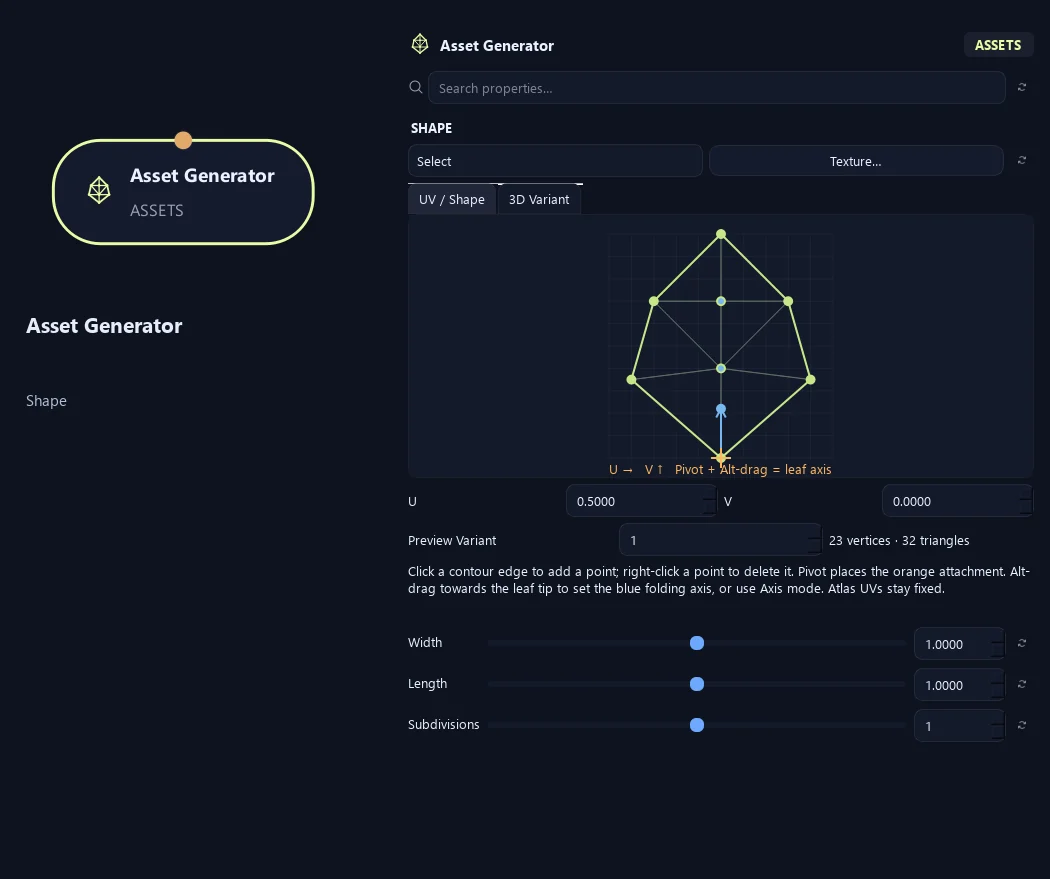
Click an edge to insert a point and drag it immediately. Right-click a point, or use Delete / Backspace, to remove it. Keep at least three outline points and avoid crossings. Interior points refine the triangulation. The orange pivot stays on the leaf surface; it cannot be deleted and does not reshape the leaf. This editor uses straight contour edges, without Bézier handles.
The orange pivot defines the attachment. Select Axis mode or Alt-drag toward the leaf tip to set the blue axis. This changes the leaf’s longitudinal direction for shaping and folding while keeping atlas UVs fixed. The axis starts at the pivot and cannot be deleted.
Load the image with Texture… and create or assign a StandardSurface. Transparent PNG alpha is connected to Opacity. Shape and variation settings are saved in the graph; image files and Maya material references remain external. The 3D Variant preview creates no scene objects. Source meshes are realized when an Output consumes them.
Connect Assets to Asset Array for a repeated arrangement, to Asset Assemble for a composite, or directly to Output.assets / Game Output.assets. Direct Assets = All Variants displays the collection side by side with the chosen spacing.
Watch the Asset Generator settings tour
Current Maya controls, including conditional settings. Each view stays on screen for one second (three views take three seconds); pause or choose a group to inspect it.
Asset
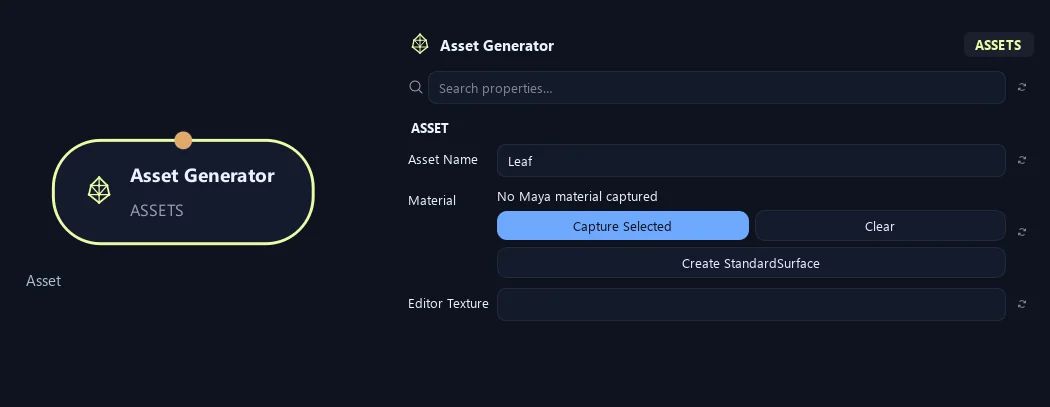
- Asset Name
Names the generated collection and its reusable leaf variants.
- Material
Assigns a Maya material to the generated assets. Capture an existing material or use Create StandardSurface. A loaded Editor Texture is connected when the material is created.
- Editor Texture
Loads the image behind the UV editor. Texture… and this path field update Base Color on the assigned StandardSurface; transparent PNG alpha also drives Opacity. Changing dimensions or deformation keeps the UVs fixed.
Shape
- Leaf Shape
Edit the leaf outline, interior triangulation points and orange attachment pivot. Use Axis mode or Alt-drag toward the leaf tip to set the blue folding axis without rotating atlas UVs. Outline edges are straight; keep at least three points and avoid crossings.
- Width
Sets the leaf’s width along local Z before placement scaling. Width Randomness varies this dimension across the source variants.
- Length
Sets the leaf’s length along local X. Local Z is width and local Y is the front normal, matching Leaves and Leaf Volume.
- Subdivisions
Refines the triangulated leaf before deformation. Increase for smoother bending, folding and curl; use a lower value for a lighter source mesh.
Deformation
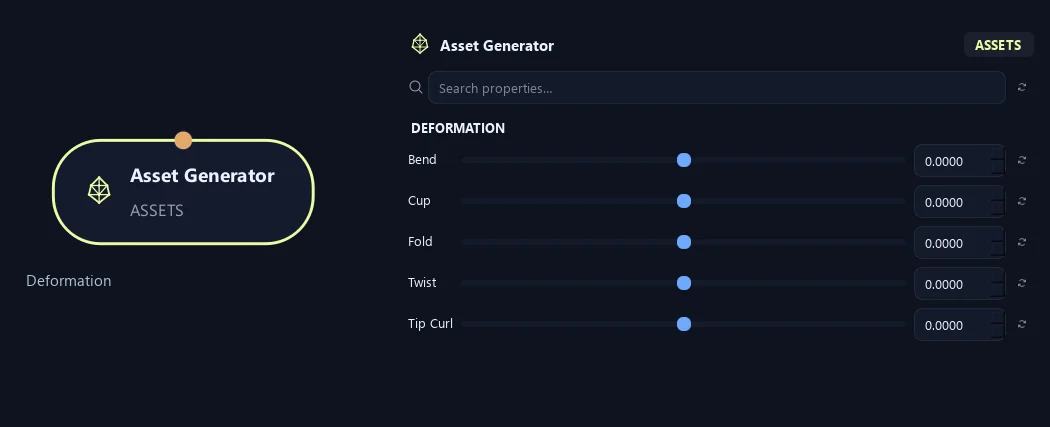
- Bend
Bends the leaf along its length, in degrees. Negative values bend in the opposite direction.
- Cup
Curves the leaf smoothly across its width, in degrees. Use it for a concave or convex cross section.
- Fold
Folds the two sides around the midrib, in degrees, retaining a sharper center crease than Cup.
- Twist
Progressively rolls the leaf along its length, in degrees. It changes the source shape before the leaf is placed on a branch.
- Tip Curl
Adds curl to the final portion of the leaf, in degrees, on top of Bend.
Variation (1)
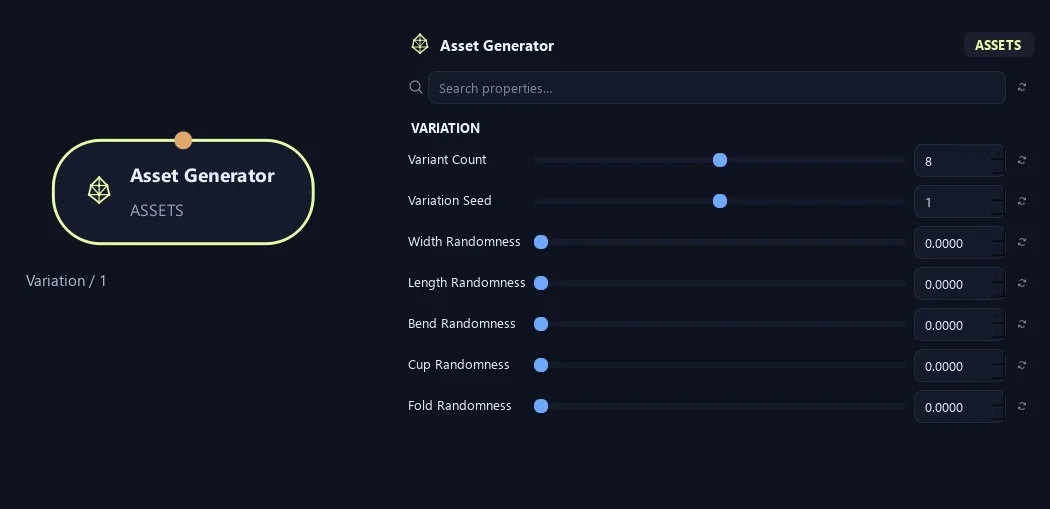
- Variant Count
Sets the number of reusable source shapes. Placement chooses from this pool; increasing its size preserves the earlier variants. Use Preview Variant and the 3D Variant tab to inspect them.
- Variation Seed
Defines the repeatable source shapes. Tree Seed changes which variant is placed, while Variation Seed changes the pool itself.
- Width Randomness
Varies Width by a seeded plus/minus fraction per source variant. 0.25 gives up to 25% variation.
- Length Randomness
Varies Length by a seeded plus/minus fraction per source variant. 0.25 gives up to 25% variation.
- Bend Randomness
Adds seeded plus/minus degrees to Bend per source variant. It can create variation even when the main value is zero.
- Cup Randomness
Adds seeded plus/minus degrees to Cup per source variant. It can create variation even when the main value is zero.
- Fold Randomness
Adds seeded plus/minus degrees to Fold per source variant. It can create variation even when the main value is zero.
Variation (2)
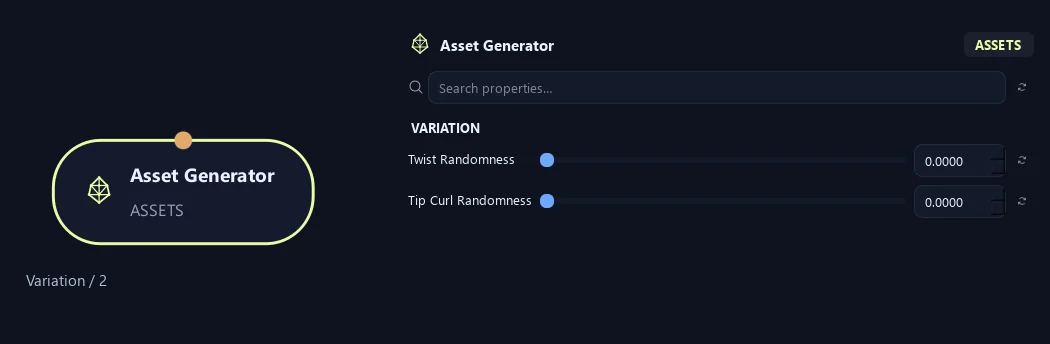
- Twist Randomness
Adds seeded plus/minus degrees to Twist per source variant. It can create variation even when the main value is zero.
- Tip Curl Randomness
Adds seeded plus/minus degrees to Tip Curl per source variant. It can create variation even when the main value is zero.
What is ZenGrove used for?
The RC.4 reference: 51 nodes, 892 settings and short WebM demos. Explore GameDynamics, joint previews, skeletal export and per-leaf random vertex colors. Requires AO.Hub 1.6.6 or later.
Which host application does ZenGrove support?
ZenGrove is built for Autodesk Maya and is distributed through AO Studio Tools.
Where can I download ZenGrove?
Download the current AO Studio Tools package from https://aostudio.tools/getthetools.html and install it through AO.Hub.