
ZenGrove
Grow a plant, one node at a time.
Grow a plant, one node at a time.
Explore all 44 nodes with illustrated Maya views and plain-English explanations of every setting. Build trunks and branches, place foliage, shape growth, add wind and prepare your output.
Asset Collection
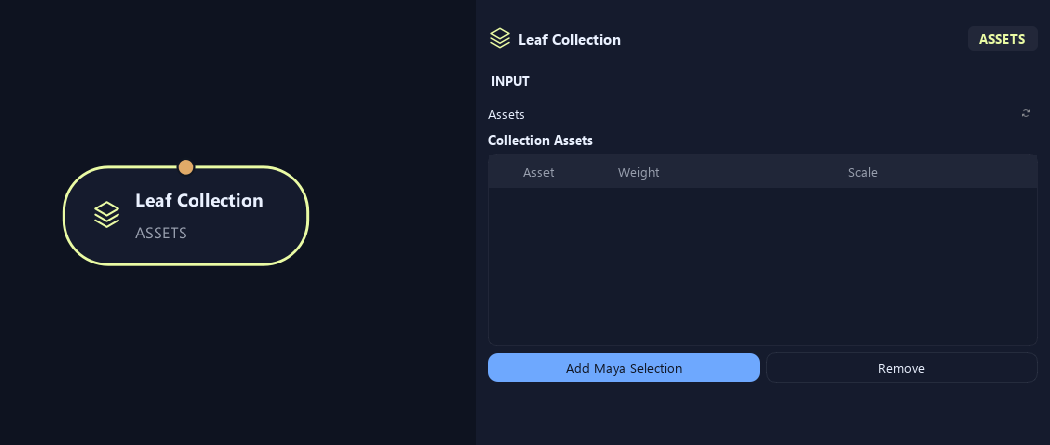
Collects Maya meshes for leaves, fruit, flowers or repeated stem pieces. Give each asset a weight and scale, then connect a placement node.
No input required
Assets
Setup

- Collection Name
Gives this tree, collection or output a recognizable name.
Input
- Assets
Add Maya Selection captures selected meshes. Weight controls each asset's relative chance of being chosen; Scale changes its size. Remove takes selected rows out of the collection.
What is ZenGrove used for?
Explore all 44 nodes with illustrated Maya views and plain-English explanations of every setting. Build trunks and branches, place foliage, shape growth, add wind and prepare your output.
Which host application does ZenGrove support?
ZenGrove is built for Autodesk Maya and is distributed through AO Studio Tools.
Where can I download ZenGrove?
Download the current AO Studio Tools package from https://aostudio.tools/getthetools.html and install it through AO.Hub.