
ZenGrove
Built to move. Down to the last leaf.
Built to move. Down to the last leaf.
The RC.4 reference: 51 nodes, 892 settings and short WebM demos. Explore GameDynamics, joint previews, skeletal export and per-leaf random vertex colors. Requires AO.Hub 1.6.6 or later.
Asset Assemble
Combines connected asset collections into reusable assemblies. Join petal layers, flower centers or modular parts, choose a source from each input and adjust each part locally without flattening the source graph.
Assets (multiple connections)
Assets
Connect separate Asset Arrays for petal layers plus an Asset Generator or captured mesh for the center. With Parts empty, the assembly includes one source from each connected collection. Connect the result to Output.assets, Leaves or Asset Scatter, or use it as the source of another Asset Array.
Add Part creates an editable card. Input 1 means the first connected collection. Source 1 is its first source; Cycle variants means the stored value 0 and cycles with the assembly variant. Set Position, Rotation and Scale X/Y/Z to arrange the part. Add another card with the same Input to repeat it. Remove deletes that card; the source node remains intact.
For assembly variant 1, cycling selects source 1 from each input; variant 2 selects source 2, wrapping independently where a collection ends. Fixed Source numbers stay fixed. A Part referencing a missing input or source raises an explicit error.
Assembly Pivot sets the reusable asset origin by translating all parts together. Per-part scale must be positive. Up to 128 variants are supported, with at most 100,000 expanded terminal parts across them. Nested arrays retain their transforms, including shear. Muting passes the connected source pool through.
Watch the Asset Assemble settings tour
Current Maya controls, including conditional settings. Each view stays on screen for one second (three views take three seconds); pause or choose a group to inspect it.
Setup
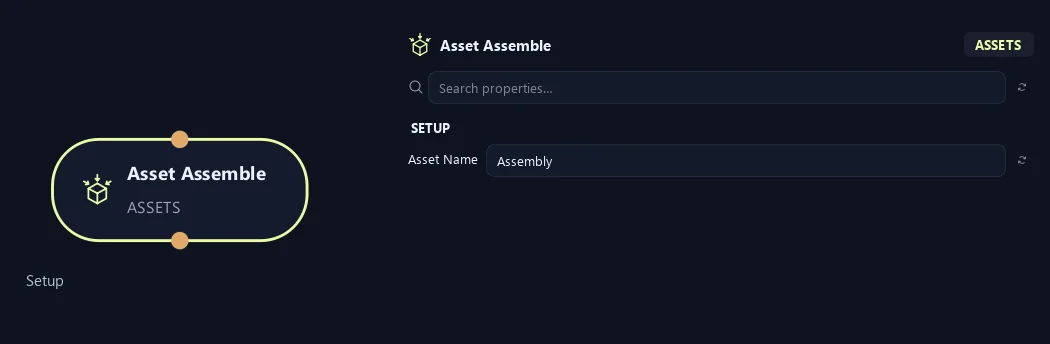
- Asset Name
Names the resulting asset collection and its numbered assembly variants. Each variant becomes one reusable asset containing the selected parts.
Input
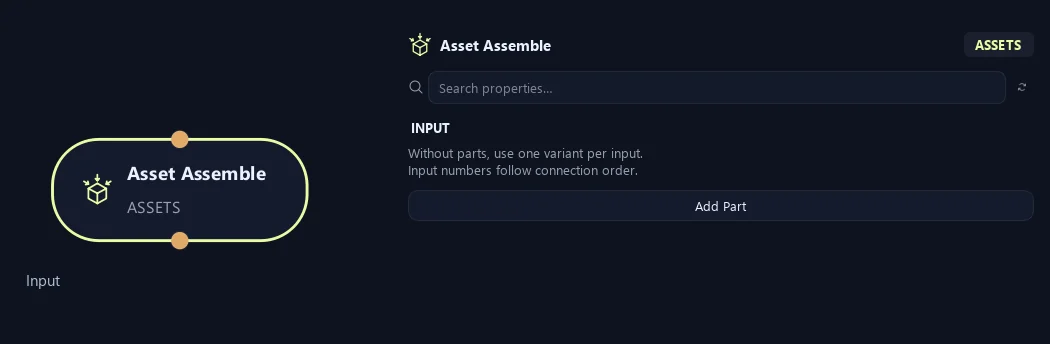
- Parts
Leave empty to combine one source from every connected collection, cycling each collection with the assembly variant. Add Part creates an explicit row: Input selects a connection (starting at 1); Source selects a source (starting at 1), or Cycle variants at 0. Position, Rotation and Scale X/Y/Z transform that part locally; rotations use degrees and scale must stay positive. Repeat a row to include the same input more than once; Remove deletes only that part row.
Generation
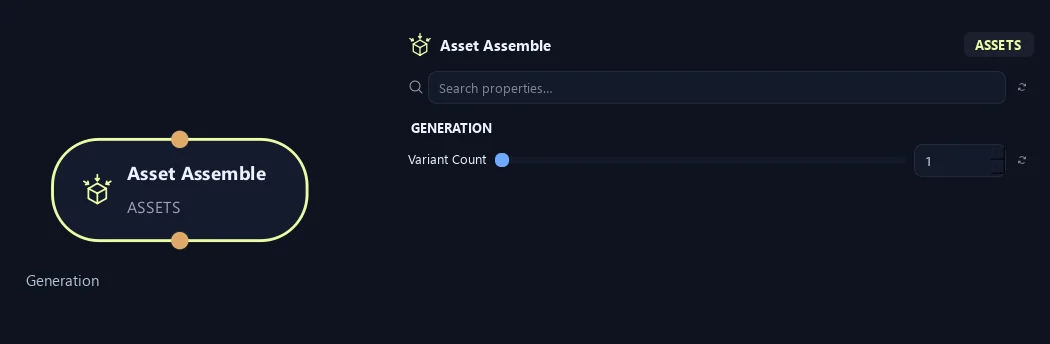
- Variant Count
Number of assembled variants, from 1 to 128. Empty Parts or Source = Cycle variants cycles each selected input independently, wrapping when its source list ends. Fixed source numbers remain unchanged between variants.
Placement
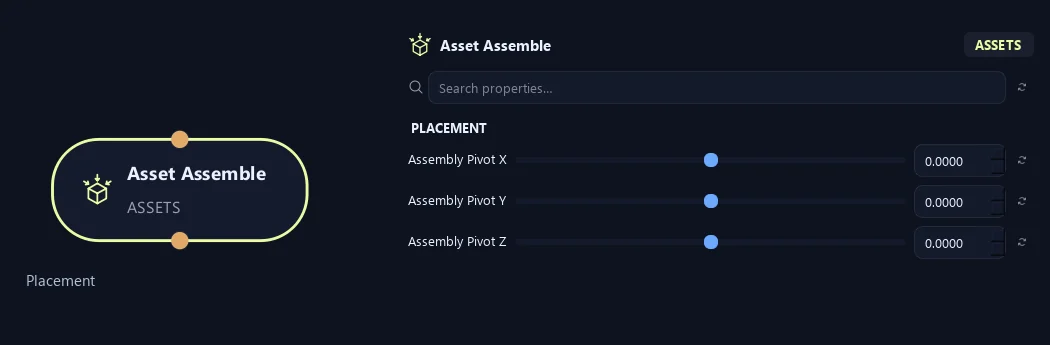
- Assembly Pivot X
Places the finished assembly origin at this X coordinate. Moving the pivot shifts all parts by the opposite amount while preserving their relative arrangement.
- Assembly Pivot Y
Places the finished assembly origin at this Y coordinate. Moving the pivot shifts all parts by the opposite amount while preserving their relative arrangement.
- Assembly Pivot Z
Places the finished assembly origin at this Z coordinate. Moving the pivot shifts all parts by the opposite amount while preserving their relative arrangement.
Input
Shown example: Parts = 1 explicit part(s).
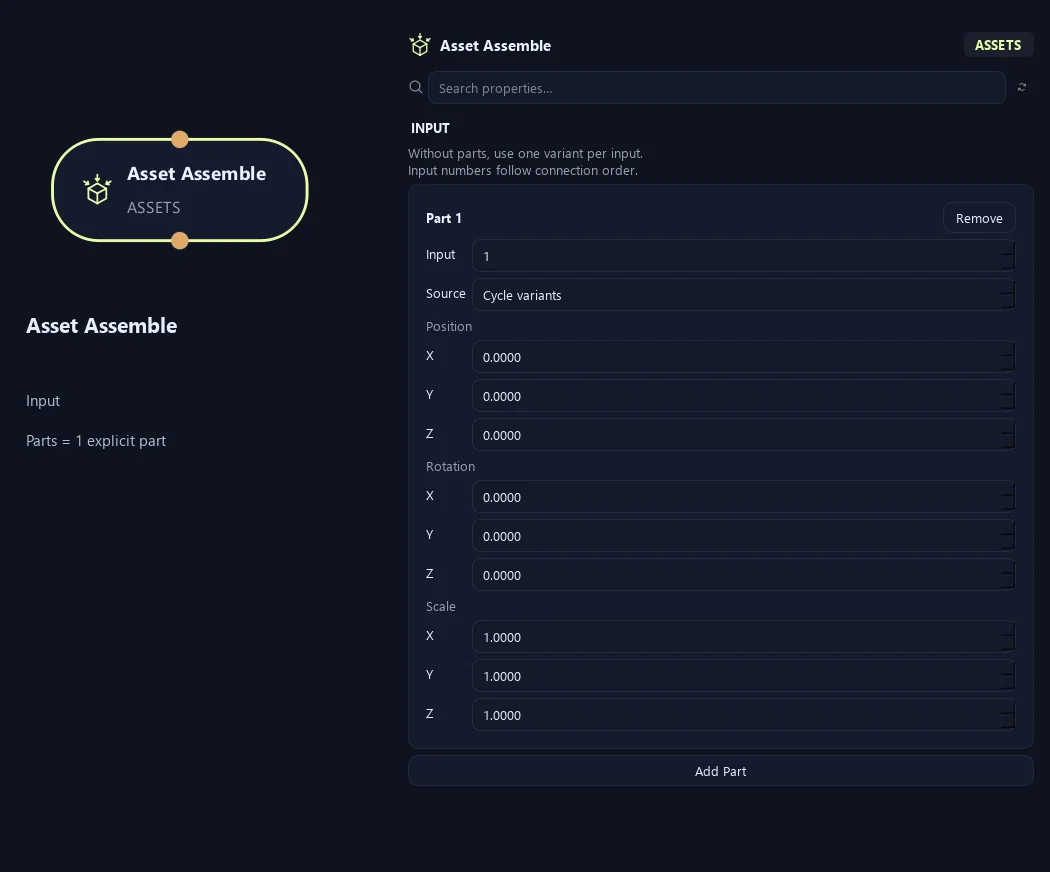
- Parts
Leave empty to combine one source from every connected collection, cycling each collection with the assembly variant. Add Part creates an explicit row: Input selects a connection (starting at 1); Source selects a source (starting at 1), or Cycle variants at 0. Position, Rotation and Scale X/Y/Z transform that part locally; rotations use degrees and scale must stay positive. Repeat a row to include the same input more than once; Remove deletes only that part row.
What is ZenGrove used for?
The RC.4 reference: 51 nodes, 892 settings and short WebM demos. Explore GameDynamics, joint previews, skeletal export and per-leaf random vertex colors. Requires AO.Hub 1.6.6 or later.
Which host application does ZenGrove support?
ZenGrove is built for Autodesk Maya and is distributed through AO Studio Tools.
Where can I download ZenGrove?
Download the current AO Studio Tools package from https://aostudio.tools/getthetools.html and install it through AO.Hub.