
ZenGrove
Built to move. Down to the last leaf.
Built to move. Down to the last leaf.
The RC.4 reference: 51 nodes, 892 settings and short WebM demos. Explore GameDynamics, joint previews, skeletal export and per-leaf random vertex colors. Requires AO.Hub 1.6.6 or later.
Asset Array
Distributes captured meshes, generated leaves or nested assemblies into reusable asset arrangements. Build radial flowers, rows, grids, spirals, helices, phyllotaxis patterns or repeated elements along curves, with independent source choice and seeded transforms.
Assets (multiple connections) · Curves
Assets
Connect Asset Generator or Asset Collection to Assets, then connect Asset Array.assets to Output.assets. Build Preview to see a radial arrangement. Use Direct Assets = All Variants on Output to compare variants with spacing.
Radial repeats Count elements per ring. Linear offers fixed distance, fitted length and source-bounds spacing. Grid uses X/Y/Z counts. Spiral and Helix share radius and height controls: equal radii make a cylindrical helix, while Height = 0 makes a planar spiral. Phyllotaxis creates a golden-angle disk. Curve needs a Curve Input connection and places Count elements per curve by sampled arc length; closed curves do not duplicate their endpoint.
Connect one or more asset collections. Their connection order and internal order define the one-based source numbers. Weighted Random needs at least one positive source weight. A source can itself be an entire array or assembly; selecting it keeps all its members together.
Source Pivot and Normalize Size prepare each source, followed by Source Offset, element scale and XYZ rotation, layout orientation, layout position and Assembly Pivot. For generated leaves the length axis is +X, width is +Z and normal is +Y. Source Forward X and Source Up Y match that convention.
Array Seed is independent of the tree seed. Increasing Variant Count preserves earlier variants. Changing Count redistributes the layout while retaining random values for existing stable slots. Random position, rotation, scale and source selection do not consume each other’s random stream.
Assembly produces one asset per variant; Elements exposes individual placements for selection downstream. Collections remain pools of choices rather than an instruction to emit every variant. Use Asset Assemble to combine several input collections deliberately.
Arrays are limited to 100,000 placements and 100,000 expanded terminal parts across their variants. Output and Game Output apply a separate Asset Part Limit including downstream copies. Instance Assets controls final instancing; static mesh output bakes the result and game atlases process the terminal source assets.
Watch the Asset Array settings tour
Current Maya controls, including conditional settings. Each view stays on screen for one second (three views take three seconds); pause or choose a group to inspect it.
Setup
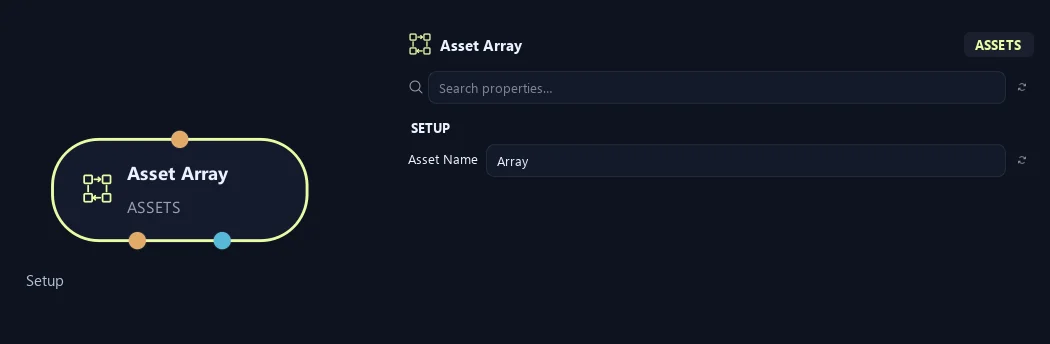
- Asset Name
Names the generated collection and its numbered asset variants. Use a clear name such as Petal Ring or Fern Layer to recognize the result downstream.
Distribution (1)
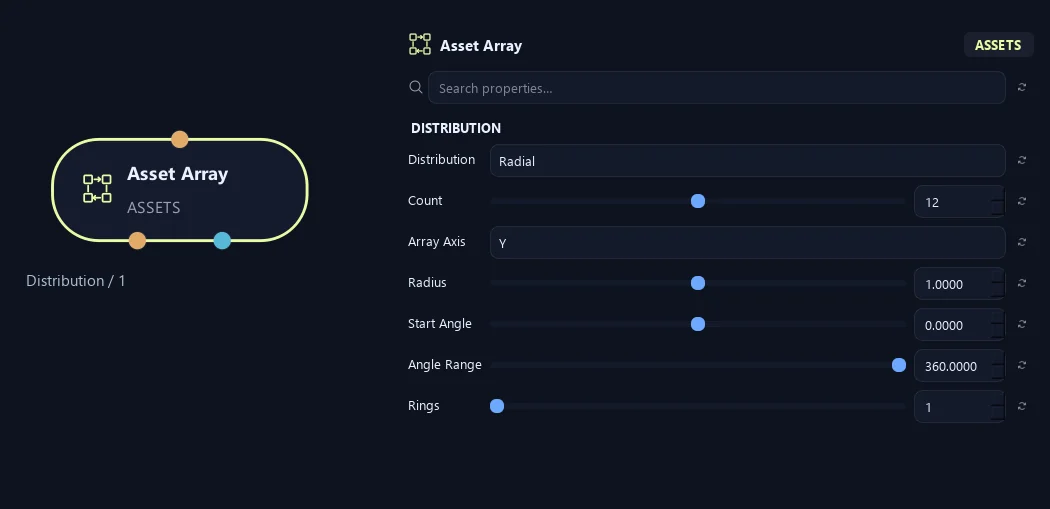
- Distribution
Chooses Radial rings, a Linear row, a three-dimensional Grid, a Spiral or Helix, a Phyllotaxis disk, or even spacing along captured Curves. Each mode reveals its own placement controls.
- Count
Number of placements in one distribution. Radial uses this count per ring; Curve uses it per connected curve. Grid uses Count X, Y and Z instead. Zero produces no placements.
Available when Distribution is Radial or Linear or Spiral or Helix or Phyllotaxis or Curve.
- Array Axis
Chooses the axis of a linear row or the axis around which radial, spiral and phyllotaxis layouts turn. It also provides the orientation up direction for Grid and Curve; it does not rotate a grid or the captured curve coordinates.
- Radius
Sets the first ring or spiral radius. In Phyllotaxis it controls the outer disk size, with placements spreading outward from the center.
Available when Distribution is Radial or Spiral or Helix or Phyllotaxis.
- Start Angle
Rotates the starting position of Radial, Spiral, Helix or Phyllotaxis placement around Array Axis, in degrees.
Available when Distribution is Radial or Spiral or Helix or Phyllotaxis.
- Angle Range
Angular span of each radial ring. A full 360-degree ring avoids a duplicate endpoint. Smaller spans include both ends; a negative angle reverses the direction and its tangent orientation.
Available when Distribution is Radial.
- Rings
Number of radial rings. Each ring contains Count placements, so increasing both multiplies the total number of elements.
Available when Distribution is Radial.
Distribution (2)
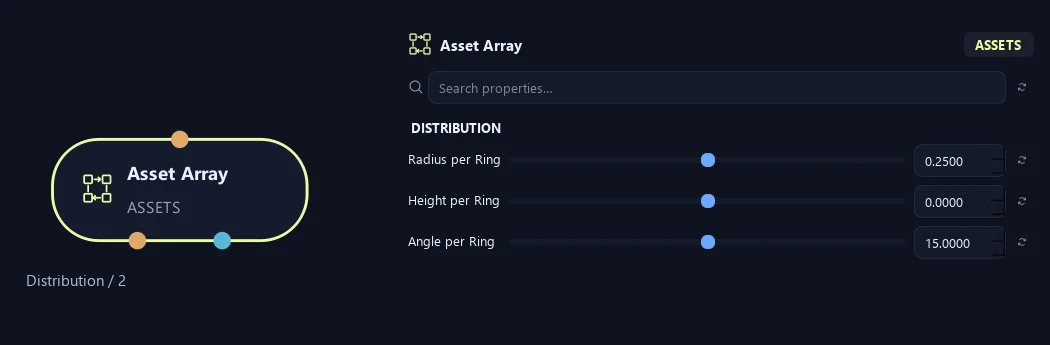
- Radius per Ring
Radius added for each successive radial ring. Positive values expand outward; negative values shrink inward, but no ring may end with a negative radius.
Available when Distribution is Radial.
- Height per Ring
Distance added along Array Axis for each successive radial ring. Use it to stack layers or combine it with radius changes for a stepped cone.
Available when Distribution is Radial.
- Angle per Ring
Additional angle in degrees for each successive radial ring. Offset neighboring layers to stagger petals or leaves.
Available when Distribution is Radial.
Input
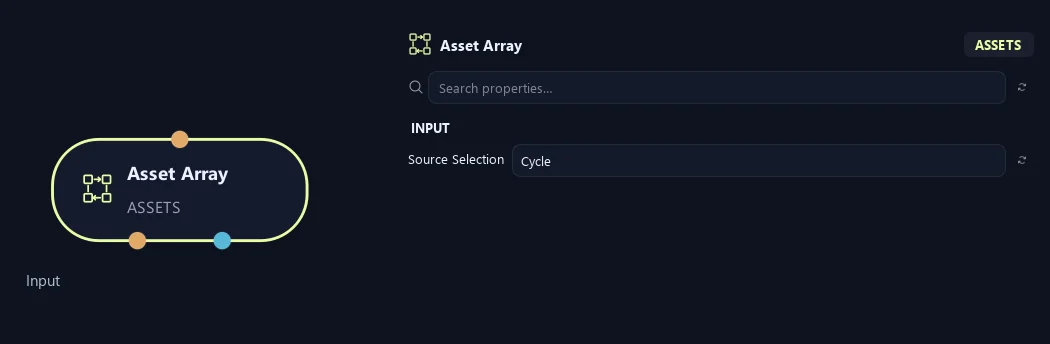
- Source Selection
Fixed repeats one source; Cycle visits all sources in order; Weighted Random respects source weights; Sequence repeats your source-number list. Sources follow connection order, then order within each collection.
Placement (1)
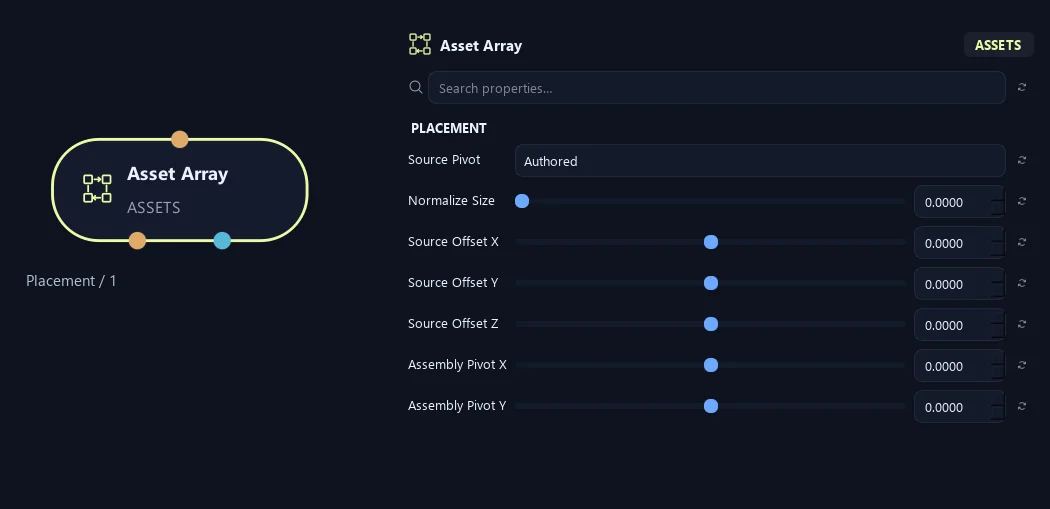
- Source Pivot
Authored uses the captured rotate pivot; Origin uses the source-local origin; Center uses the bounds center; Base uses the center of the minimum-Y bound. The original scene translation is not used as an array offset.
- Normalize Size
Zero preserves source dimensions. A positive value fits the longest source bounding-box side to that length, before applying the collection asset Scale and the array transforms.
- Source Offset X
Offsets the prepared source along local X, after source pivot and size normalization and before per-element transforms and layout orientation.
- Source Offset Y
Offsets the prepared source along local Y, after source pivot and size normalization and before per-element transforms and layout orientation.
- Source Offset Z
Offsets the prepared source along local Z, after source pivot and size normalization and before per-element transforms and layout orientation.
- Assembly Pivot X
Places the finished assembly origin at this X coordinate. Moving the pivot shifts all parts by the opposite amount while preserving their relative arrangement.
- Assembly Pivot Y
Places the finished assembly origin at this Y coordinate. Moving the pivot shifts all parts by the opposite amount while preserving their relative arrangement.
Placement (2)
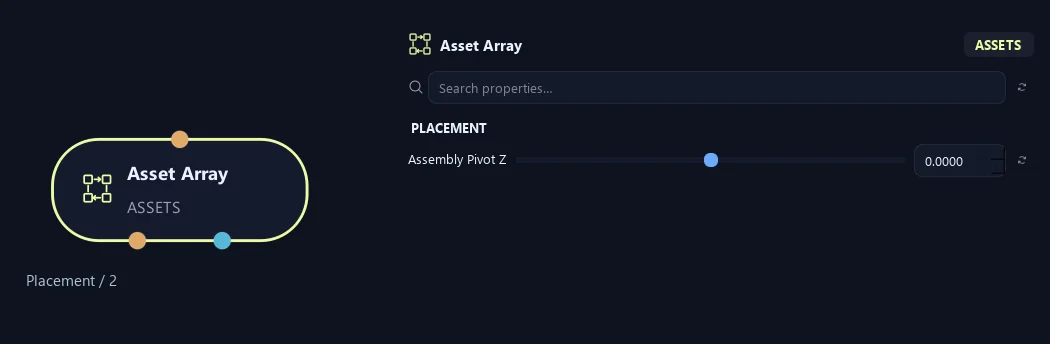
- Assembly Pivot Z
Places the finished assembly origin at this Z coordinate. Moving the pivot shifts all parts by the opposite amount while preserving their relative arrangement.
Orientation (1)
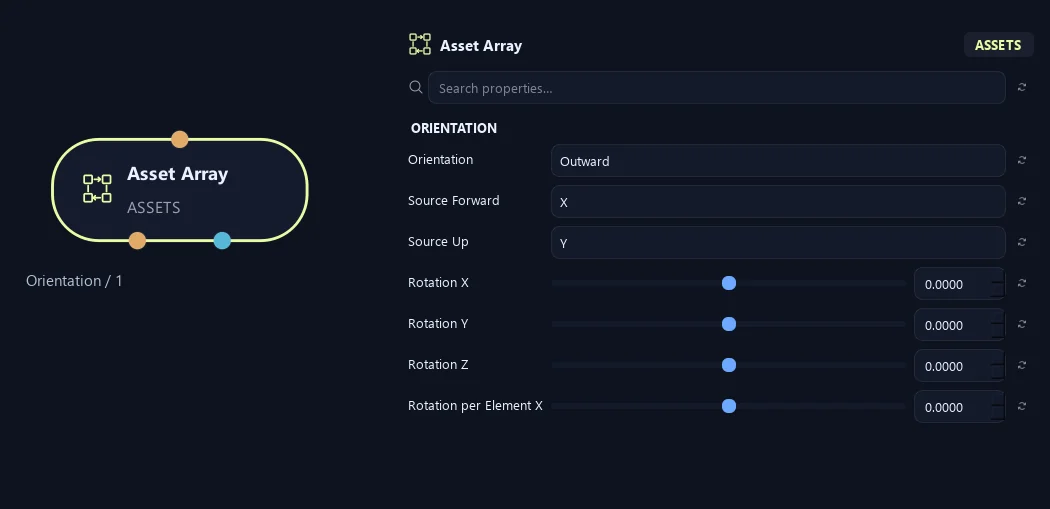
- Orientation
Source preserves the source orientation. Outward points away from the radial center; Inward reverses it; Tangent follows the layout direction. For Linear and Curve, outward follows their travel direction. Grid uses positive X for outward and tangent.
- Source Forward
Local source axis to align with the chosen layout direction. For automatic orientation it must differ from Source Up. Source orientation ignores both alignment axes.
- Source Up
Local source axis used to keep automatic orientation upright relative to the layout. Choose a different axis from Source Forward; when directions become parallel, a stable alternate up direction is used.
- Rotation X
Base rotation of every source around local X, in degrees. Rotation per Element and random rotation add to this value before layout orientation.
- Rotation Y
Base rotation of every source around local Y, in degrees. Rotation per Element and random rotation add to this value before layout orientation.
- Rotation Z
Base rotation of every source around local Z, in degrees. Rotation per Element and random rotation add to this value before layout orientation.
- Rotation per Element X
Adds this many degrees around local X for each consecutive element: the first adds zero, the next adds one step, then two steps, and so on.
Orientation (2)
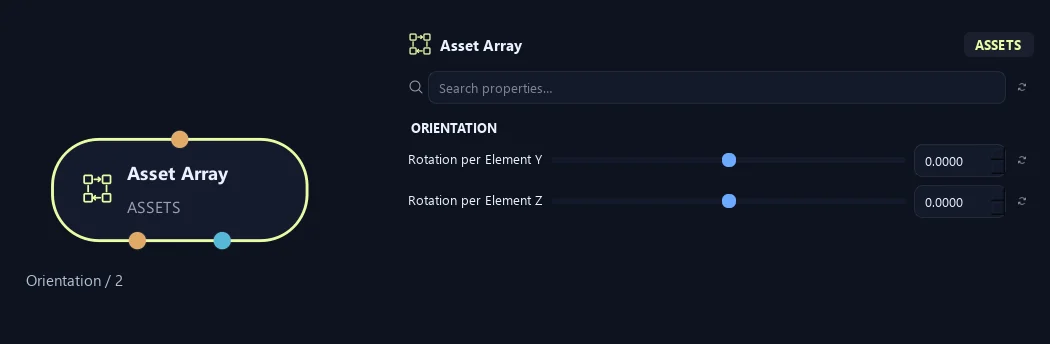
- Rotation per Element Y
Adds this many degrees around local Y for each consecutive element: the first adds zero, the next adds one step, then two steps, and so on.
- Rotation per Element Z
Adds this many degrees around local Z for each consecutive element: the first adds zero, the next adds one step, then two steps, and so on.
Scale (1)
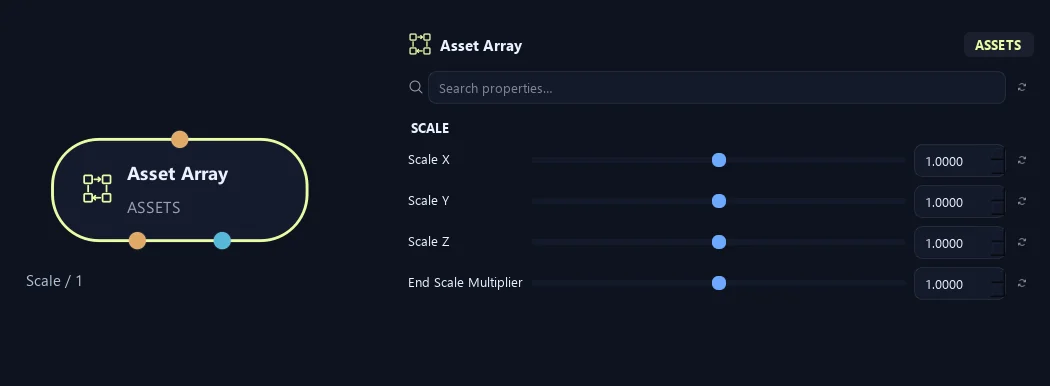
- Scale X
Positive source scale multiplier along local X. End Scale Multiplier, Scale Profile and uniform randomness multiply this value.
- Scale Y
Positive source scale multiplier along local Y. End Scale Multiplier, Scale Profile and uniform randomness multiply this value.
- Scale Z
Positive source scale multiplier along local Z. End Scale Multiplier, Scale Profile and uniform randomness multiply this value.
- End Scale Multiplier
Multiplier reached at the end of the distribution, interpolated from 1 at its start. It multiplies Scale, Scale Profile and random scale. With several radial rings, progression runs from first to last ring.
Scale (2)
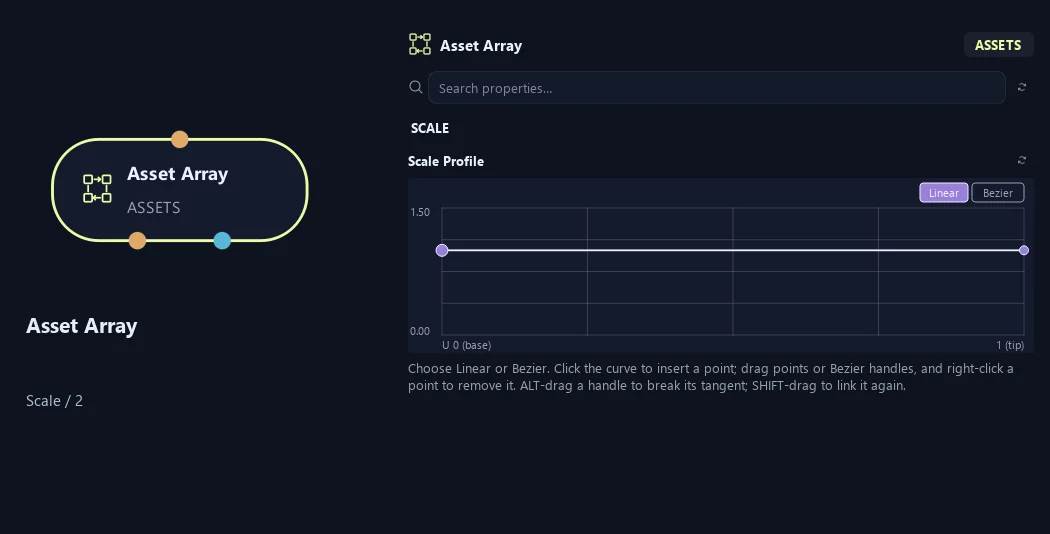
- Scale Profile
Edits a size multiplier over distribution progress, from start on the left to end on the right. Multiple radial rings use ring progression. A zero profile value skips that placement.
Generation (1)
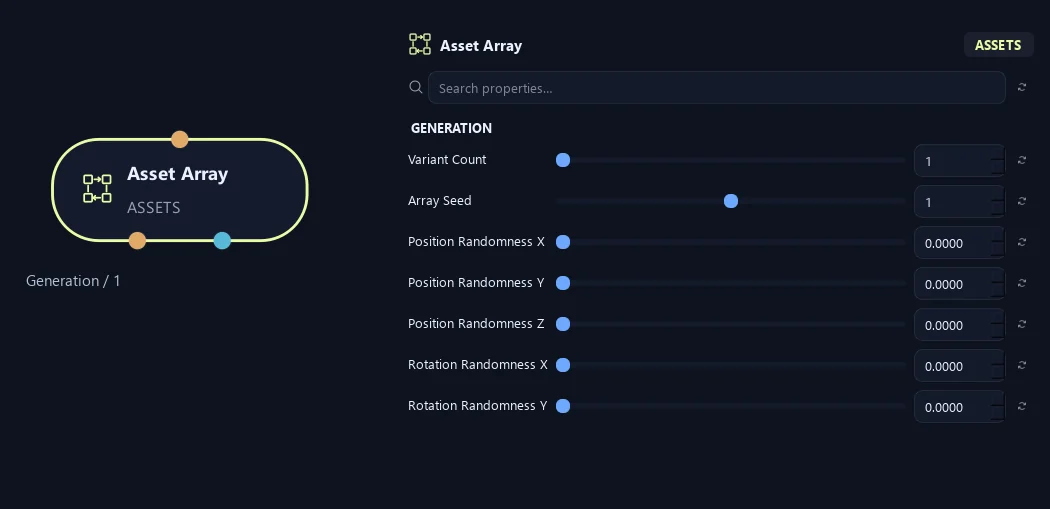
- Variant Count
Number of reusable array variants, from 1 to 128. Array Seed produces stable variation for each variant; increasing the count preserves earlier variants. With no random settings, variants can have identical shapes.
- Array Seed
Controls array source selection and transform randomness independently of the tree seed. Position, rotation, scale and source selection use separate random channels.
- Position Randomness X
Maximum seeded plus/minus positional offset along distribution-space X, in scene units. Zero keeps the exact layout positions on this axis.
- Position Randomness Y
Maximum seeded plus/minus positional offset along distribution-space Y, in scene units. Zero keeps the exact layout positions on this axis.
- Position Randomness Z
Maximum seeded plus/minus positional offset along distribution-space Z, in scene units. Zero keeps the exact layout positions on this axis.
- Rotation Randomness X
Maximum seeded plus/minus local rotation around X, in degrees, added before the source is oriented to the distribution.
- Rotation Randomness Y
Maximum seeded plus/minus local rotation around Y, in degrees, added before the source is oriented to the distribution.
Generation (2)
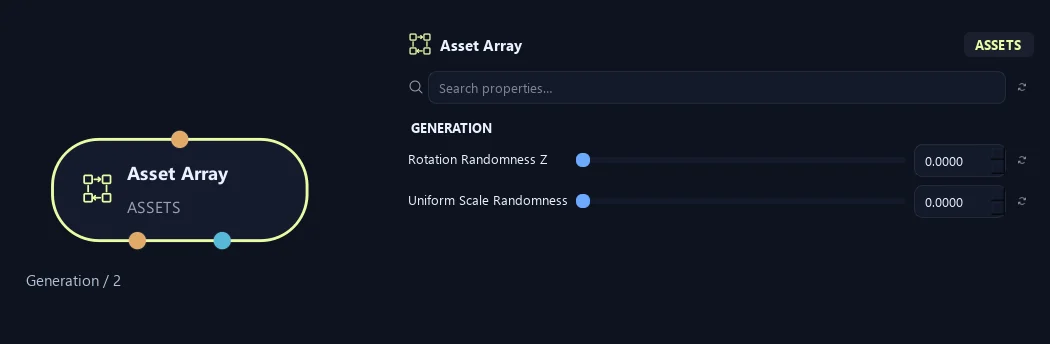
- Rotation Randomness Z
Maximum seeded plus/minus local rotation around Z, in degrees, added before the source is oriented to the distribution.
- Uniform Scale Randomness
Seeded uniform scale variation as a plus/minus fraction: 0.25 gives multipliers from 0.75 to 1.25. The same multiplier affects all three axes; zero disables this variation.
Export
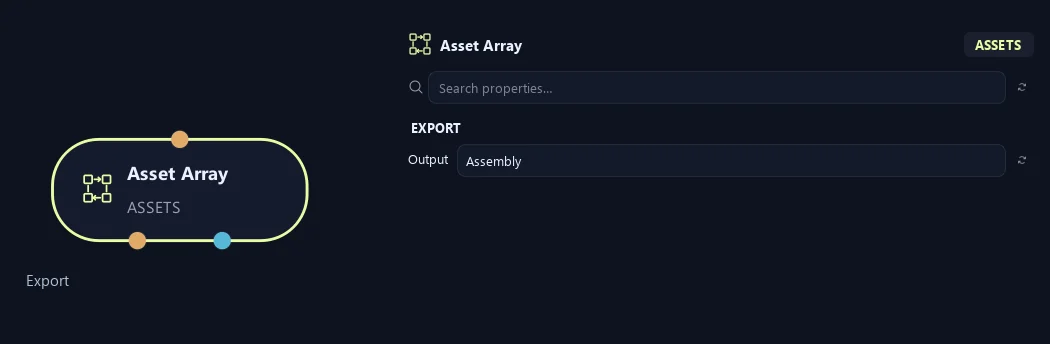
- Output
Assembly returns one reusable asset per variant, containing all placements. Elements returns each transformed placement as a separate selectable asset. A nested assembly still stays together as one selection unit.
Distribution
Shown example: Distribution = Linear.
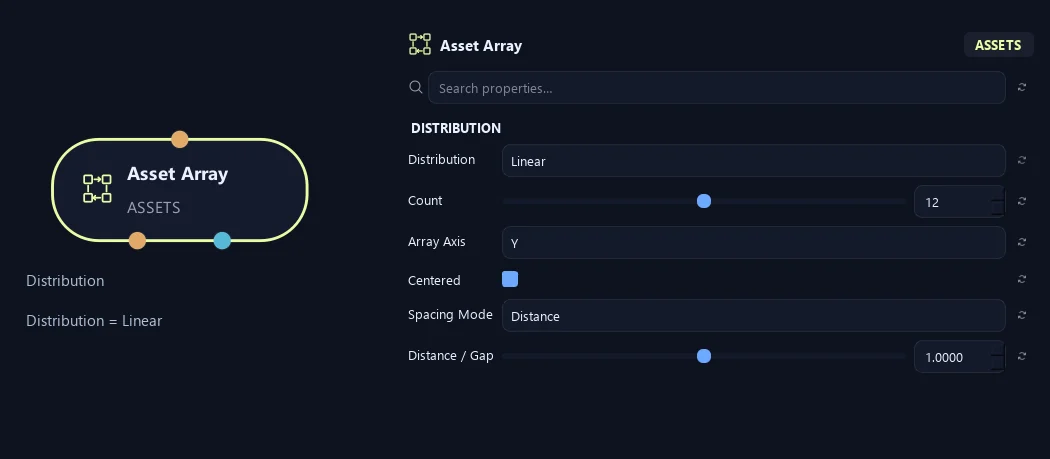
- Distribution
Chooses Radial rings, a Linear row, a three-dimensional Grid, a Spiral or Helix, a Phyllotaxis disk, or even spacing along captured Curves. Each mode reveals its own placement controls.
- Count
Number of placements in one distribution. Radial uses this count per ring; Curve uses it per connected curve. Grid uses Count X, Y and Z instead. Zero produces no placements.
Available when Distribution is Radial or Linear or Spiral or Helix or Phyllotaxis or Curve.
- Array Axis
Chooses the axis of a linear row or the axis around which radial, spiral and phyllotaxis layouts turn. It also provides the orientation up direction for Grid and Curve; it does not rotate a grid or the captured curve coordinates.
- Centered
Centers a Linear row or Grid around the origin. Turn it off to start the row or grid at the origin and extend in the spacing direction.
Available when Distribution is Linear or Grid.
- Spacing Mode
Distance uses a fixed step. Fit Length divides Total Length across the row. Source Bounds adds a conservative transformed source size to Distance / Gap; it can leave extra space around irregular sources.
Available when Distribution is Linear.
- Distance / Gap
Step between Linear placements in Distance mode. In Source Bounds mode this is an extra gap added to the largest conservative source extent. Fit Length ignores this field.
Available when Distribution is Linear.
Distribution (1)
Shown example: Distribution = Spiral.
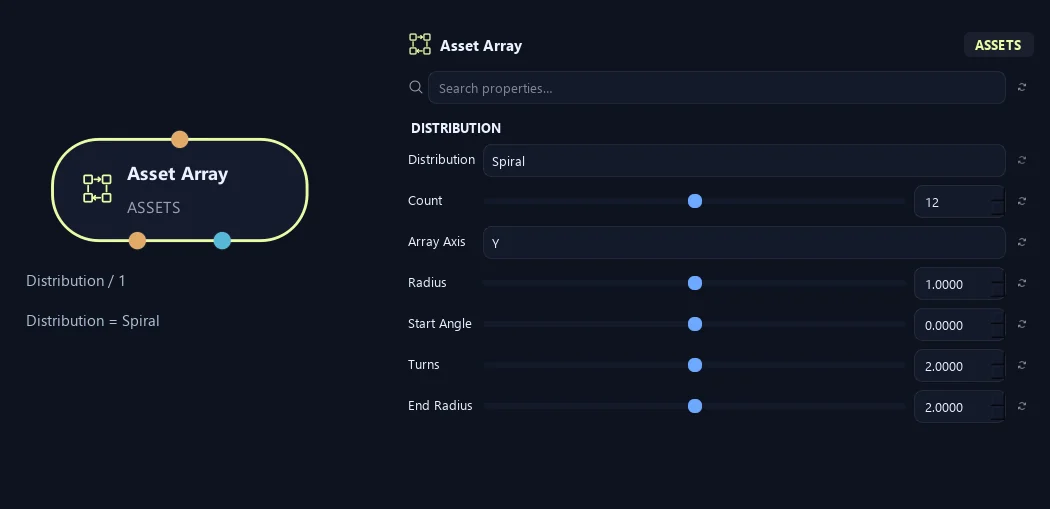
- Distribution
Chooses Radial rings, a Linear row, a three-dimensional Grid, a Spiral or Helix, a Phyllotaxis disk, or even spacing along captured Curves. Each mode reveals its own placement controls.
- Count
Number of placements in one distribution. Radial uses this count per ring; Curve uses it per connected curve. Grid uses Count X, Y and Z instead. Zero produces no placements.
Available when Distribution is Radial or Linear or Spiral or Helix or Phyllotaxis or Curve.
- Array Axis
Chooses the axis of a linear row or the axis around which radial, spiral and phyllotaxis layouts turn. It also provides the orientation up direction for Grid and Curve; it does not rotate a grid or the captured curve coordinates.
- Radius
Sets the first ring or spiral radius. In Phyllotaxis it controls the outer disk size, with placements spreading outward from the center.
Available when Distribution is Radial or Spiral or Helix or Phyllotaxis.
- Start Angle
Rotates the starting position of Radial, Spiral, Helix or Phyllotaxis placement around Array Axis, in degrees.
Available when Distribution is Radial or Spiral or Helix or Phyllotaxis.
- Turns
Number of revolutions from the start to the end of a Spiral or Helix. Negative values reverse the winding direction.
Available when Distribution is Spiral or Helix.
- End Radius
Radius at the last Spiral or Helix placement. The radius changes evenly from Radius to End Radius. Equal radii with nonzero Height produce a cylindrical helix.
Available when Distribution is Spiral or Helix.
Distribution (2)
Shown example: Distribution = Spiral.
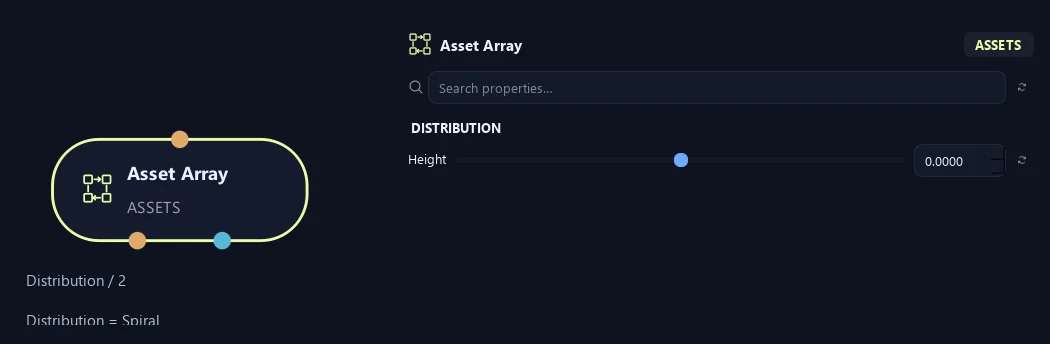
- Height
Total rise along Array Axis from first to last placement in Spiral, Helix or Phyllotaxis. Zero keeps the distribution flat; negative values extend in the opposite direction.
Available when Distribution is Spiral or Helix or Phyllotaxis.
Distribution
Shown example: Distribution = Phyllotaxis.
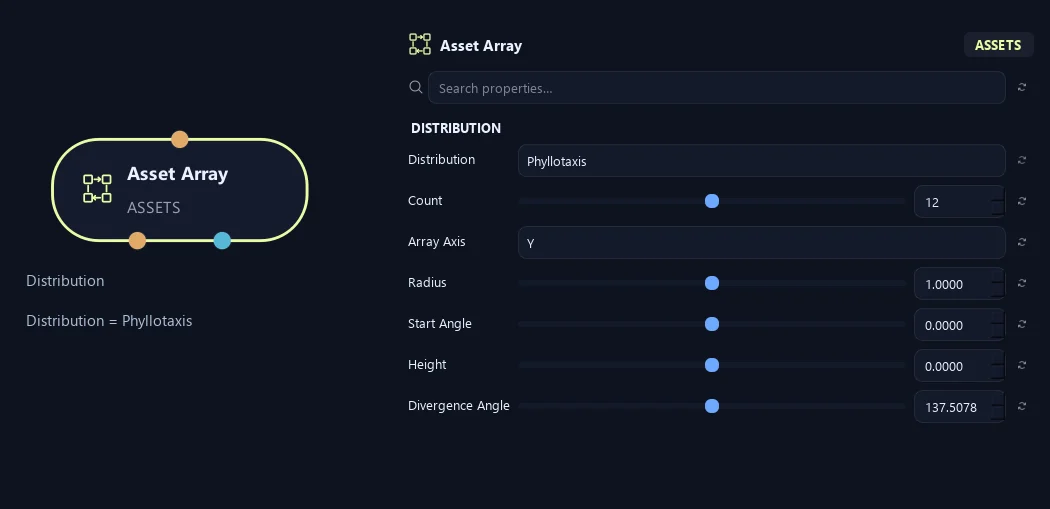
- Distribution
Chooses Radial rings, a Linear row, a three-dimensional Grid, a Spiral or Helix, a Phyllotaxis disk, or even spacing along captured Curves. Each mode reveals its own placement controls.
- Count
Number of placements in one distribution. Radial uses this count per ring; Curve uses it per connected curve. Grid uses Count X, Y and Z instead. Zero produces no placements.
Available when Distribution is Radial or Linear or Spiral or Helix or Phyllotaxis or Curve.
- Array Axis
Chooses the axis of a linear row or the axis around which radial, spiral and phyllotaxis layouts turn. It also provides the orientation up direction for Grid and Curve; it does not rotate a grid or the captured curve coordinates.
- Radius
Sets the first ring or spiral radius. In Phyllotaxis it controls the outer disk size, with placements spreading outward from the center.
Available when Distribution is Radial or Spiral or Helix or Phyllotaxis.
- Start Angle
Rotates the starting position of Radial, Spiral, Helix or Phyllotaxis placement around Array Axis, in degrees.
Available when Distribution is Radial or Spiral or Helix or Phyllotaxis.
- Height
Total rise along Array Axis from first to last placement in Spiral, Helix or Phyllotaxis. Zero keeps the distribution flat; negative values extend in the opposite direction.
Available when Distribution is Spiral or Helix or Phyllotaxis.
- Divergence Angle
Angle in degrees between consecutive Phyllotaxis placements. The default golden angle spreads elements into a sunflower-like pattern while the radius grows with the square root of the placement fraction.
Available when Distribution is Phyllotaxis.
Distribution (1)
Shown example: Distribution = Grid.
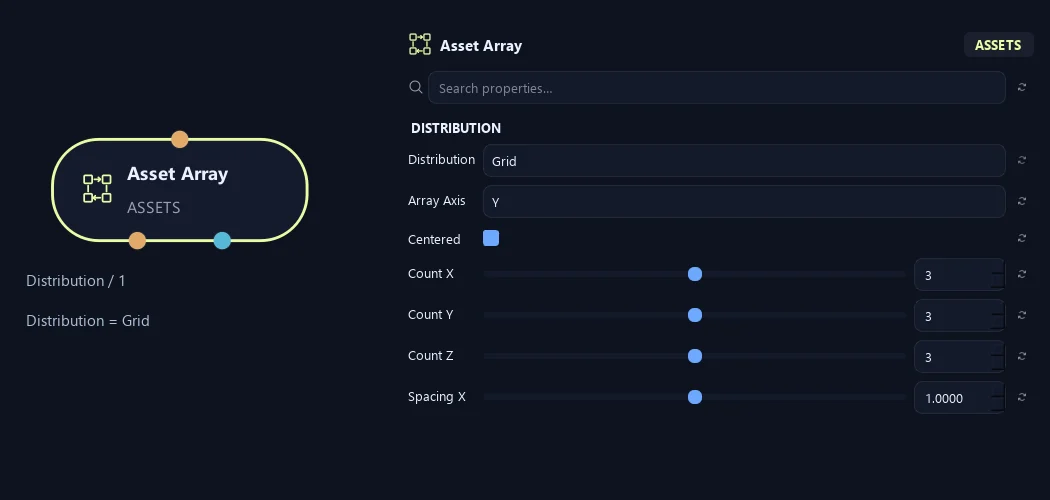
- Distribution
Chooses Radial rings, a Linear row, a three-dimensional Grid, a Spiral or Helix, a Phyllotaxis disk, or even spacing along captured Curves. Each mode reveals its own placement controls.
- Array Axis
Chooses the axis of a linear row or the axis around which radial, spiral and phyllotaxis layouts turn. It also provides the orientation up direction for Grid and Curve; it does not rotate a grid or the captured curve coordinates.
- Centered
Centers a Linear row or Grid around the origin. Turn it off to start the row or grid at the origin and extend in the spacing direction.
Available when Distribution is Linear or Grid.
- Count X
Number of Grid placements along X. The total is Count X × Count Y × Count Z, with a maximum of 100,000 placements before variants and nested parts are considered.
Available when Distribution is Grid.
- Count Y
Number of Grid placements along Y. The total is Count X × Count Y × Count Z, with a maximum of 100,000 placements before variants and nested parts are considered.
Available when Distribution is Grid.
- Count Z
Number of Grid placements along Z. The total is Count X × Count Y × Count Z, with a maximum of 100,000 placements before variants and nested parts are considered.
Available when Distribution is Grid.
- Spacing X
Distance between adjacent Grid positions along X. Zero overlaps that grid dimension; a negative value reverses its direction.
Available when Distribution is Grid.
Distribution (2)
Shown example: Distribution = Grid.
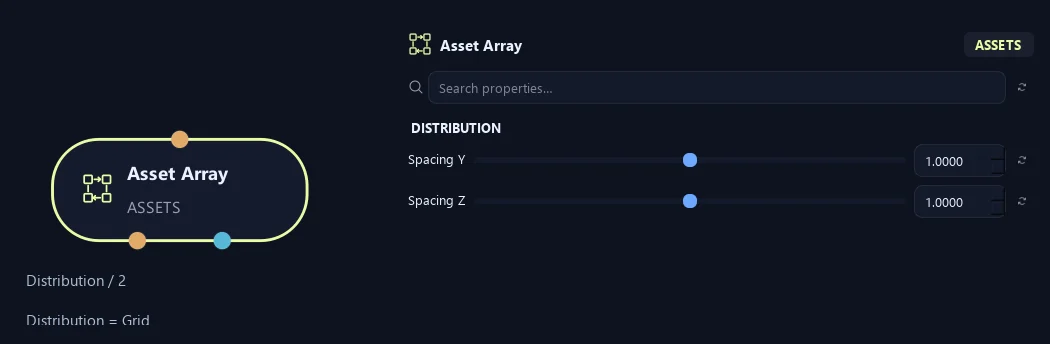
- Spacing Y
Distance between adjacent Grid positions along Y. Zero overlaps that grid dimension; a negative value reverses its direction.
Available when Distribution is Grid.
- Spacing Z
Distance between adjacent Grid positions along Z. Zero overlaps that grid dimension; a negative value reverses its direction.
Available when Distribution is Grid.
Distribution
Shown example: Distribution = Linear · Spacing Mode = Fit Length.
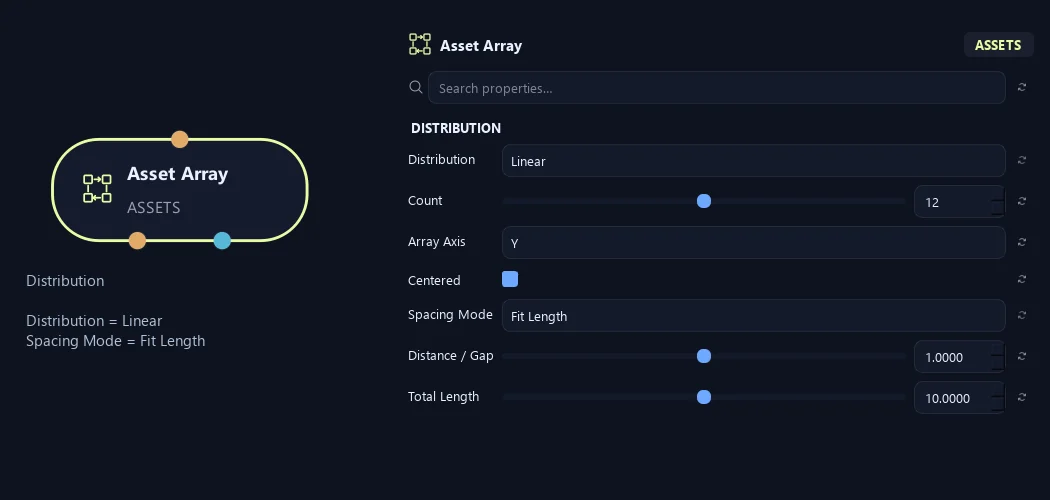
- Distribution
Chooses Radial rings, a Linear row, a three-dimensional Grid, a Spiral or Helix, a Phyllotaxis disk, or even spacing along captured Curves. Each mode reveals its own placement controls.
- Count
Number of placements in one distribution. Radial uses this count per ring; Curve uses it per connected curve. Grid uses Count X, Y and Z instead. Zero produces no placements.
Available when Distribution is Radial or Linear or Spiral or Helix or Phyllotaxis or Curve.
- Array Axis
Chooses the axis of a linear row or the axis around which radial, spiral and phyllotaxis layouts turn. It also provides the orientation up direction for Grid and Curve; it does not rotate a grid or the captured curve coordinates.
- Centered
Centers a Linear row or Grid around the origin. Turn it off to start the row or grid at the origin and extend in the spacing direction.
Available when Distribution is Linear or Grid.
- Spacing Mode
Distance uses a fixed step. Fit Length divides Total Length across the row. Source Bounds adds a conservative transformed source size to Distance / Gap; it can leave extra space around irregular sources.
Available when Distribution is Linear.
- Distance / Gap
Step between Linear placements in Distance mode. In Source Bounds mode this is an extra gap added to the largest conservative source extent. Fit Length ignores this field.
Available when Distribution is Linear.
- Total Length
Distance from first to last Linear placement in Fit Length mode. The step is Total Length divided by Count minus one; one placement has no span.
Available when Distribution is Linear and Spacing Mode is Fit Length.
Input
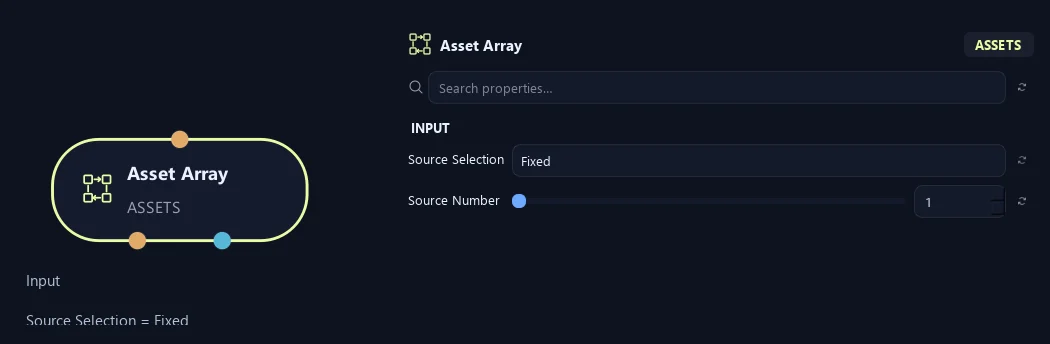
Shown example: Source Selection = Fixed.
- Source Selection
Fixed repeats one source; Cycle visits all sources in order; Weighted Random respects source weights; Sequence repeats your source-number list. Sources follow connection order, then order within each collection.
- Source Number
One-based number of the source repeated in Fixed mode. The number must exist in the combined pool of connected assets.
Available when Source Selection is Fixed.
Input
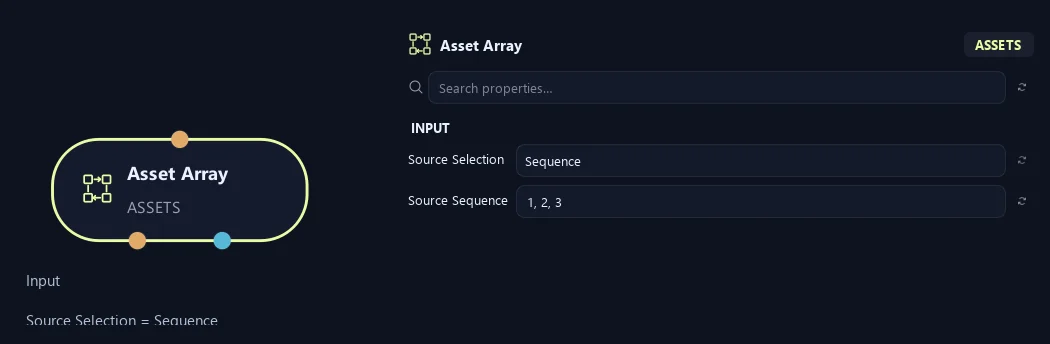
Shown example: Source Selection = Sequence.
- Source Selection
Fixed repeats one source; Cycle visits all sources in order; Weighted Random respects source weights; Sequence repeats your source-number list. Sources follow connection order, then order within each collection.
- Source Sequence
Comma-separated, one-based source numbers repeated across placements, for example 1, 1, 2, 3. Every number must exist; repeated numbers deliberately repeat that source.
Available when Source Selection is Sequence.
What is ZenGrove used for?
The RC.4 reference: 51 nodes, 892 settings and short WebM demos. Explore GameDynamics, joint previews, skeletal export and per-leaf random vertex colors. Requires AO.Hub 1.6.6 or later.
Which host application does ZenGrove support?
ZenGrove is built for Autodesk Maya and is distributed through AO Studio Tools.
Where can I download ZenGrove?
Download the current AO Studio Tools package from https://aostudio.tools/getthetools.html and install it through AO.Hub.