
Maya Bundle Exchange
Build a Maya asset library: create assets, migrate MA/MB/FBX files, organize variants and place them in your scene.
Build a Maya asset library: create assets, migrate MA/MB/FBX files, organize variants and place them in your scene.
Explore 20 illustrated topics with step-by-step workflows and explanations of the controls: library setup, asset creation, MA/MB/FBX migration, variants, previews, viewport placement, team reviews and portable scene exchange.
Asset Browser & Library
Browse visual .mbx libraries inside Maya with thumbnail and list views, search, categories, colored tags, favorites and recent assets.
Find an asset
The browser groups related packages as asset families. The inspector shows the active variant, its preview and metadata.
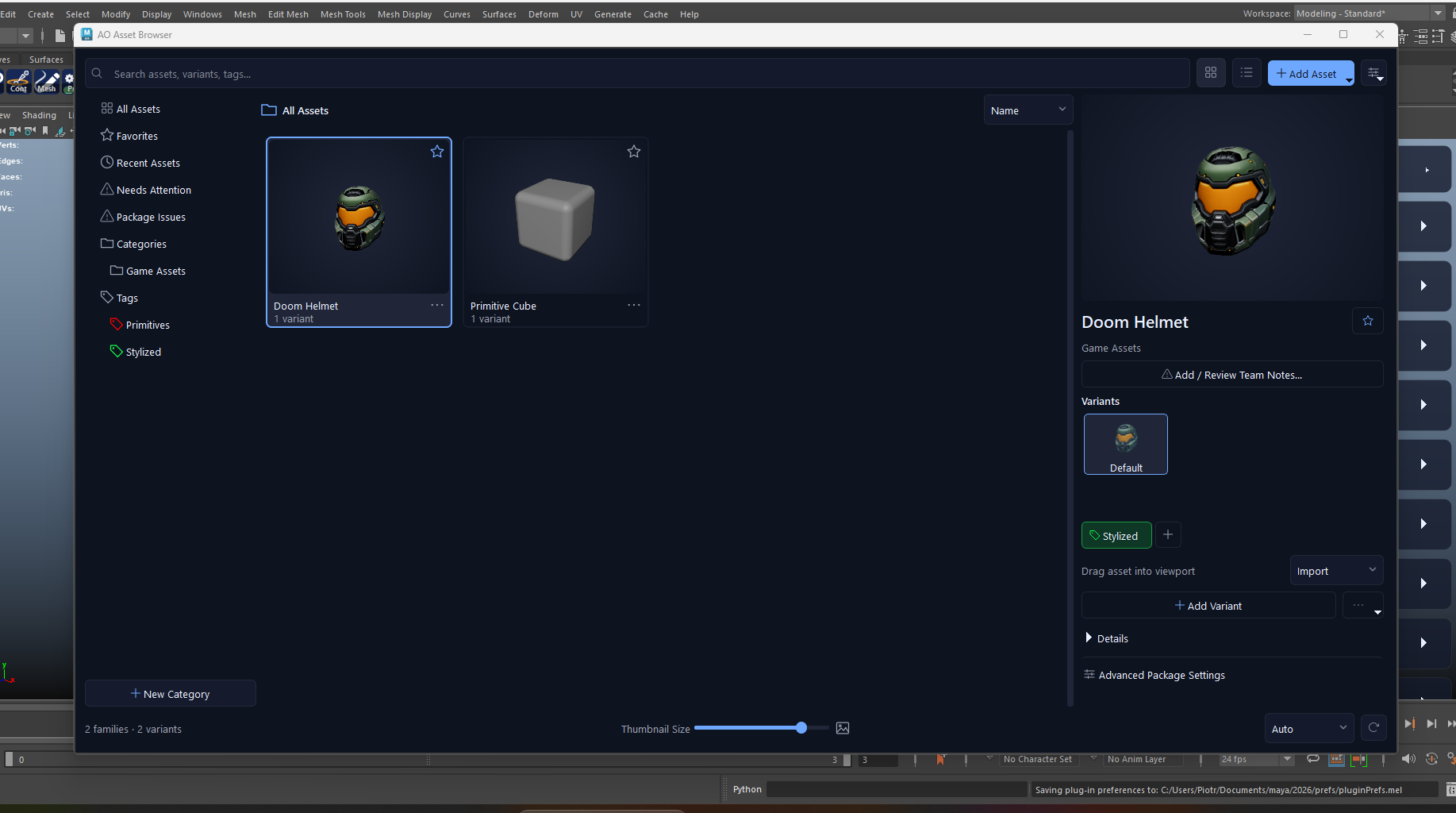
- Library navigation
- Choose a category, tag, Favorites or Recent Assets. Click the chevron to expand a branch; click its name to filter the results.
- Search
- Narrow the catalog by asset names, variants and tags. Clear the search and navigation filters if an expected asset is missing.
- Grid / list
- Switch between visual thumbnails and a compact list. The thumbnail-size slider changes the grid density.
- Sort
- Change the ordering of the current results without moving the package files.
- Inspector
- Select an asset to inspect it. Choose its variant before importing, referencing, editing metadata or leaving a review.
- Favorite
- Use the star to keep a personal shortcut. Favorites and recent usage belong to this workstation, not to the shared package.
Arrange the browser
The browser adapts to the available width and can be used in a compact Maya workspace.
- Auto / Compact / Wide
- Choose the layout arrangement in the bottom toolbar. Auto adapts to the available width.
- Show Inspector
- Toggle the details pane from Browser options when you need more space for thumbnails.
- Reset Layout
- Restore the pane layout from Browser options if panes are hidden or awkwardly sized.
- Refresh library
- Rescan the library after files are added or changed externally. Use Settings > Rebuild for a fresh local catalog.
How do I install and open MBX?
Install Maya Bundle Exchange through AO.Hub with your free account. Launching MBX opens AO Asset Browser. In Settings, choose an existing writable folder for the library. After an update, restart Maya so all changed modules and the placement plugin reload.
Can I import existing MA, MB and FBX files?
Yes. Drop files onto the browser asset area or use Add Asset > Migrate Asset Files… to scan a folder. Review names, categories and checkboxes, then choose Migrate checked. One source file becomes one MBX asset; the converter does not split each object into its own asset.
Does migration change my source files or open Maya scene?
No. Each source is processed separately from your working scene. The source file remains untouched and an existing output name is skipped. Keep source and destination folders separate, with neither folder inside the other.
What happens to MA/MB references?
Referenced MA/MB scenes are loaded and embedded into the migrated scene, including applied reference edits. The new asset contains their effective scene content, rather than the original editable reference hierarchy. Keep your original source project when you need that hierarchy.
Where does migration look for textures?
MA/MB paths are resolved from each owning source scene and its source project, including relevant nearby sourceimages or textures folders. The current working project is not used as a fallback. Ambiguous matches are reported instead of choosing a same-named image arbitrarily.
Why did an asset get a WARNING instead of READY?
A package was created, but its report contains information to review, such as missing textures, preview issues or embedded references. WARNING does not always mean the package is unusable. Select the row and inspect its diagnostics before reuse.
Can I reject files with missing textures?
Yes. Turn off Package with missing textures before migration. It is enabled by default. Missing references, other blocking dependencies, unknown required nodes or geometry-free inputs can still fail even when missing textures are allowed.
What should I check after converting FBX?
Check materials, texture paths, animation and scale in Maya. FBX import can lose Maya-specific tiled-texture or image-sequence settings. MBX packages the result that Maya imports; it does not turn FBX into a lossless Maya scene format.
What happens to duplicates, failures and cancellation?
An existing output filename is SKIPPED; edit the asset name or category to create another output. FAILED rows report their error, and the batch continues with other files. Cancel waits for the current operation to finish safely and stops before the next asset; completed packages remain available.
What is the difference between Import, Reference, Open and Unpack?
Import adds content to the current scene; Reference creates a Maya reference to the extracted asset content. Both load resources from a managed local cache. Open replaces the current Maya scene after checks. Unpack Scene collects the opened MBX scene and its resources into a Maya project or directory.
Which data travels in an MBX package?
The package includes the scene data, collected resources, previews, asset metadata and integrity information. Library review notes and tag colors are separate shared library records; favorites and recent history are local.
Why do I still need Maya and renderer plugins?
MBX carries detected resource files, not installed Maya plugins or renderers. Use a compatible Maya installation with the required plugins. Migration also needs the mayapy runtime supplied with Maya; FBX input needs its FBX importer.
What does Remove from Index do?
It removes the browser index entry but keeps the .mbx file on disk, so a refresh may rediscover it. Delete Variant Permanently… deletes that variant package; Delete Asset Permanently… deletes the family packages. These are different operations.
Which platforms are listed as supported?
The website lists Windows and macOS for AO Studio Tools. Windows Explorer thumbnails and file association features apply only to Windows.