
Production asset libraries
Organize models, rigs and complete scenes with categories, tags and previews. Give your team access through a shared library folder or NAS.
A production asset library for Maya.
Maya Bundle Exchange combines a visual asset browser with packaging and version management. Organize production assets, compare revisions and bring models or scenes into Maya as imports or references. Each .mbx file carries the asset, its textures and other collected dependencies together, ready to share between artists and workstations.
Free for noncommercial use. A verified AO.Hub account is required. License details
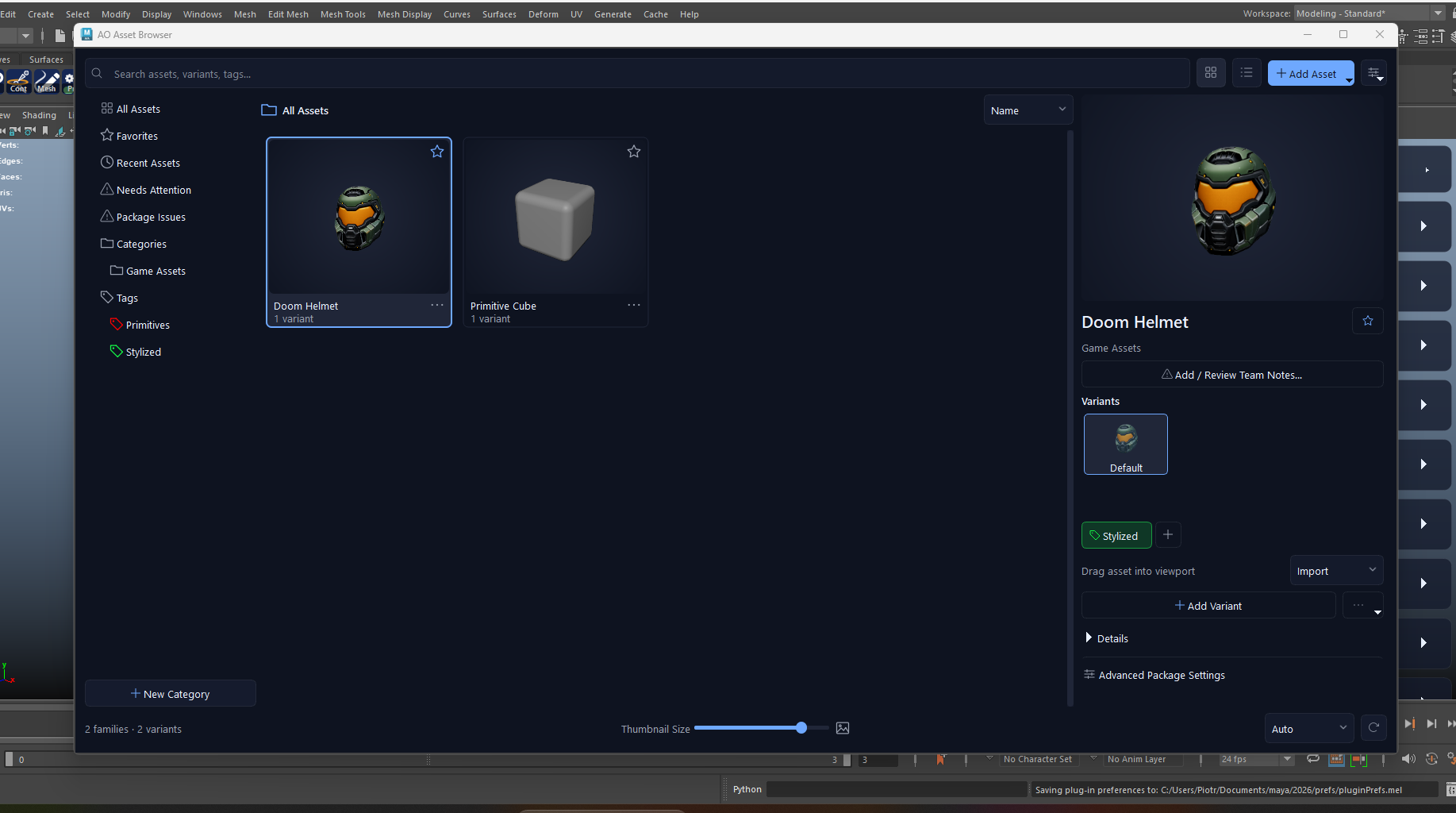
Manage a shared studio library or your own asset collection. Find assets visually, keep related variations together and check revisions before bringing them into a scene.
Organize models, rigs and complete scenes with categories, tags and previews. Give your team access through a shared library folder or NAS.
Choose a variant and drag it into Maya as an import or reference. Use placement previews and snapping to position the asset.
Compare versions and inspect what changed. Restore supported parts of an earlier revision when you need to bring something back.
Share an asset with its textures and collected resources in one .mbx file. Check dependencies and package integrity before handing it over.
MBX opens straight into the Asset Browser. Find work visually, choose a variant and bring it into Maya. Each asset is backed by a portable package that keeps the scene, its collected resources and its preview together.
Compare asset versions and inspect changes to hierarchy, topology, UVs, materials, references, attributes and animation.
Bring back supported cameras, lights, scene branches, materials, attributes or animation channels from an earlier version, with a preview and undo support.
MBX is available for noncommercial use without starting the Pro trial. Commercial work requires a commercial license.
Convert existing Maya scenes and FBX collections into searchable library assets. Add individual files or scan a folder, review the names and categories, then convert the selected files. Each source file becomes one MBX asset; your originals stay untouched.
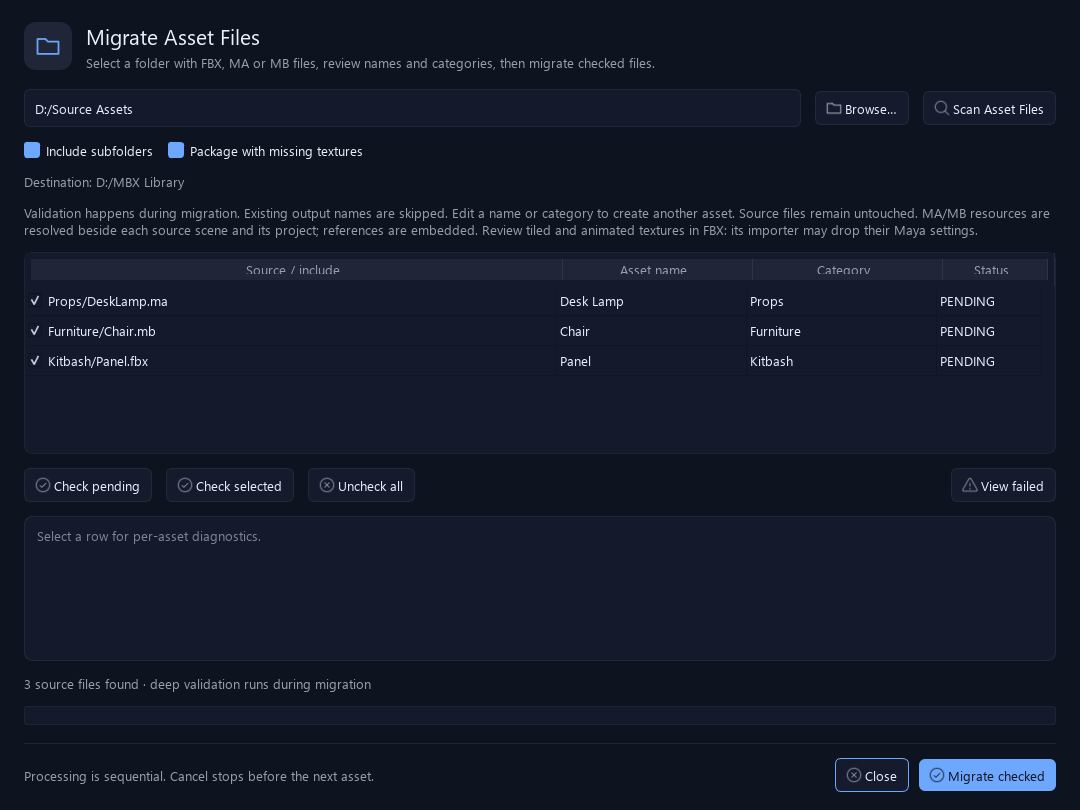
MA/MB references are embedded into the converted scene. Review missing textures and FBX material or animation differences in the migration report.
MBX collects textures, caches, references and other detected resources with the scene in a single .mbx package. Move that file to another workstation or send it to another artist. When the asset loads, MBX restores the paths to its packaged resources.
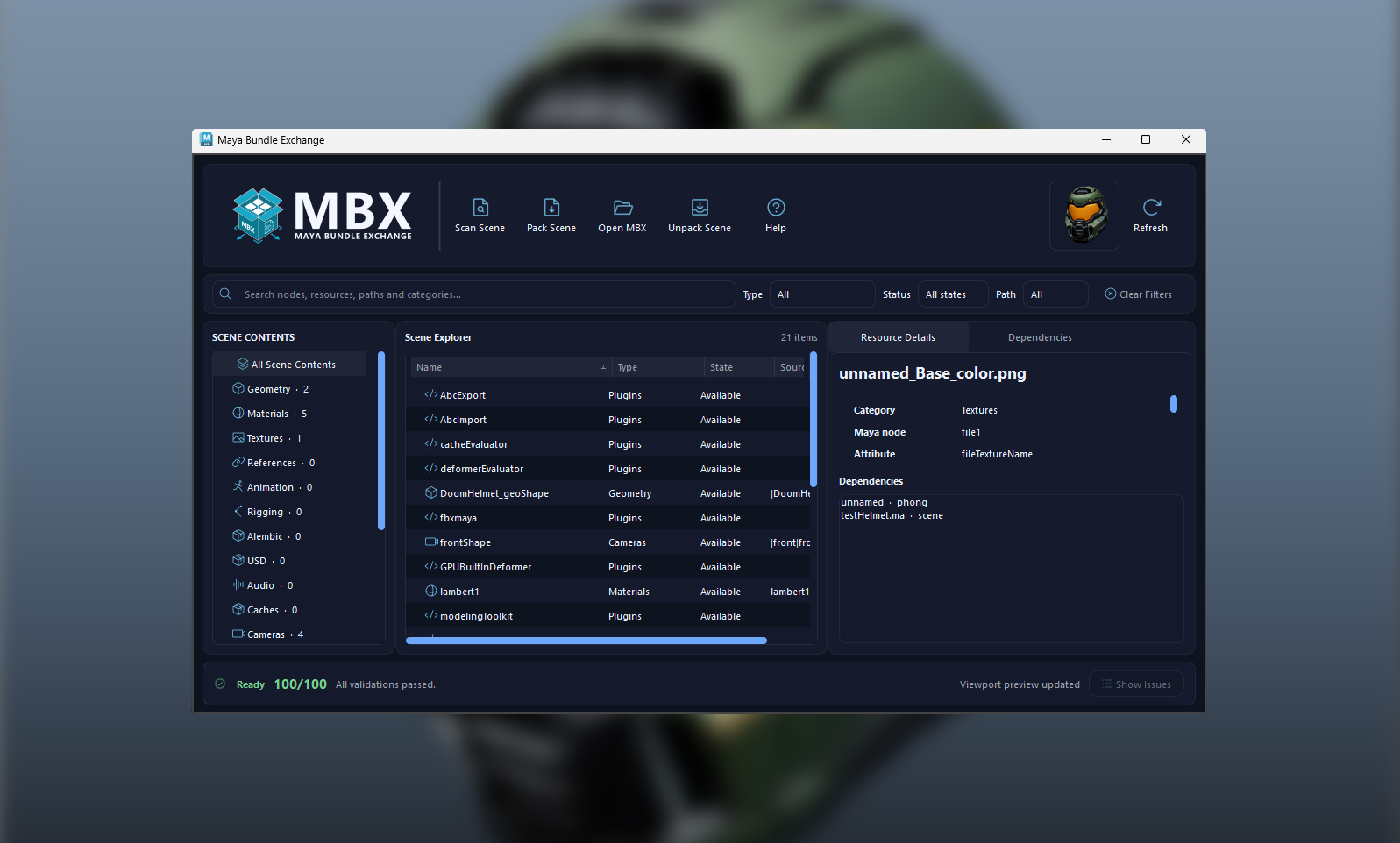 View dependency inspector ↗
Check the files collected with your asset, identify missing resources and verify package integrity in Advanced Package Settings.
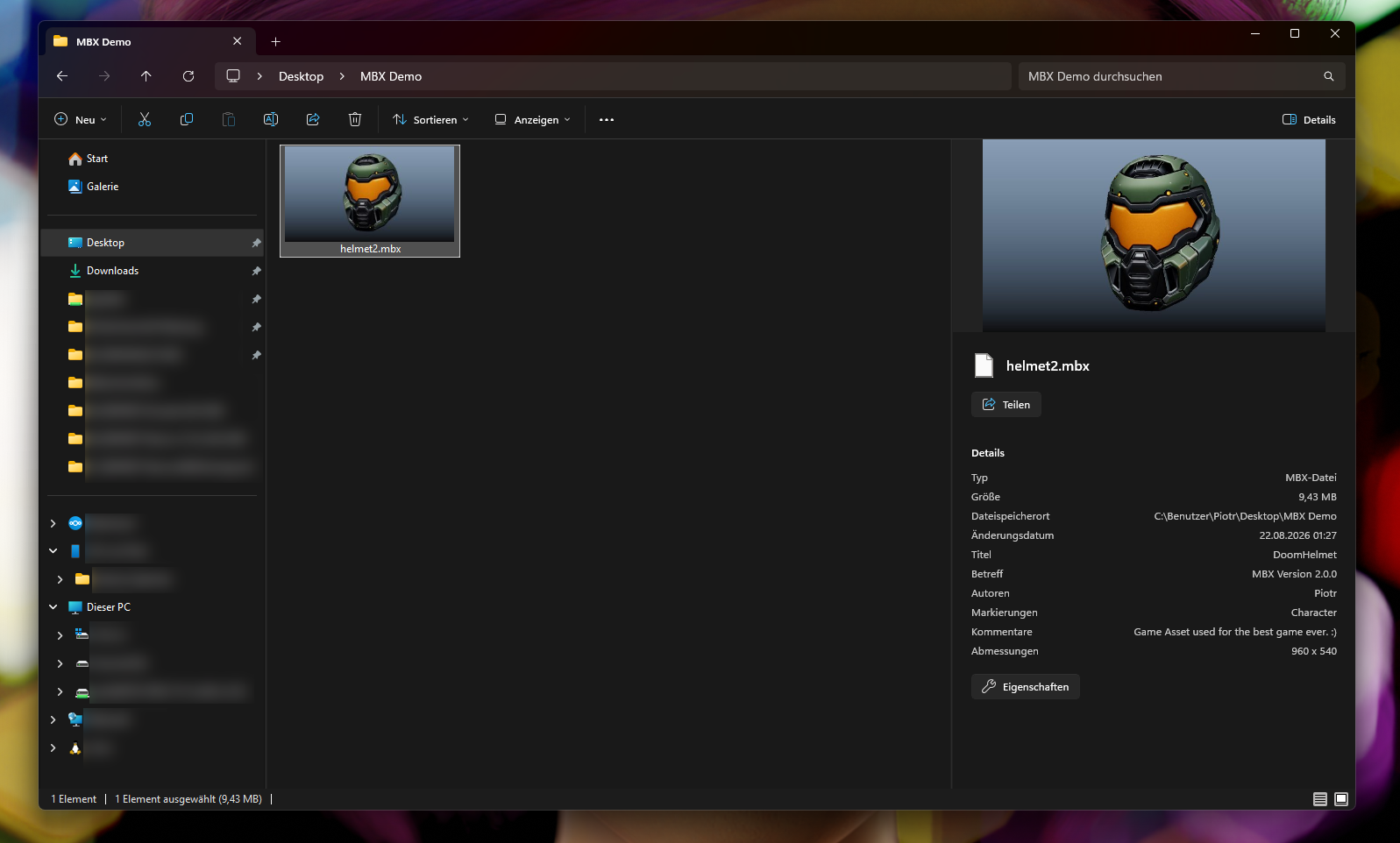 View Windows Explorer preview ↗
Recognize .mbx files by their embedded previews. Open a package in the Asset Browser or add it to your library directly from Windows.
Yes. The complete MBX feature set is available for noncommercial use with a verified AO.Hub account. No Pro trial is required. For commercial work, you’ll need a commercial license.
Yes. Choose Add Selection as Asset for selected objects, or Add Current Scene as Asset for the whole scene. Add a preview and metadata, and save it as a new asset or a variant of an existing family.
MBX extracts the package into a managed local cache and restores resource paths before loading it into Maya. Import adds scene content; Reference creates a Maya reference to that extracted asset revision. To collect an opened MBX scene into a project folder, use Unpack Scene in Advanced Package Settings.
The package carries the asset, its collected dependencies, preview and asset metadata, including tags and variant information. Team review notes and tag colors are stored alongside packages in the shared library folder. Favorites and recent history are local to each artist.
No. MBX collects detected external resources and reports dependency issues. The receiving workstation still needs a compatible Maya installation and the plugins or renderers used by the asset. Windows Explorer previews apply to .mbx packages with embedded previews.
Install Maya Bundle Exchange through AO.Hub. Bring in your existing assets or save work directly from Maya, then reuse it across your projects.
Get help with library setup, asset packaging and licensing through AO.Hub, email or Discord. The MBX documentation covers individual workflows and troubleshooting.