
AO.Hub
Install, create your account and manage your tools inside Maya.
Install, create your account and manage your tools inside Maya.
Illustrated guides for registration, email confirmation, login and password reset, the Pro trial, education access, updates, bug reports and tool requests.
Tools
Find, install and launch tools
Browse the catalog, inspect a tool, then install or launch it from the Hub.
Step by step
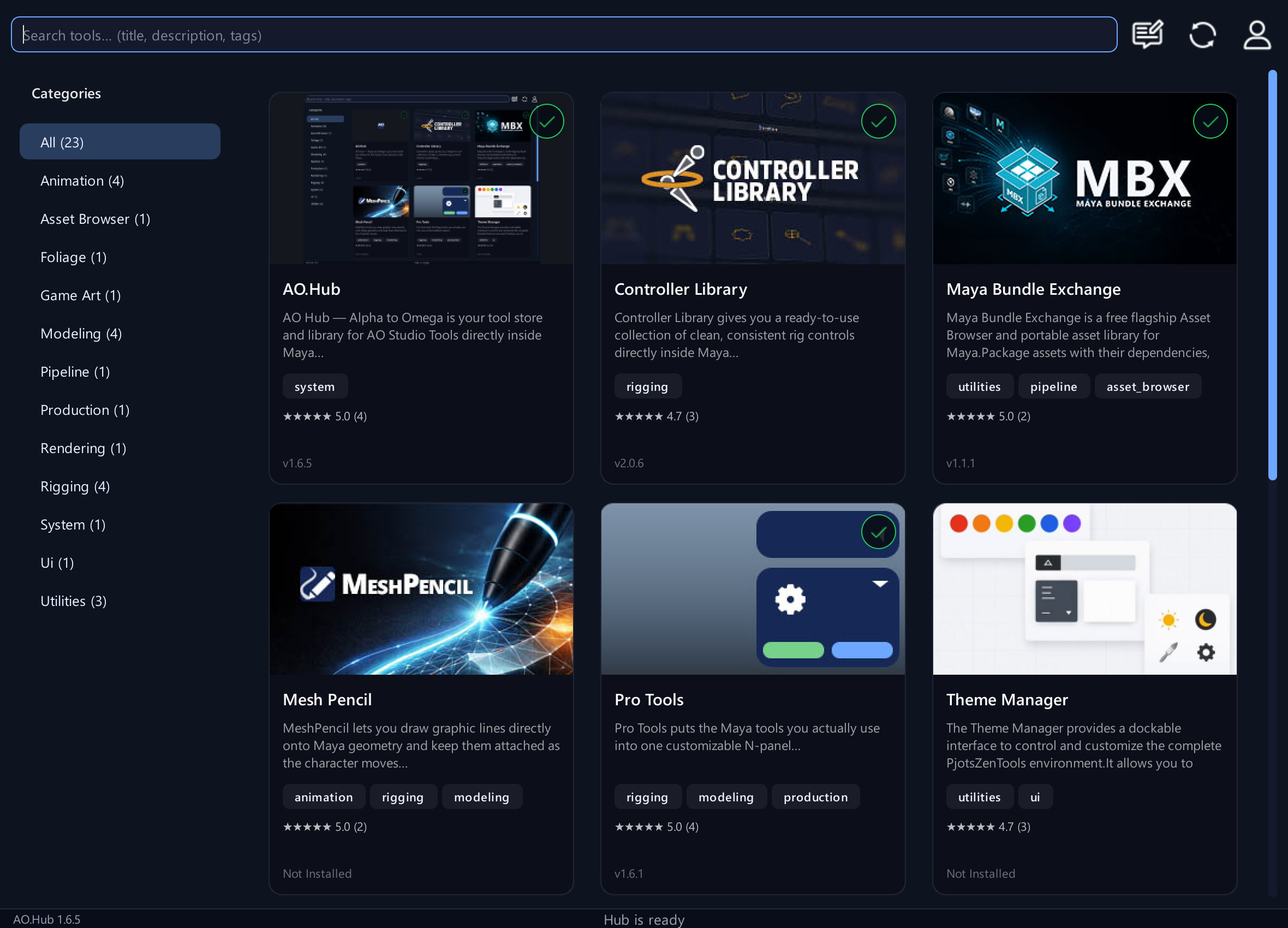
- Log in to AO.Hub. Use the search field to find a tool by name, description or tag, or choose a category.
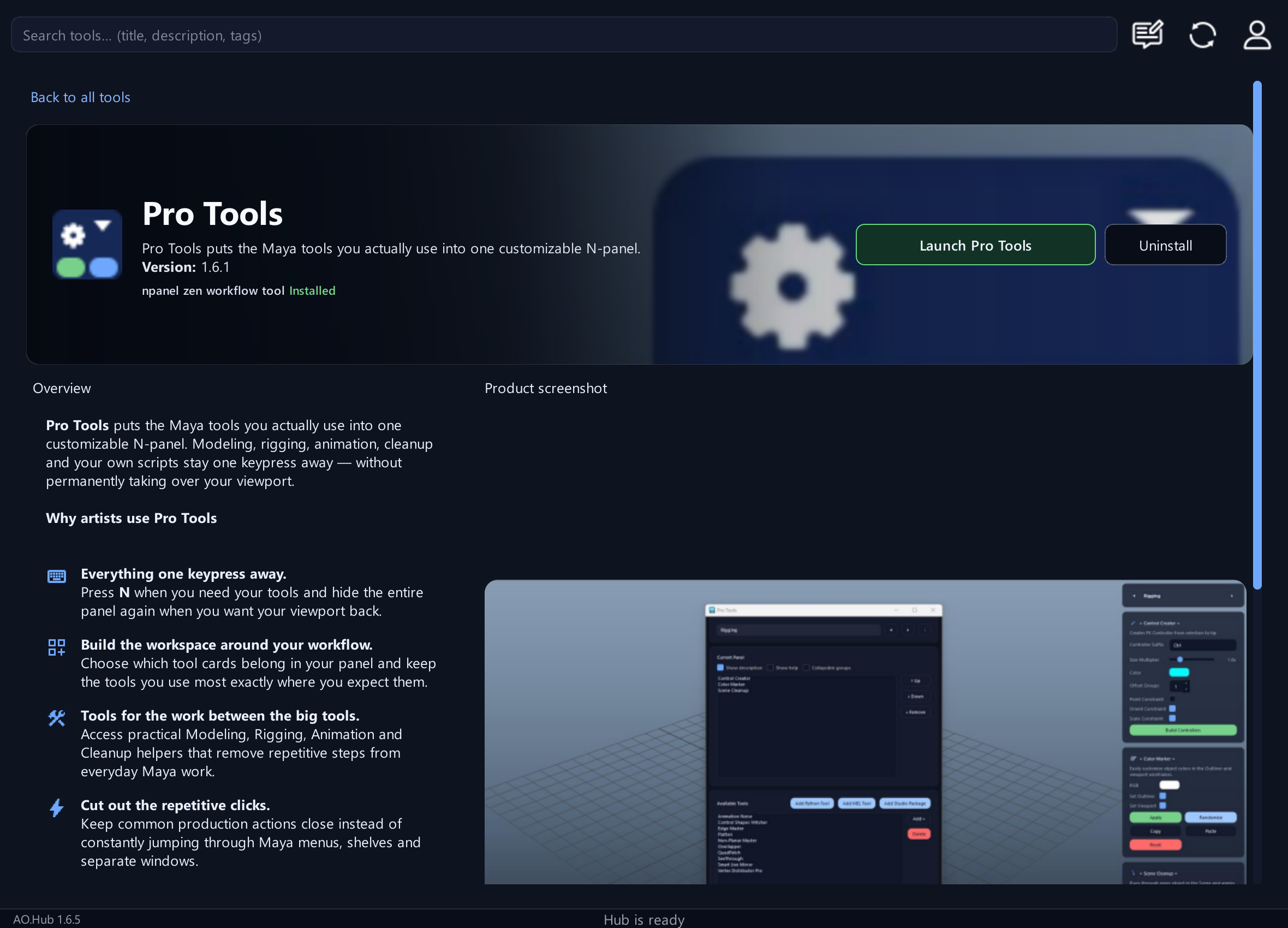
- Open a tool card to read its description, screenshots and available access.
- Choose Install followed by the tool name when installation is available. Wait for installation to complete.
- Use Launch followed by the tool name (for example, Launch Pro Tools) to open an installed tool. Back to all tools returns to the catalog.
- For a tool that requires additional access, check your trial, education or commercial license in the account menu.
Controls and terms
- Installed
- The tool is already installed on this workstation.
- Launch [tool name]
- Starts the selected installed tool.
- Uninstall
- Removes the selected local installation. This is different from deleting your account.
- Refresh / sync
- Refreshes the catalog and account access after a change.
What is the correct first-time order?
Install AO.Hub by dragging the extracted installer into Maya. Restart Maya, then Create account, confirm the email and log in.
What if no verification email arrives?
Check spam/junk. If no email has arrived after 20 minutes, Register again and carefully enter the correct email address; the first address may have been mistyped.
May I use Pro tools for paid jobs during the trial?
No. The 14-day Pro trial is for personal evaluation and learning. Paid client work and other paid jobs require an appropriate commercial license.
How does education access work?
Private educators and mentors can distribute access after AO Studio Tools enables their educator permissions. Schools can have their whole email domain approved; verified accounts on that domain then receive three years of access automatically.
Where do I report bugs or request a tool?
Open Feedback Center from the Hub toolbar. Choose Report a bug, or Submit tool request when your signed-in account has a commercial license. Describe the issue or workflow and wait for the result after Send.