
Soften Edges (180°)
Applies a full soften edge pass on the selected meshes for clean smoothing prior to export.
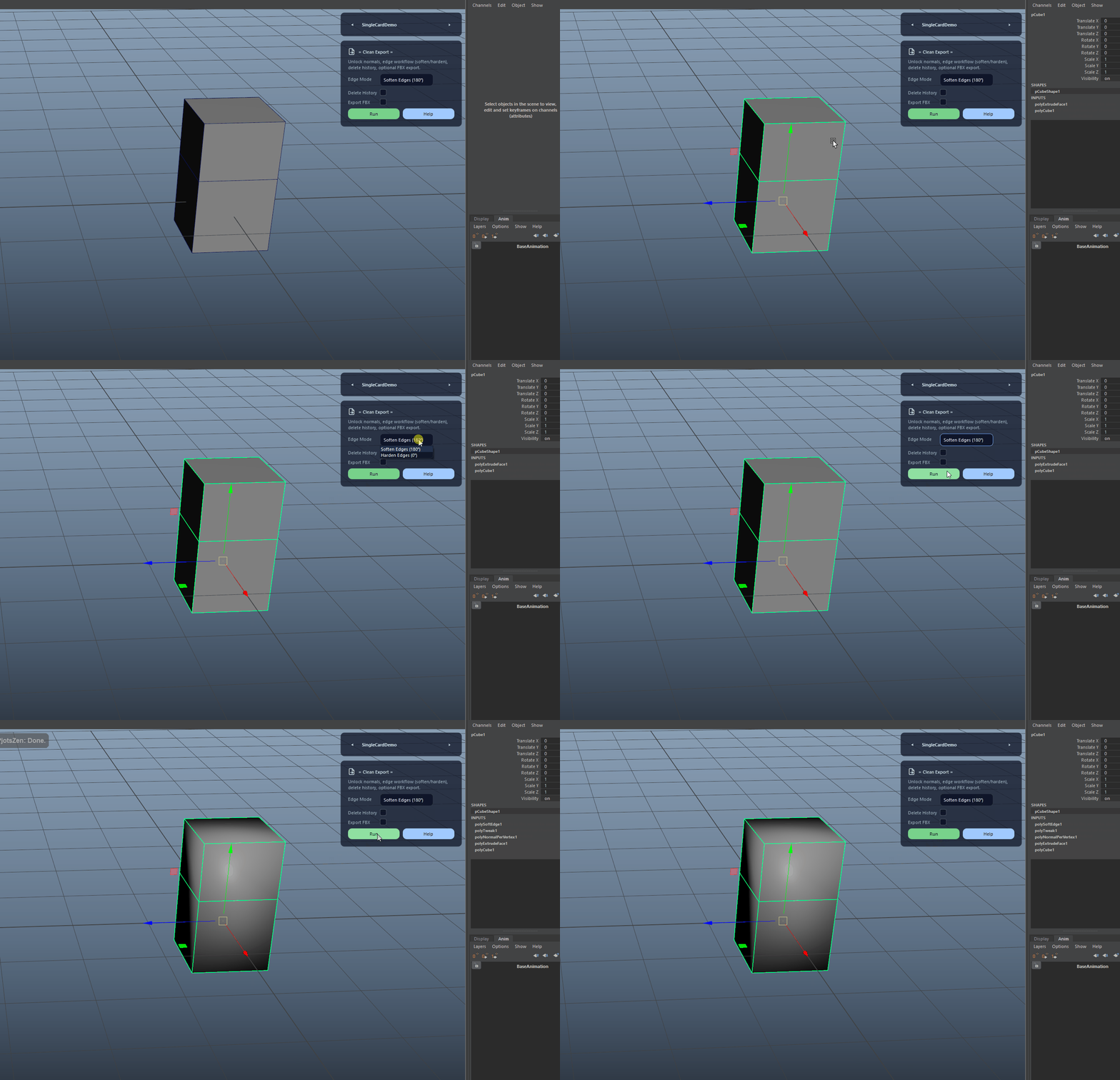
One-click mesh prep for clean shading and reliable FBX exports.
One-click mesh prep for clean shading and reliable FBX exports.
Clean Export streamlines the final export pass by unlocking normals, applying a chosen edge mode (soften or harden), optionally deleting construction history, and exporting the cleaned selection to FBX. Ideal for quick, consistent handoff to game engines or external pipelines.
Applies a full soften edge pass on the selected meshes for clean smoothing prior to export.
Hardens edges using a 0° threshold to enforce crisp shading where needed before deletion of history and export.
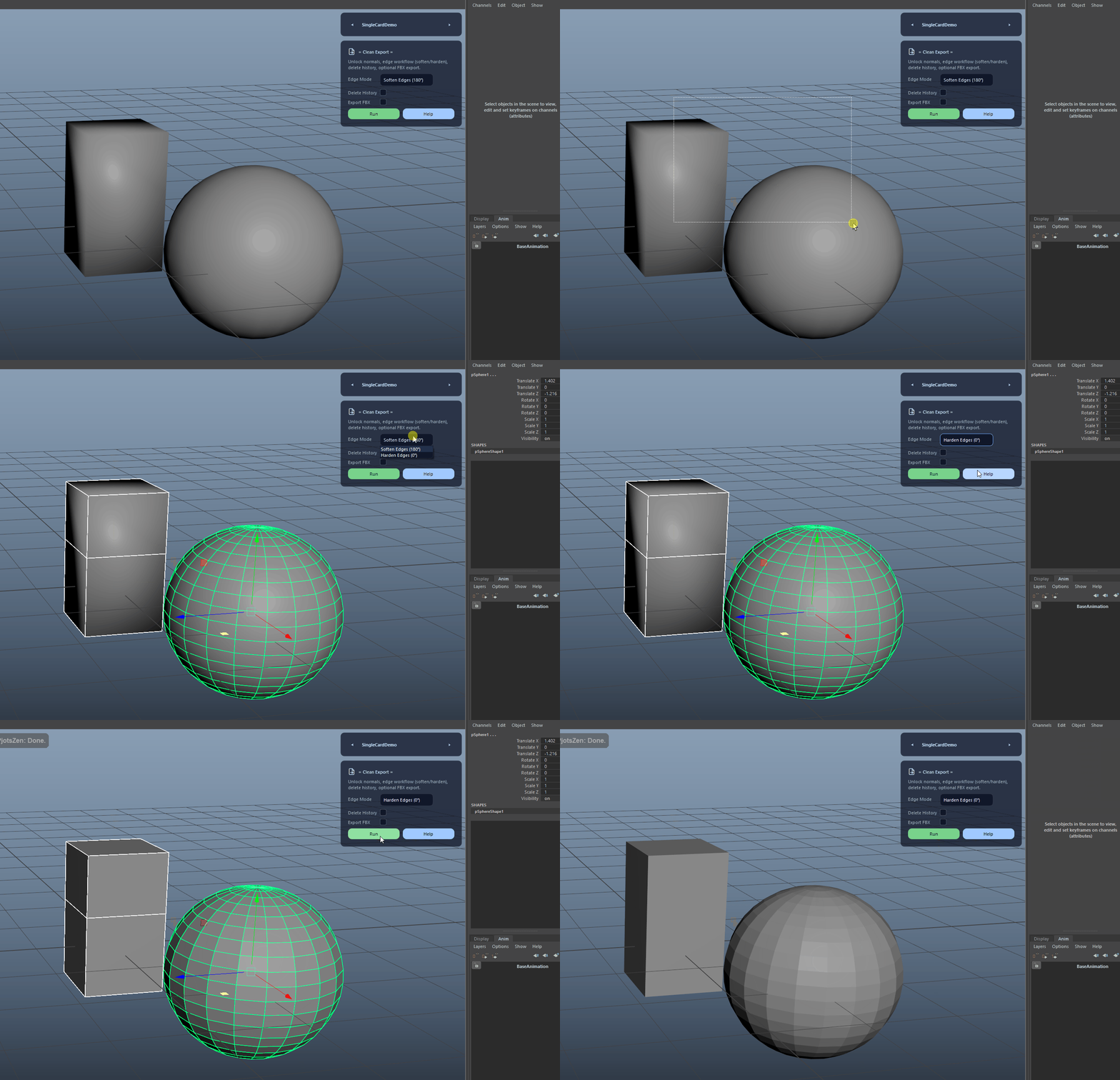
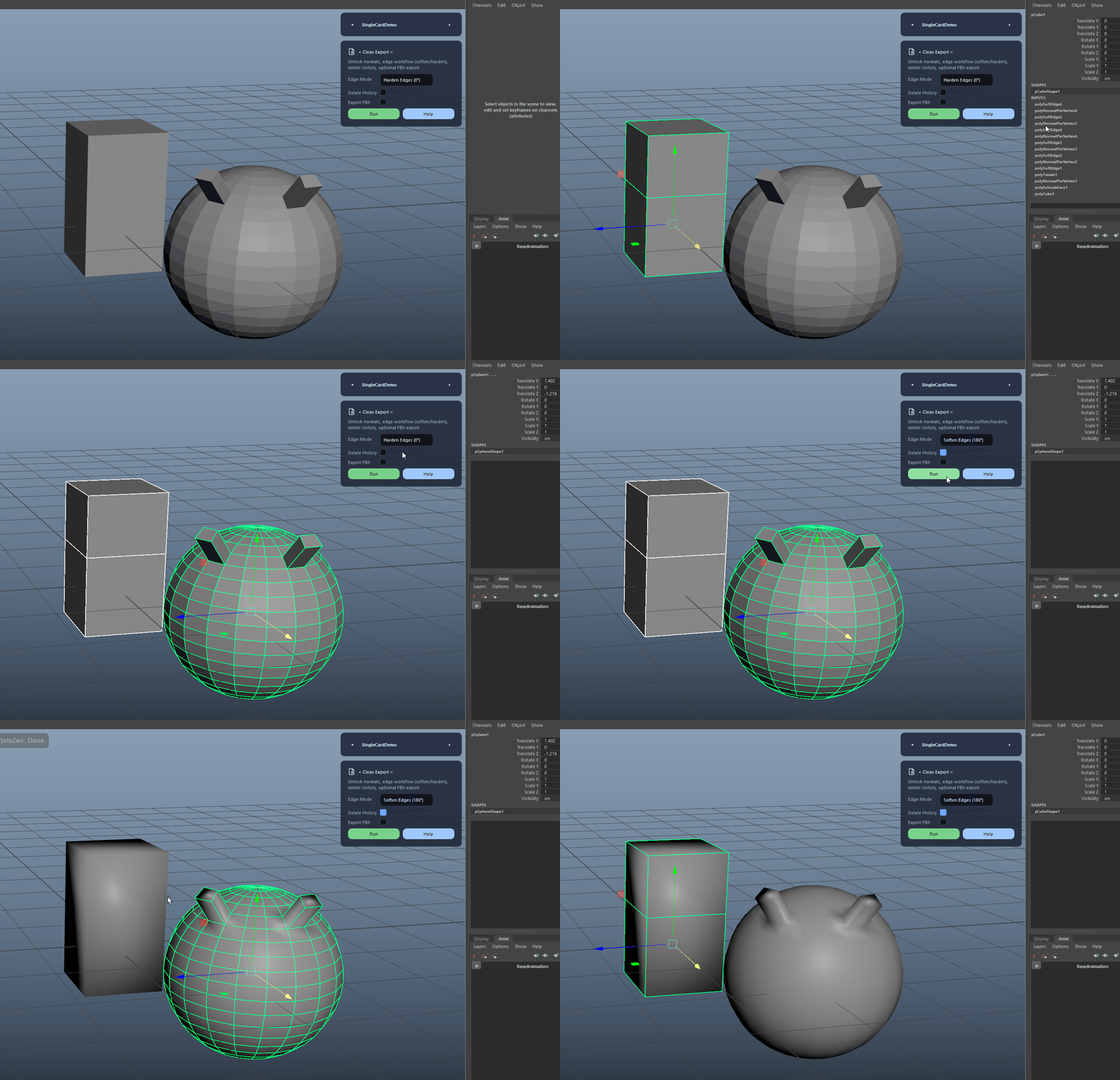
Deletes construction history after the edge operation to reduce scene bloat and produce export-ready meshes.
Loads the FBX plugin if needed, applies export defaults, opens a Save dialog, and exports the cleaned selection as FBX.
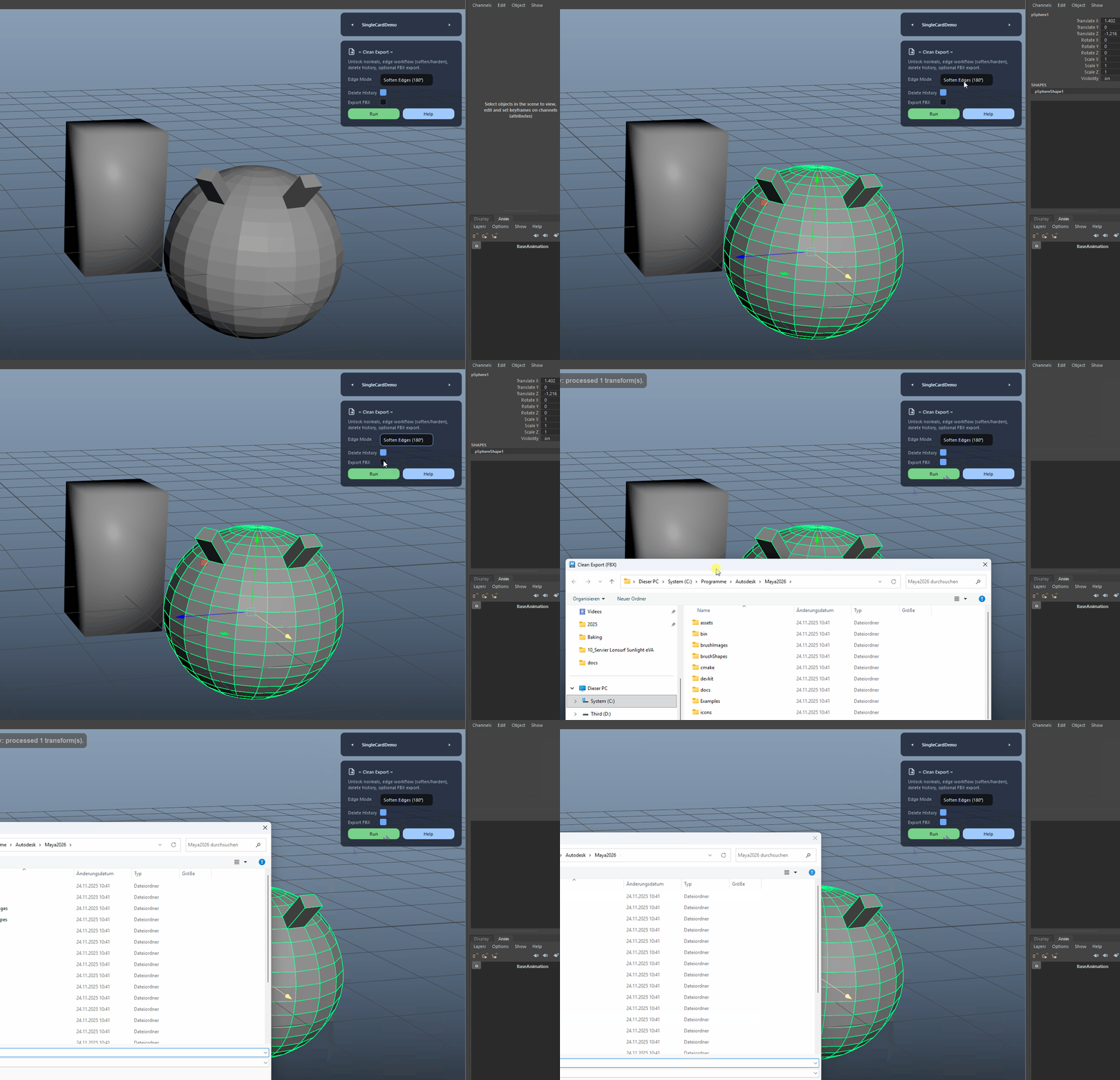
Clean Export streamlines the final export pass by unlocking normals, applying a chosen edge mode (soften or harden), optionally deleting construction history, and exporting the cleaned selection to FBX. Ideal for quick, consistent handoff to game engines or external pipelines.
Clean Export is built for Autodesk Maya and is distributed through AO Studio Tools.
Download the current AO Studio Tools package from https://aostudio.tools/getthetools.html and install it through AO.Hub.