Studio Tools

Animation Noise

Add clean, removable secondary motion using a dedicated noise animation layer.

Overview

Add clean, removable secondary motion using a dedicated noise animation layer.

Animation Noise applies sinus-based procedural noise to selected translate and rotate axes over the playback range. It writes keys into a dedicated layer (default: PZ_Noise) for a non-destructive polish workflow, with controls for amplitude, frequency, seed, step, jitter, and smooth attack/release fades.

Features

Layer-Only, Non-Destructive Noise

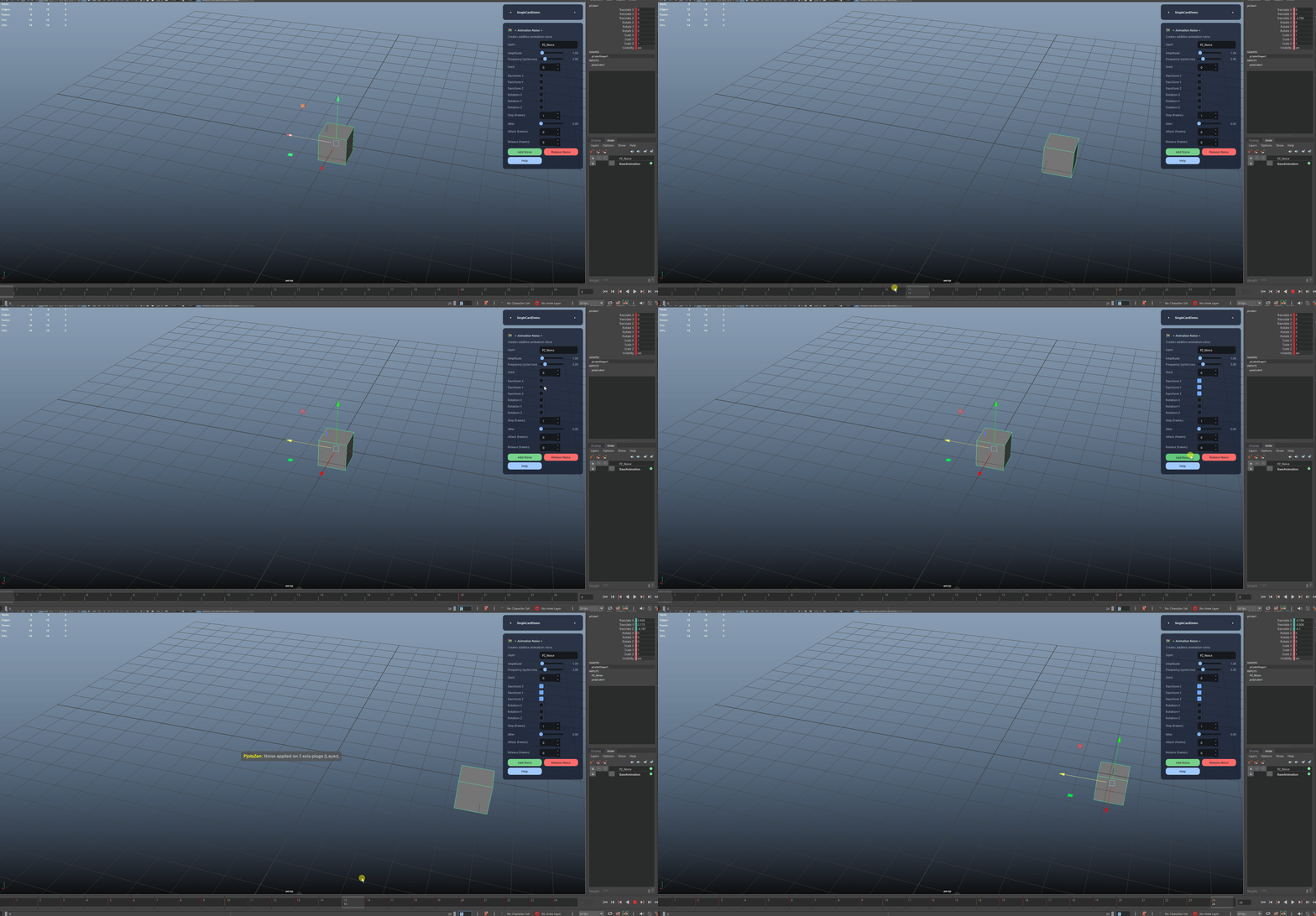
Writes sinus-based noise keys directly into a dedicated animation layer, allowing you to add and remove motion variation without touching base animation curves.

  • The default layer name is PZ_Noise and can be customized.
  • The tool switches the layer to override mode while writing keys, then returns to additive.
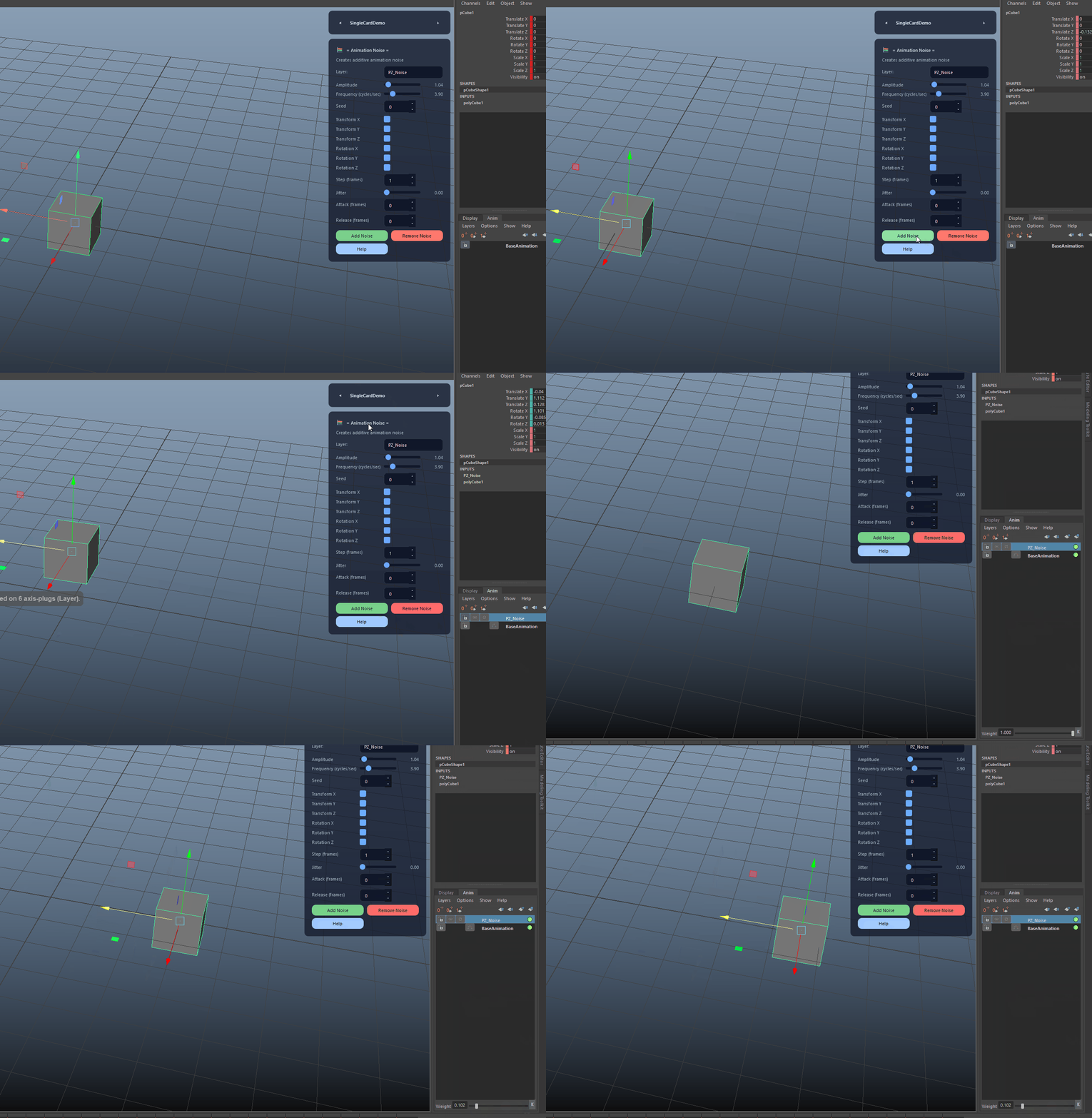
Layer-Only, Non-Destructive Noise demo

Add Noise

Applies procedural noise to selected transform axes across the current playback range using amplitude, frequency, seed, jitter, attack, and release controls.

Add Noise demo

Remove Noise

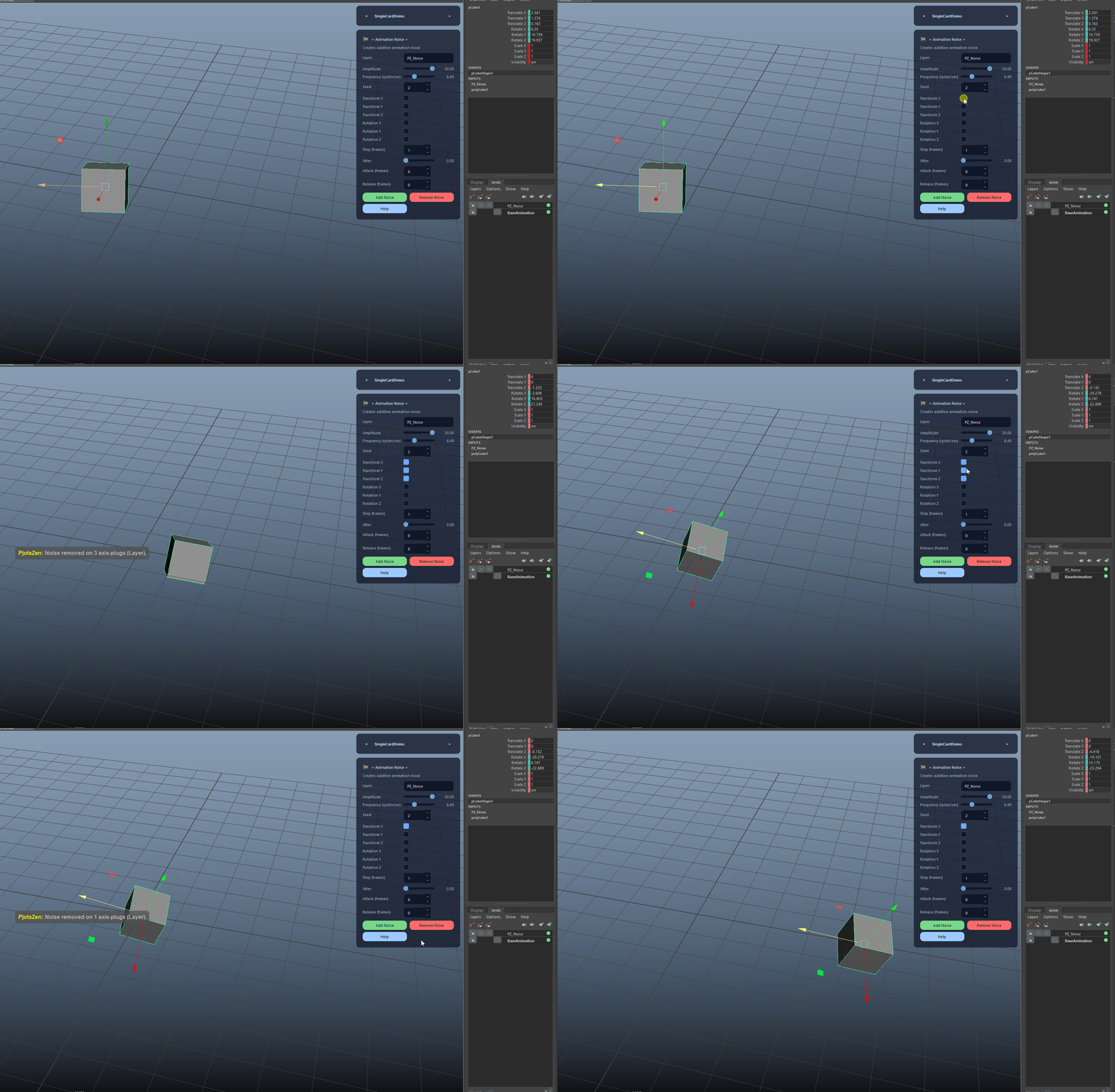
Removes noise selectively per axis. Make sure to tick exactly the channels you want to clean: e.g. add noise on X/Y/Z, then remove noise only on Y to keep X and Z untouched. The tool detaches the chosen attributes from the noise layer and deletes any upstream layer curves feeding those plugs.

  • Axis selection is the key: only checked channels are affected.
  • This enables partial cleanup without sacrificing the remaining noise motion.
Remove Noise demo

Axis Masking (Translate + Rotate)

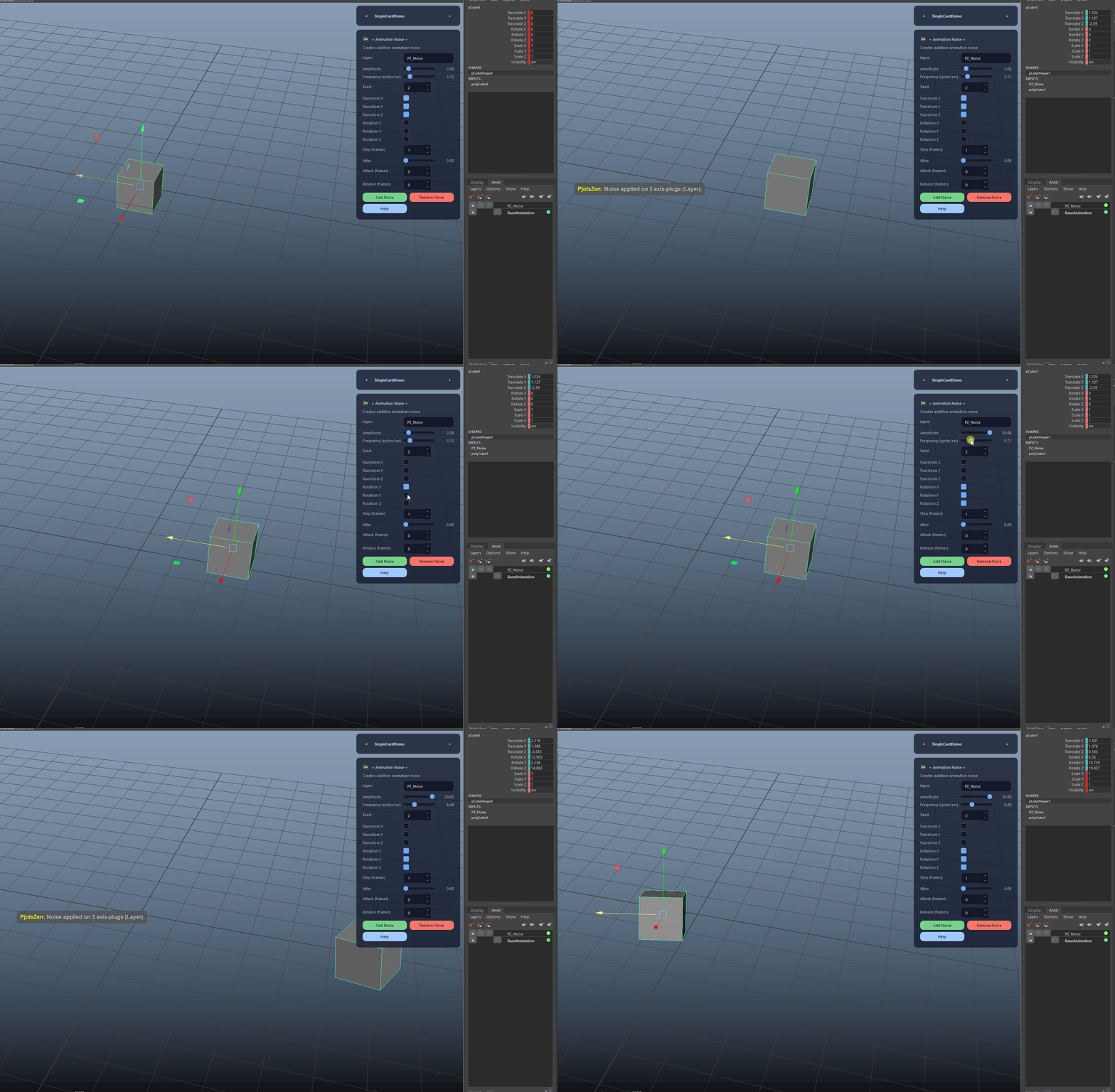
Choose exactly which translate and rotate channels receive noise. This lets you target subtle secondary motion without over-polluting the pose.

Axis Masking (Translate + Rotate) demo

Timing, Jitter and Envelope Controls

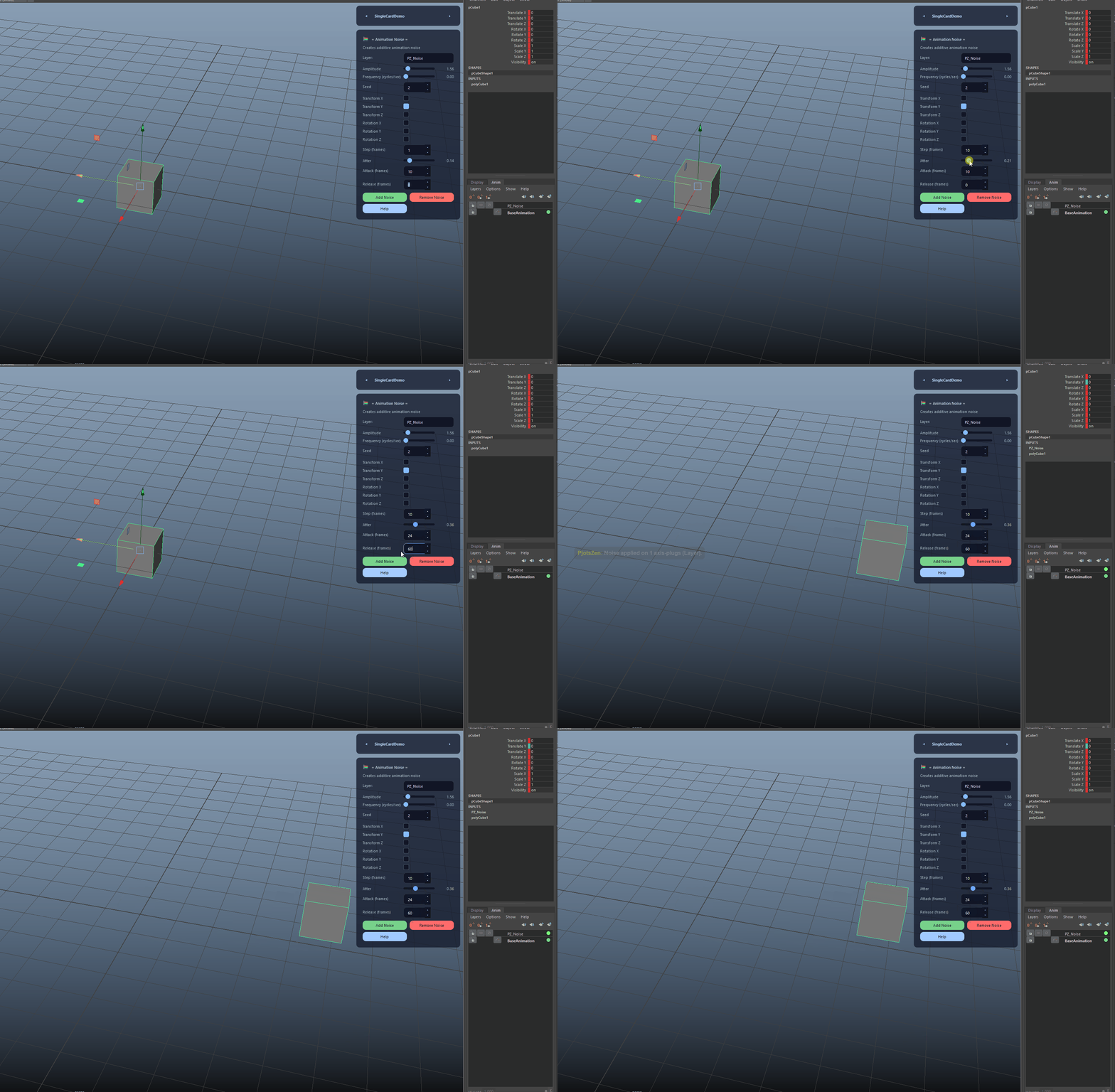
Use Step to control key density, Jitter for organic variation, and Attack/Release for smooth fade-in/out at the start and end of the range.

  • Attack/Release are measured in frames.
  • Frequency is defined in cycles per second and respects the current scene frame rate.
Timing, Jitter and Envelope Controls demo
FAQ

What is Animation Noise used for?

Animation Noise applies sinus-based procedural noise to selected translate and rotate axes over the playback range. It writes keys into a dedicated layer (default: PZ_Noise) for a non-destructive polish workflow, with controls for amplitude, frequency, seed, step, jitter, and smooth attack/release fades.

Which host application does Animation Noise support?

Animation Noise is built for Autodesk Maya and is distributed through AO Studio Tools.

Where can I download Animation Noise?

Download the current AO Studio Tools package from https://aostudio.tools/getthetools.html and install it through AO.Hub.